~/guides/WEEKEND.md
Three things to build with Claude in one weekend: a second brain, a weekly review and a one-page brand sheet
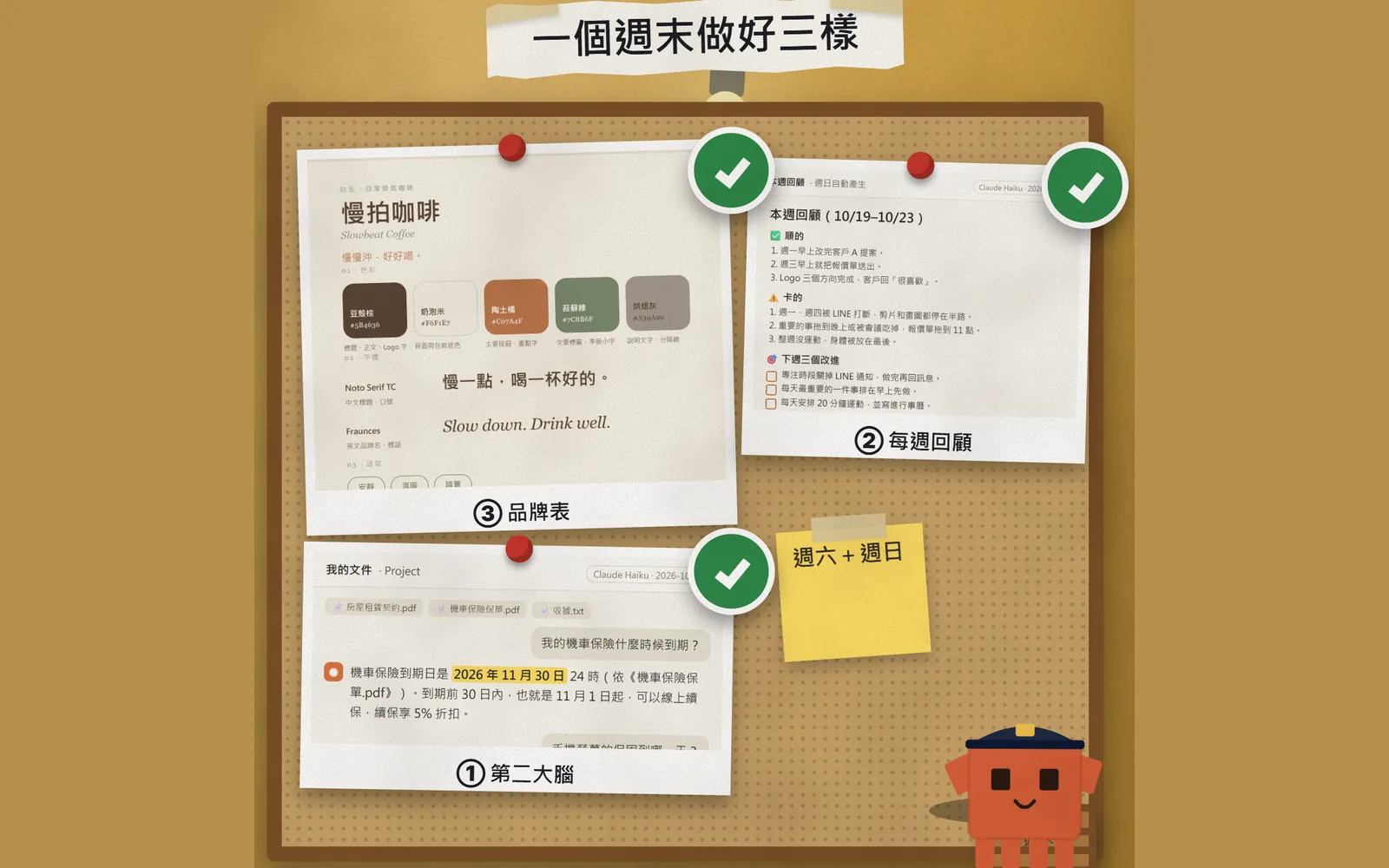
One weekend, three Claude builds: a Project that finds dates in your lease and receipts, a weekly review from nightly notes, and a one-page brand sheet.
Watch the reel on InstagramComment #WEEKEND to get this guide
Last weekend I built three things with Claude without writing a single line of code: a "second brain" that looks up dates in my documents, a weekly review that writes itself, and a one-page brand sheet. This guide walks you through all three, step by step, with prompts you can copy. The results below are real Claude output from 23 October 2026 (run on demo documents we made up, so the shop and the data are fictional). Nothing is drawn.
01What you'll have by Sunday
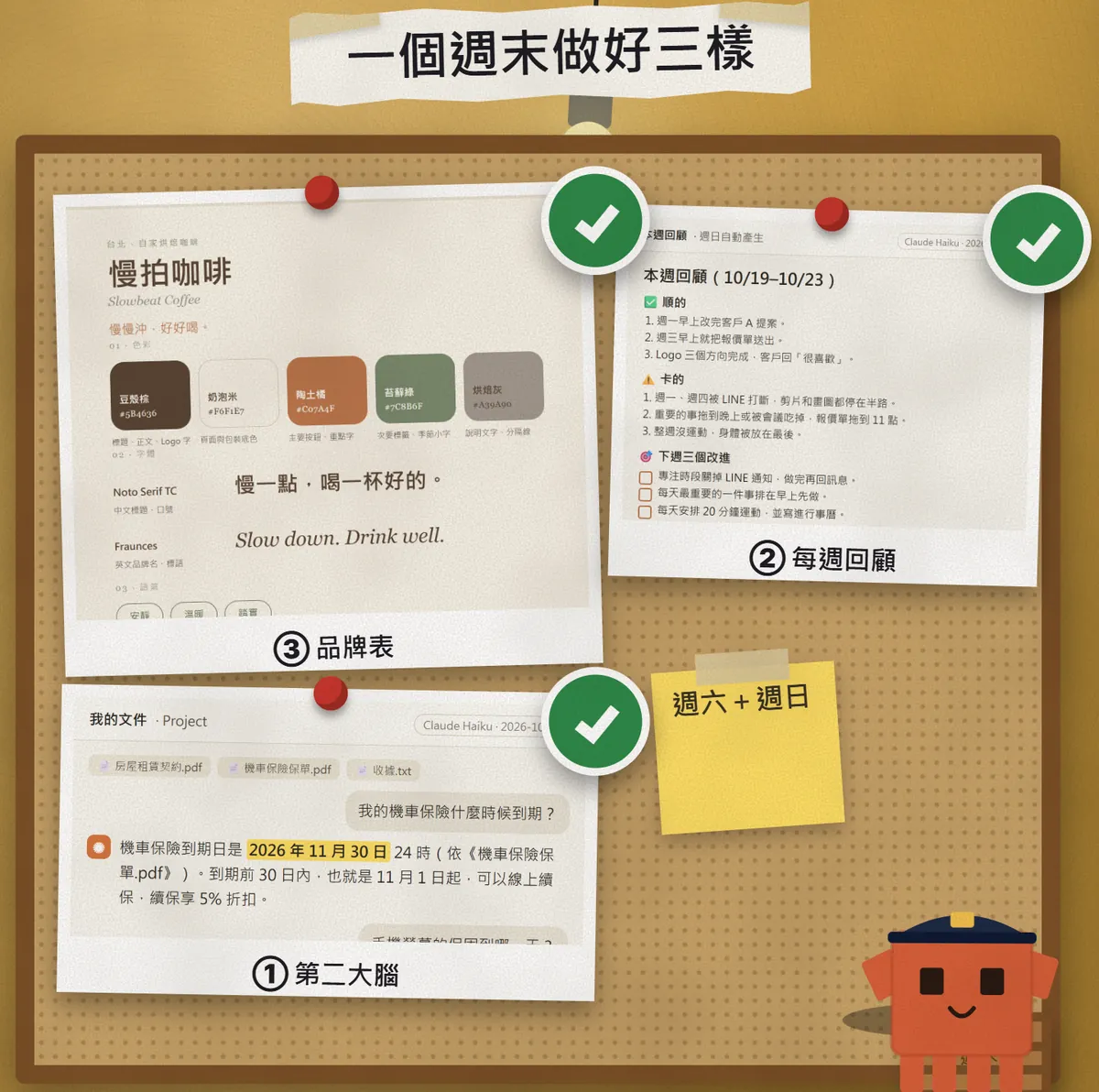
- ① Second brain: put your lease, insurance policy and receipts into one Project. Then ask "When does my insurance expire?" and Claude finds the answer in your files and tells you which document it came from.
- ② Weekly review: answer three questions each night (what went well, where you got stuck, what to do first tomorrow), and on Sunday turn them into a one-page review. To make it run by itself, hand it to a Claude Code scheduled task.
- ③ Brand kit: describe your style and Claude writes your colours, fonts and voice, then lays them out as a one-page HTML brand sheet you can post by.
All you need is a Claude account. ① and ③ work on the free plan: Claude's help centre says Projects are available to everyone, and free accounts can create up to 5. The manual version of ② (write each night, summarise on Sunday) is free too. Only the automatic Sunday run needs Claude Code scheduled tasks, which require a Pro plan or higher.
02① Second brain: lease, insurance and receipts in one Project
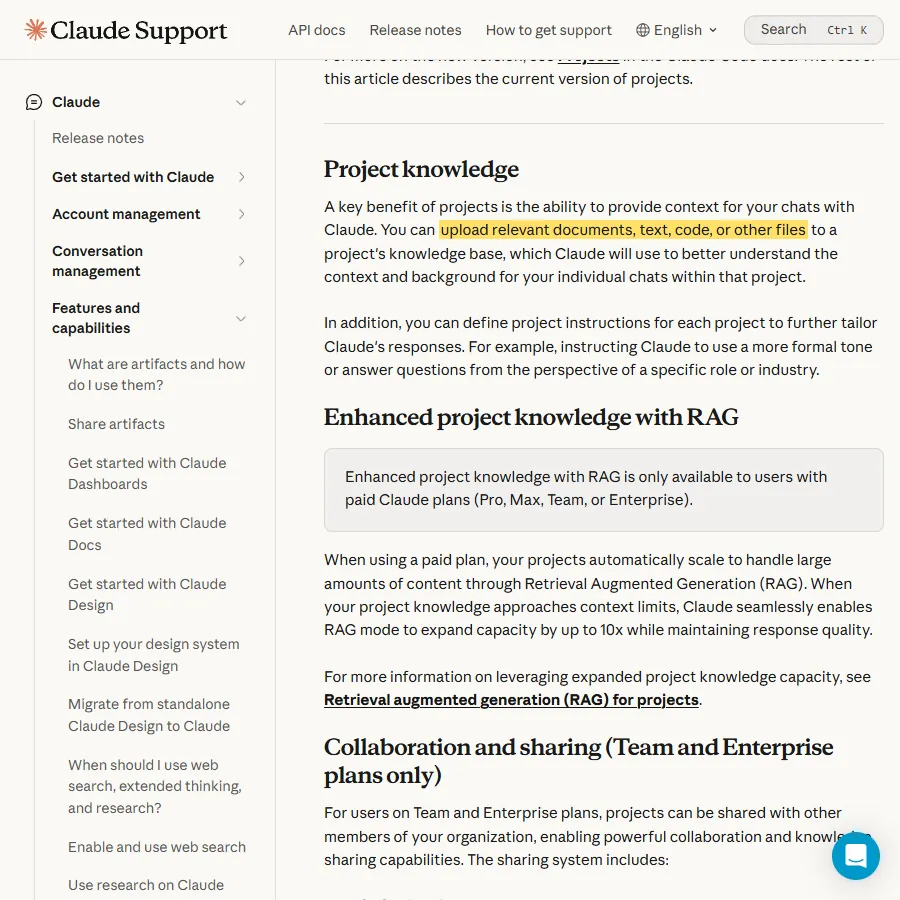
A Project is a kind of project folder inside Claude. Claude's help centre puts it plainly: you can upload documents, text, code or other files to a project's knowledge base, and Claude uses them in every chat inside that project. Upload your important papers once, and you never have to attach them again.
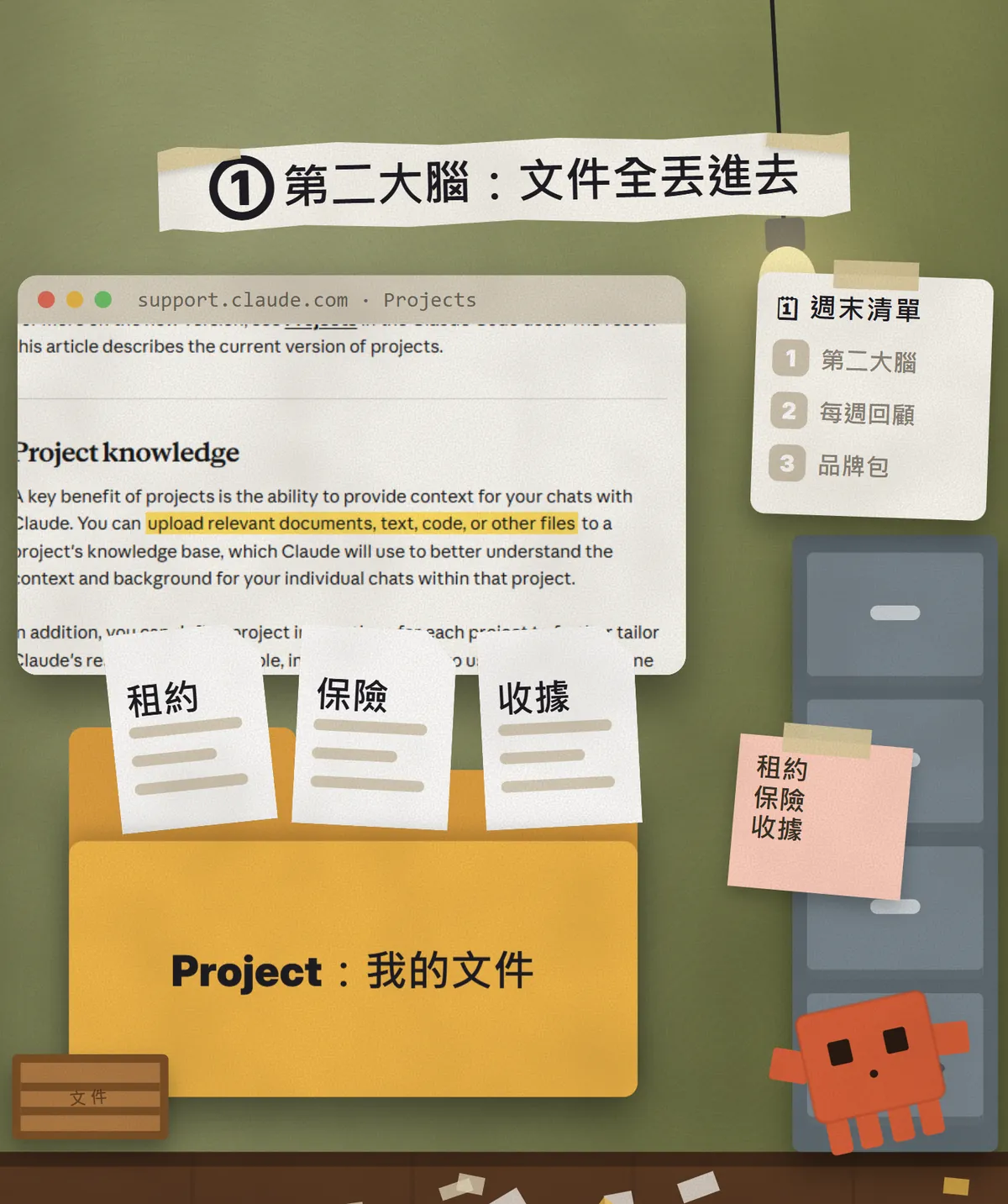
- Open Claude, choose "Projects" on the left and create a new project called "My documents".
- Upload your documents to the project knowledge: lease, insurance policy, receipts, warranty cards. Photograph or scan paper ones first.
- Paste the text below into the project instructions so every answer sticks to your documents and names its source.
- From now on, ask anything about your documents in a new chat inside this project.
You are my document assistant. Answer only from the documents in this project, and say which document each answer comes from.
If the documents don't say, reply "The documents don't say" instead of guessing.
For questions about dates, give the full date and tell me how long that is from today.
My documents include: [lease, motorbike insurance policy, receipts, warranty cards]
03① Ask about a date and it checks your files
Once the documents are in, just ask the way you normally chat. I tested it with three made-up demo documents: Claude found each date and said which document it was in.
When does my [motorbike insurance] expire? Answer only from the project documents and say which one you used.

- When does my insurance expire? When can I renew?
- How much notice do I have to give my landlord? What's the last possible day?
- How long is left on my phone screen warranty?
- What's expiring this month? List it by date.
04② Weekly review: three questions a night, one summary on Sunday
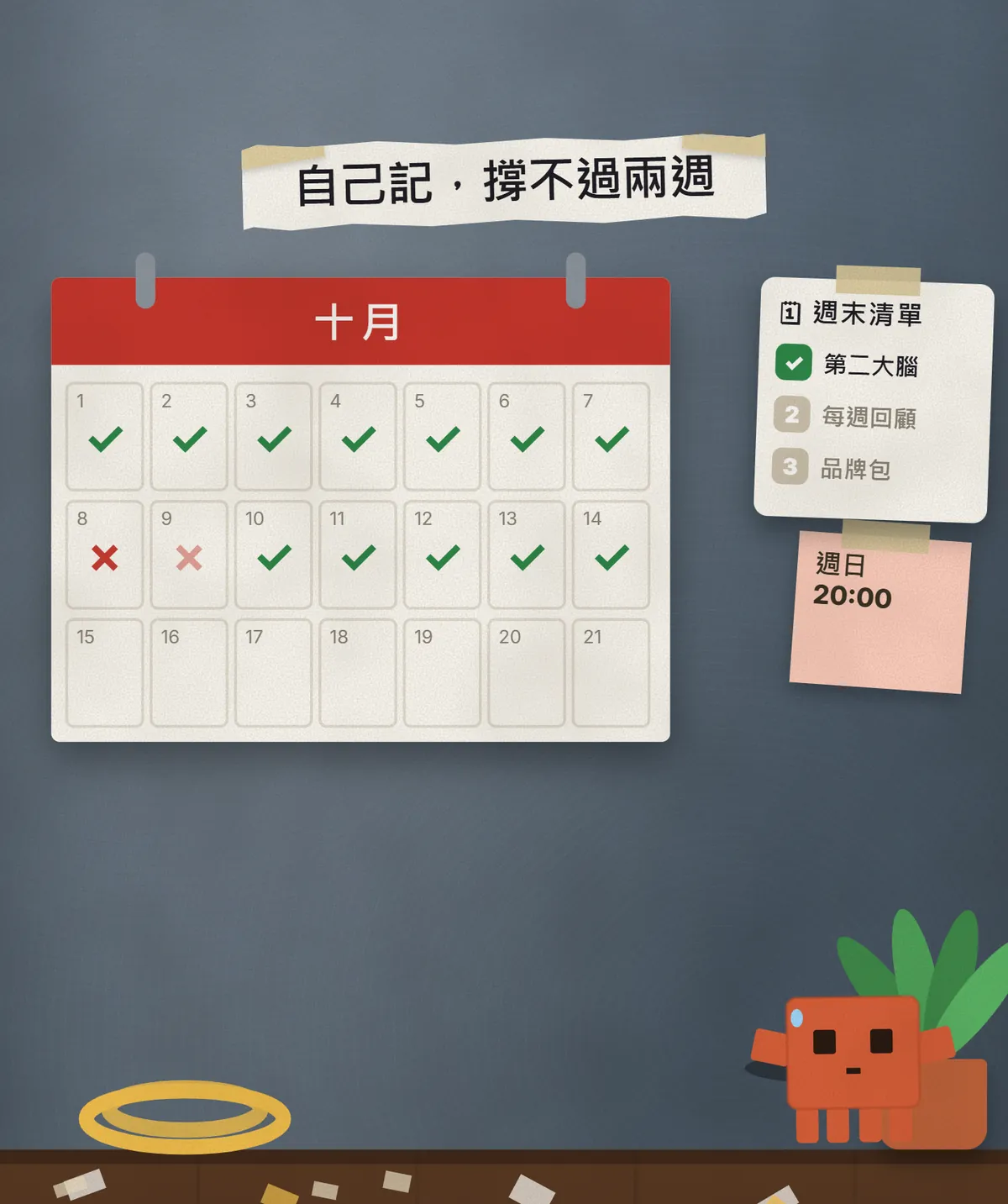
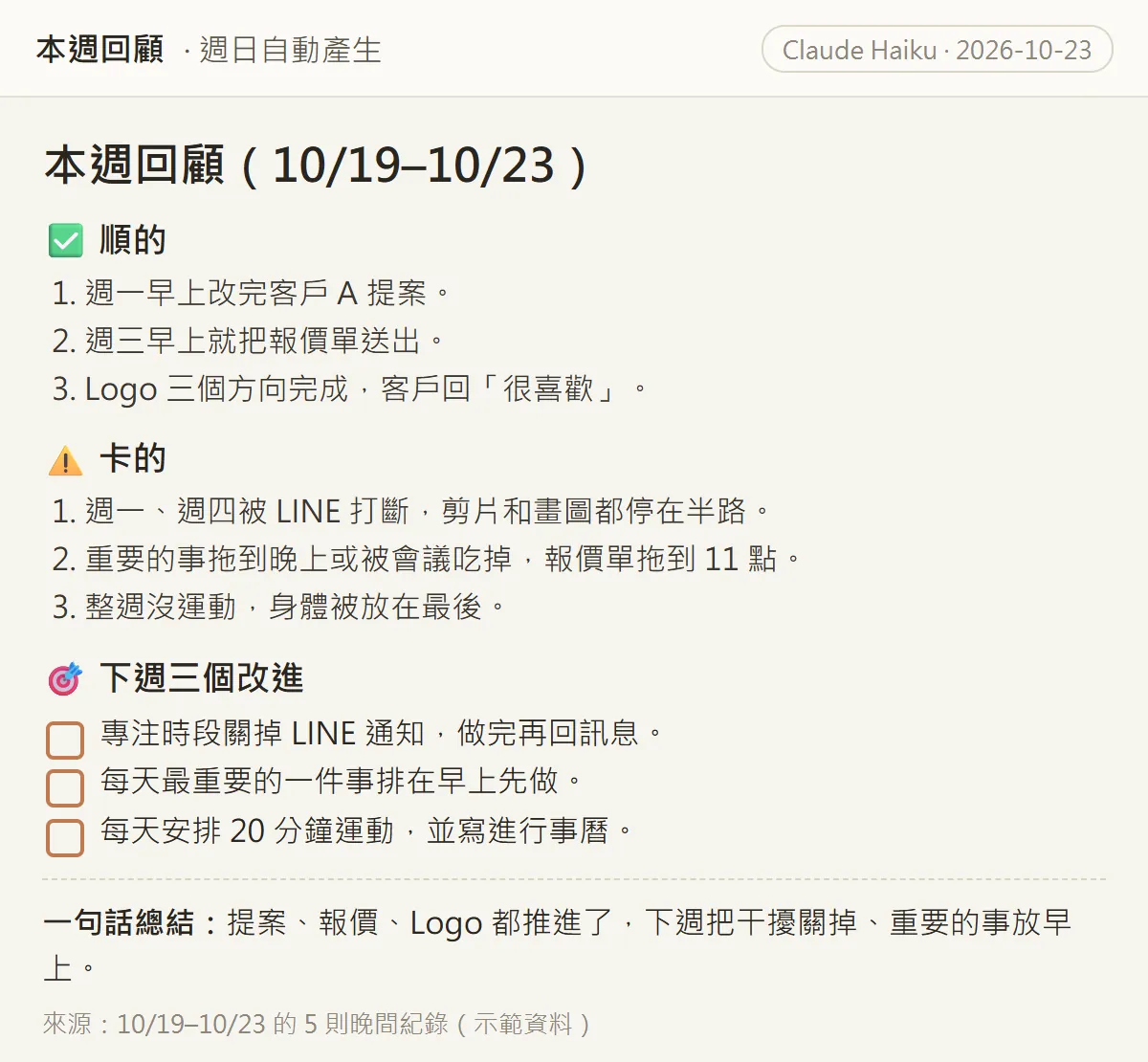
The hard part of a weekly review isn't writing it, it's keeping it up. So each night you write only three lines: what went well, where you got stuck, and what to do first tomorrow. On Sunday, Claude turns the week's lines into one page.
- Create another Project called "Weekly review".
- Every night, paste the "three evening questions" below into this project and answer each in one line.
- On Sunday evening, paste the "Sunday summary" prompt into the same project and Claude turns the week's notes into your review.
[Date] evening note
What went well today? [one line]
Where did I get stuck? [one line]
What do I do first tomorrow? [one line]
Turn this week's evening notes into "This week's review":
3 things that went well, 3 places I got stuck, 3 improvements for next week (as tick-box to-dos), and a one-sentence summary at the end.
Use only what I wrote; don't fill in anything I didn't.
05② Let it run itself on Sunday: Claude Code scheduled tasks
To skip even the Sunday paste, hand it to Claude Code's scheduler. The feature is now called scheduled tasks; it used to be called routines, which is why "routines" still shows up in the web address and commands. The official docs say it needs a Pro, Max, Team or Enterprise plan, and that it's a research preview, so features and limits may change.
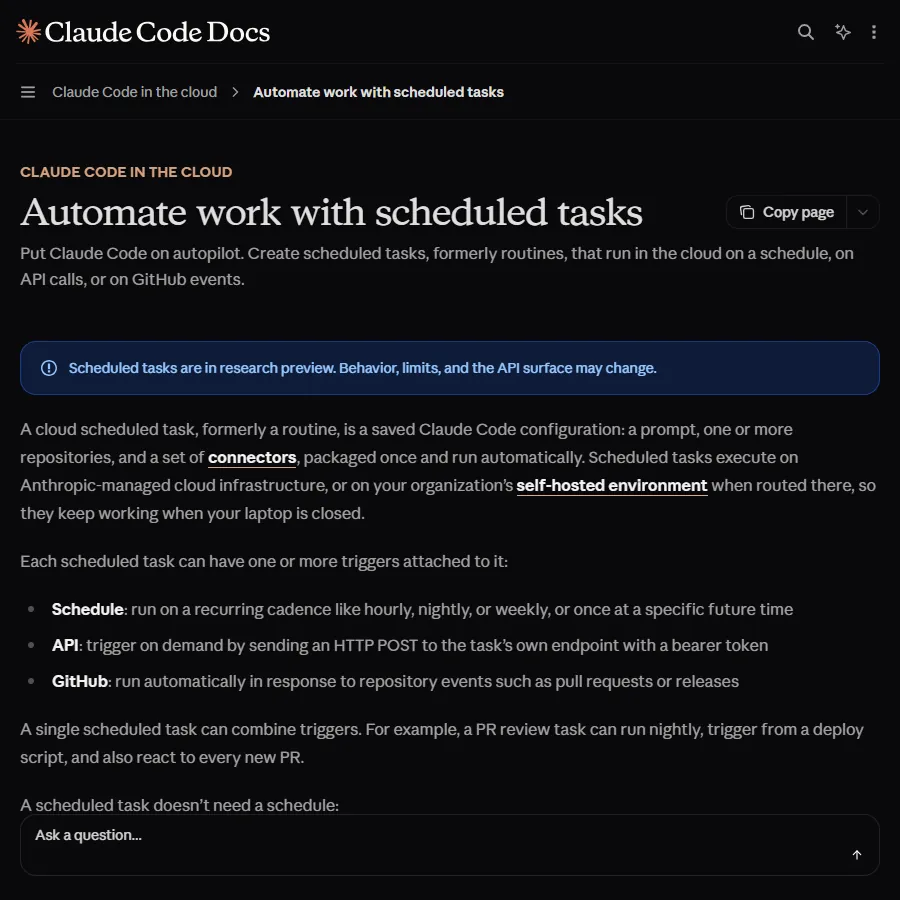
There are two kinds, and the difference is whether they can read files on your computer. Cloud scheduled tasks run on Anthropic's cloud and keep running with your laptop closed, but each run starts from a fresh copy of a GitHub repository, so they can't see files on your computer. Local scheduled tasks in the Desktop app can read the folder you pick, but they only run while the Claude desktop app is open and your computer is awake. If your evening notes live on your own computer, a local task is the simplest option.
- Write your three nightly lines into one file on your computer, such as "evening-notes.md", in a folder of its own.
- Open the Code tab in the Claude desktop app, click "Scheduled" on the left, then "New task".
- Choose "Set up manually", name it "Weekly review" and paste the scheduled prompt below into the instructions box.
- Expand Advanced settings, turn on "Only on this computer" and set Local folder to that folder.
- Under Trigger, choose Weekly and pick Sunday evening, for example 20:07.
- Click Create, then "Run now" once to test it and check that it wrote a review file.
Read [evening-notes.md] in this folder and look only at the last 7 days of notes.
Turn them into "This week's review": 3 things that went well, 3 places I got stuck, 3 improvements for next week, and a one-sentence summary at the end.
Save it as a new file "review-[today's date].md" and don't change the original notes.
If there are no notes from the last 7 days, write one line: "No notes this week."
06③ Brand kit: describe your style, get a one-page brand sheet
This one is the most satisfying. Tell Claude who you are and the feel you want, and it writes a tagline, brand colours, fonts and a voice, then lays them out as one brand sheet. The page below is the HTML Claude wrote for the fictional "Slowbeat Coffee". We didn't change a word.
I'm [shop name + what you do], my style is [3 adjectives], my values are [...], and my customers are [...].
Give me a tagline, 5 brand colours (HEX + what each is for), fonts for Chinese and English (free Google Fonts), and a voice (3 things I'd say and 3 I'd never say),
then turn it into a one-page HTML brand sheet.
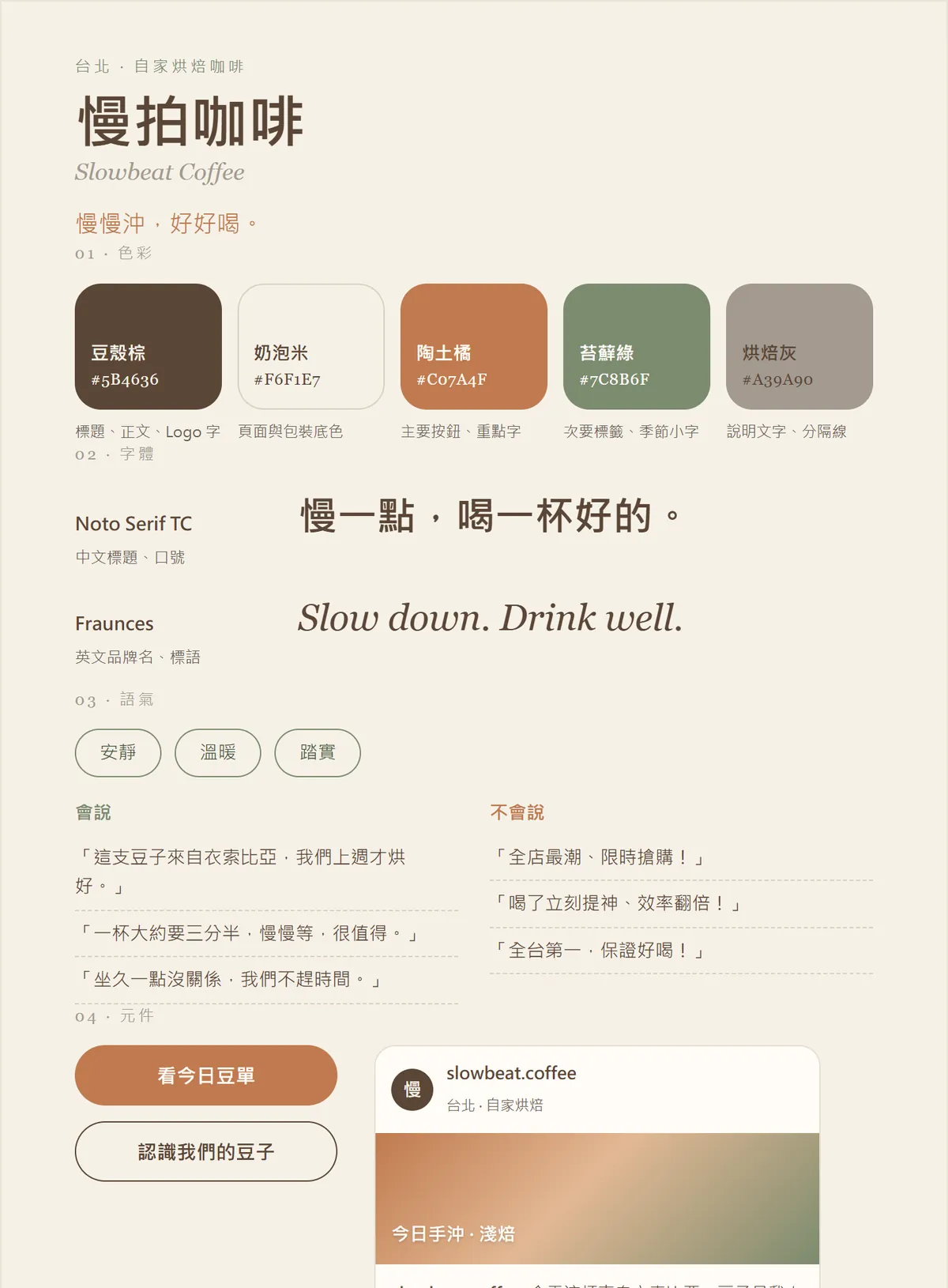
- Claude gives you a block of HTML. Copy it, save it as "brand.html" and open it in your browser to see the page.
- Don't like a colour or font? Just tell it, for example "make the main colour a darker green" or "use a sans-serif font for Chinese".
- Once you're happy, screenshot it and keep it on your phone. Use its colours and voice for every post, story and business card.
Make the brand sheet's page height automatic so nothing gets cut off.
[Add one more section: 3 sample Instagram posts written in this voice]
07Good to know
- Black out ID numbers, bank account numbers and similar details before uploading. Your second brain needs dates and terms, not those.
- Dates come from your documents, so check them against the original the first time. When a document changes (say, after you renew a lease), upload the new version.
- Free plans get up to 5 Projects. On paid plans, Projects with lots of documents automatically switch to retrieval (RAG) to hold more; free plans don't, so on the free plan keep only the documents you actually look things up in.
- Scheduled tasks need Pro or higher and are a research preview, so names, screens and limits may change. Cloud tasks can't read files on your computer; local tasks only run while the app is open and the computer is awake.
- Every scheduled run uses some of your plan's usage. Once a week makes little difference.
- The documents, evening notes and "Slowbeat Coffee" in our images are fictional demo data, and the results are from Claude Haiku on 23 October 2026. Your results will differ a little each time, and that's normal.
Sources
What should the next reel cover?
I test Claude and AI tools every day and turn the useful ones into reels. Follow @vivianlin.tech to catch each new guide.