~/guides/CLONE.md
Rebuild a whole web page from one screenshot with AI: a full guide to the open-source Screenshot to Code
Open-source Screenshot to Code turns a screenshot into HTML/Tailwind, React or Vue code, and a screen recording into a prototype. Setup, keys, cautions.
In my Reel I gave AI one screenshot of our own homepage and it rebuilt the whole page: the original on top, the AI rebuild below. The tool is the open-source Screenshot to Code. You drop in a screenshot, it reads the layout, spacing, fonts and colours, and writes HTML plus Tailwind (or React, Vue and more). This is the full version: how to install it on your own computer, which API key you need, how to use it, and the screen-recording-to-prototype feature. One thing first: the "AI rebuild" image in the Reel was made by asking Claude to follow this tool's own prompts. It is not a screenshot of the tool's interface, and I say so again below. Every image here is from our Reel; the star is our orange block mascot.
01The result first: one screenshot, the whole page rebuilt
On top is our own homepage (hobbyland-group.com). Below is what AI rebuilt from a single screenshot. Layout, spacing, fonts and colours come out very close, and you didn't have to carve it by hand.
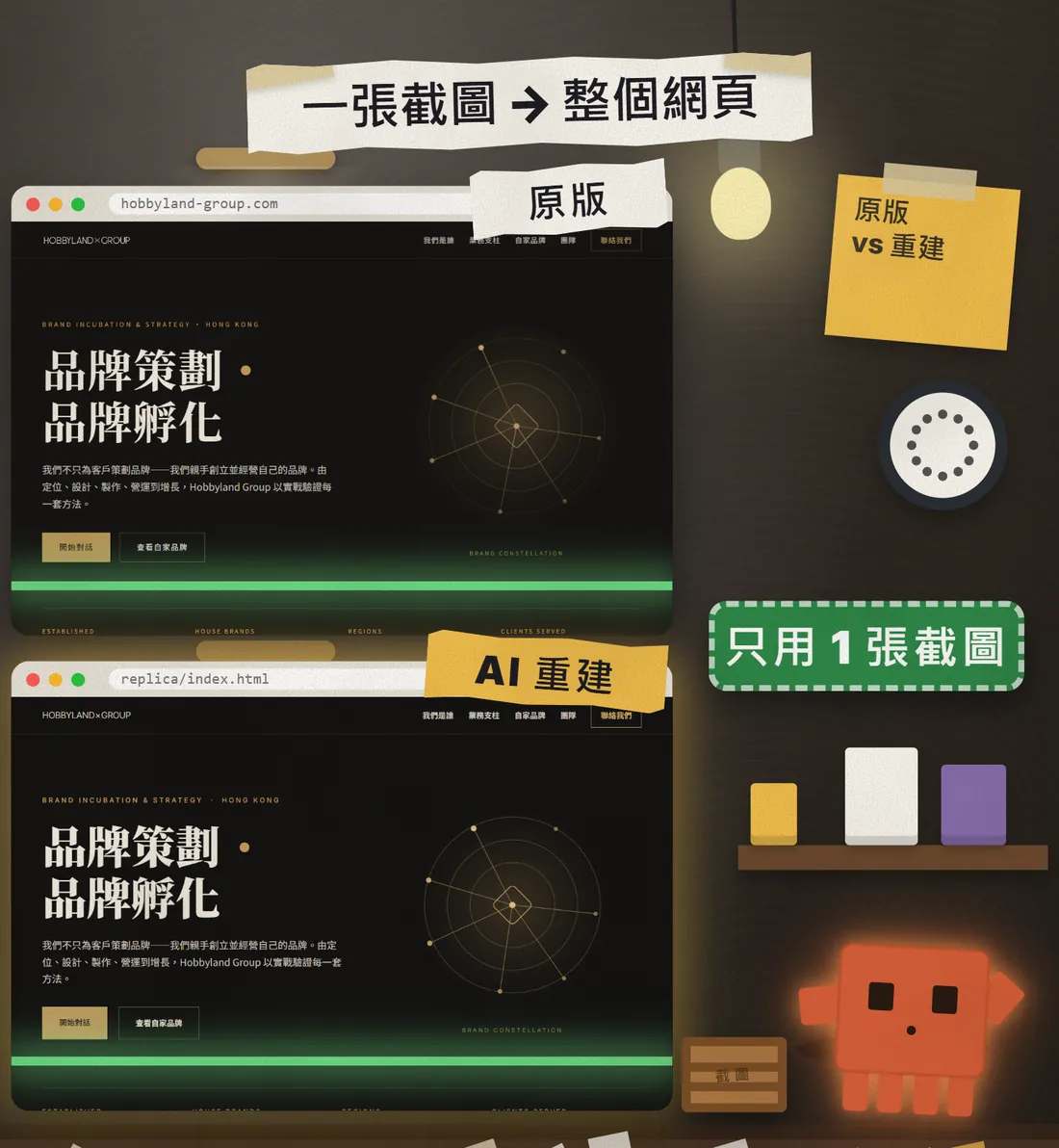
Many people assume copying a page means writing it line by line. It doesn't. The tool reads the screenshot first, then writes the code, and you check and tweak.

Keep reading for what the tool is, the full local install commands, how to drop in a screenshot, how recording-to-prototype works, and the cautions at the end.
02What the tool is and what to prepare
Screenshot to Code is an open-source project by GitHub user abi under the MIT licence, with 80.5k stars when I checked on 20 October 2026. The README describes it as converting screenshots, mockups, Figma designs and screen recordings into code with AI.
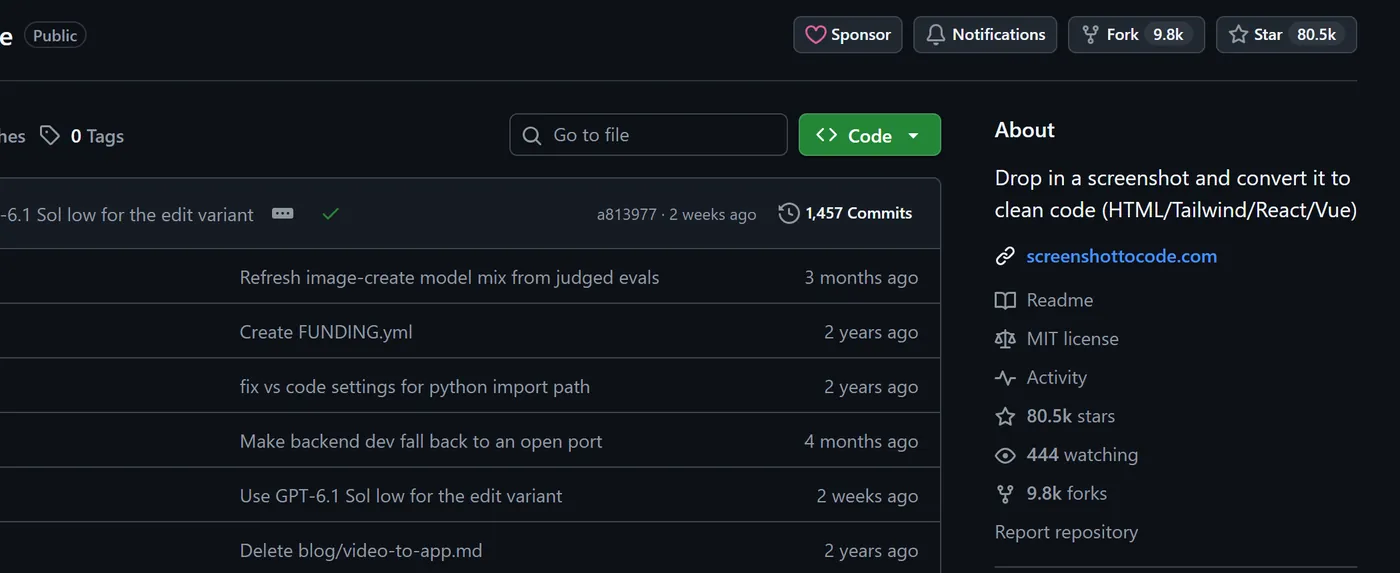
Supported stacks: HTML + Tailwind, HTML + CSS, React + Tailwind, Vue + Tailwind, Bootstrap and Ionic + Tailwind.
- An API key from an AI provider: OpenAI, Anthropic (Claude) or Gemini, at least one. You pay for your own usage; the cost depends on the provider and how much you use.
- For recording-to-prototype you need a Gemini key; the README says Gemini is required for video mode.
- The local install needs Python (the project's config says 3.10 or newer), Poetry, Node.js and pnpm. If you'd rather not install those, see Docker or the official hosted app below.
- A screenshot of your own web page or design.
03Install it locally (follow the README, about 10 minutes)
First get the project: go to https://github.com/abi/screenshot-to-code and git clone it or download the ZIP and unzip it. You then use two terminal windows, one for the backend and one for the frontend. The commands below are copied from the README, which I checked on 20 October 2026. The project updates, so if anything differs, the README wins.
- Open the first terminal and go into the project's backend folder.
- In the backend folder create a file named .env and paste in the lines below, replacing the [ ] parts with your own keys. If you only have one key, write only that line.
OPENAI_API_KEY=[your OpenAI key, leave the line out if you don't have one]
ANTHROPIC_API_KEY=[your Anthropic key, leave the line out if you don't have one]
GEMINI_API_KEY=[your Gemini key, leave the line out if you don't have one]
- Run the commands below in order. The first line installs Poetry, so skip it if you already have it; cd backend is counted from the project root.
- The playwright install chromium line is for the optional "screenshot preview"; if you skip it the tool just leaves that feature out.
pip install --upgrade poetry
cd backend
poetry install
poetry run playwright install chromium
poetry run uvicorn main:app --reload --port 7001
- Open a second terminal, go back to the project root and run the commands below.
- Open http://localhost:5173 in your browser. That is the tool.
- If the backend isn't running on port 7001, change VITE_WS_BACKEND_URL in frontend/.env.local.
cd frontend
pnpm install
pnpm dev
Prefer Docker? Run these two lines from the project root and open http://localhost:5173 the same way. The README notes you can't develop the app this way, because file changes don't trigger a rebuild.
echo "OPENAI_API_KEY=[your key]" > .env
docker-compose up -d --build
04How to use it: drop in a screenshot, see what it reads, get the code
- Open http://localhost:5173 and pick the output you want, for example HTML + Tailwind.
- Drag the screenshot in (use your own site or design).
- Wait for it to generate; you can see a preview and the code.
- If you're not happy, refine with follow-up prompts; there's a template below.
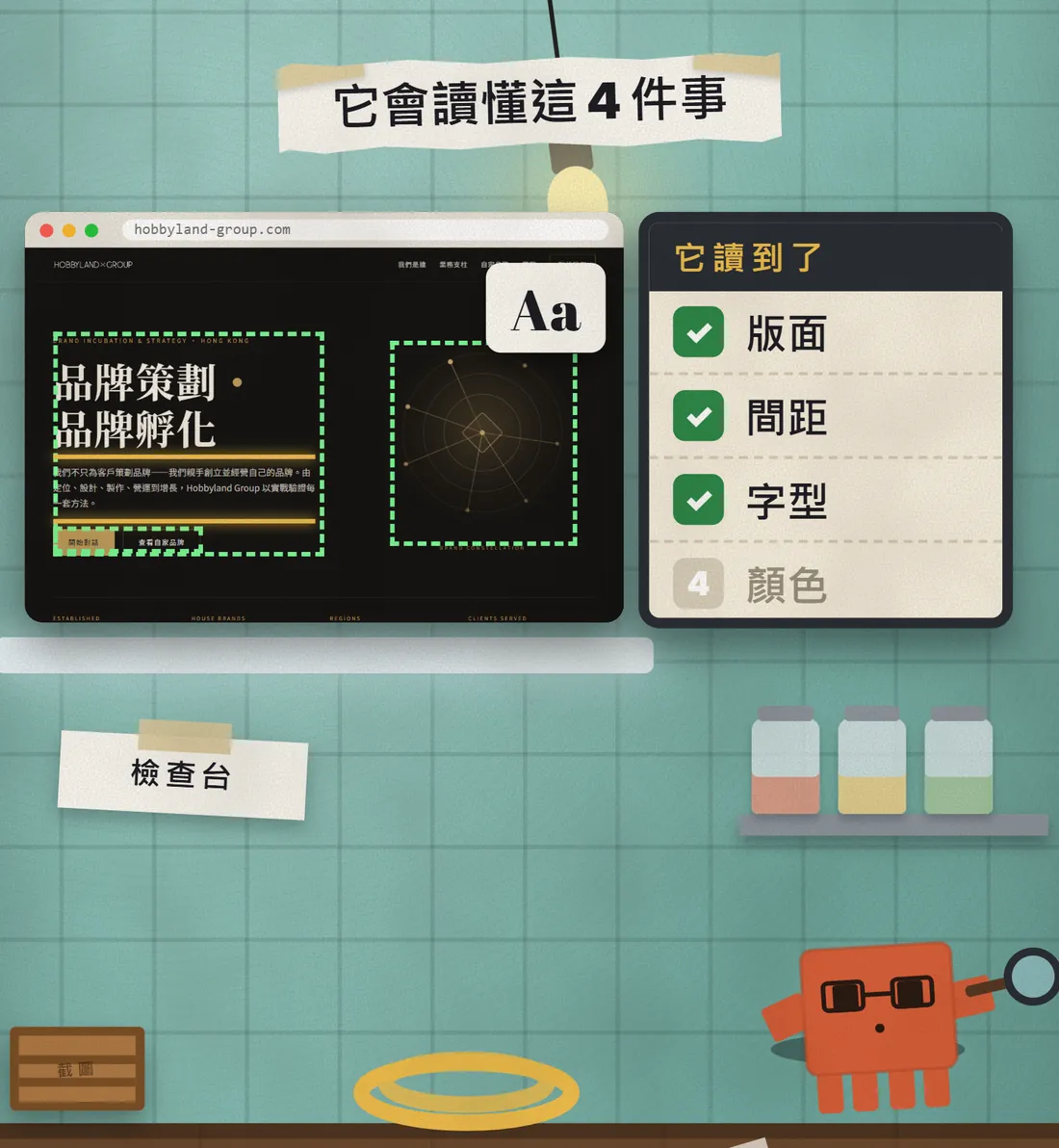
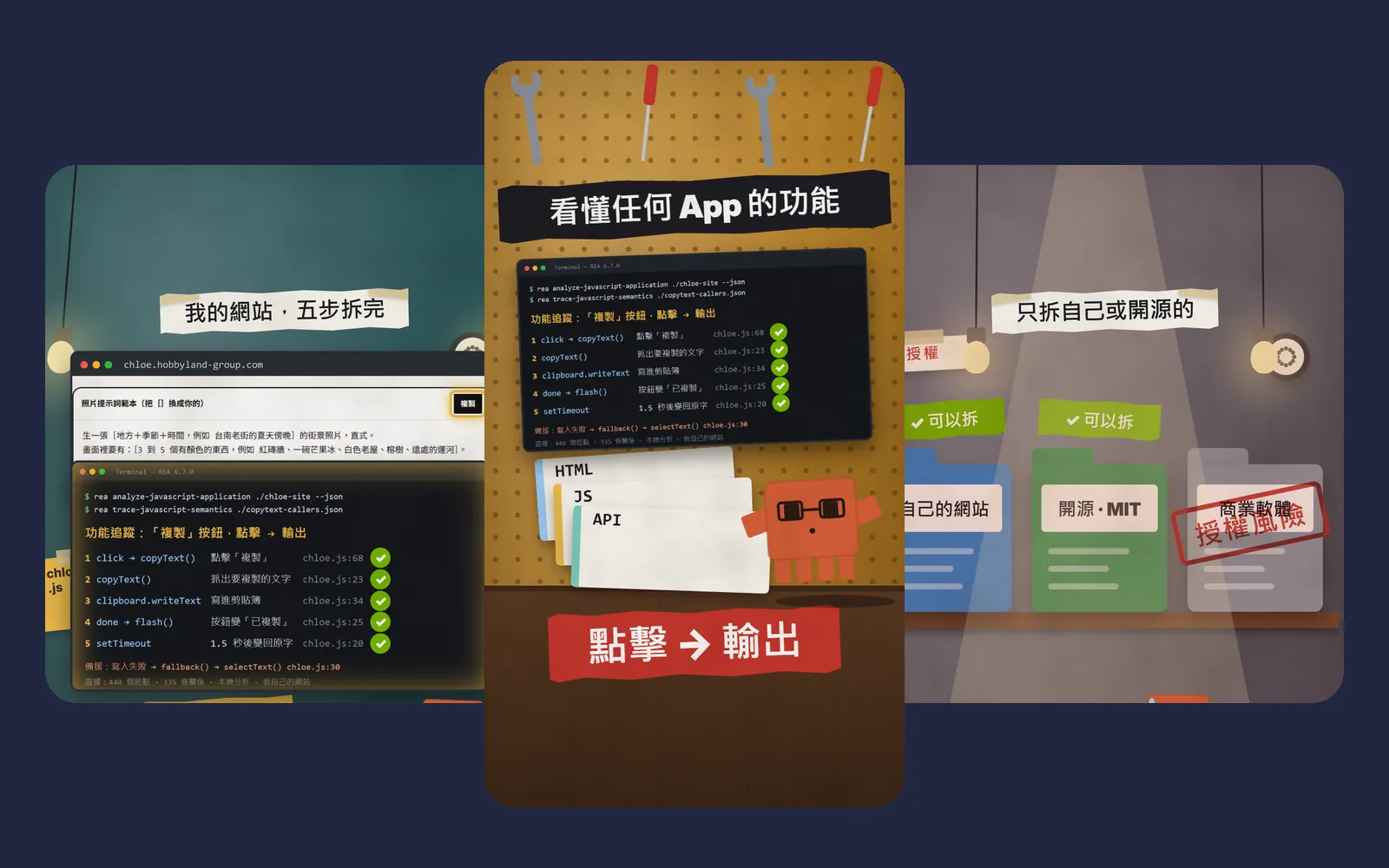
In the Reel I used a tick-list to show the 4 things it "reads": layout, spacing, fonts and colours. That is my illustration, not a checklist the tool actually shows; what you see will be whatever the tool displays when you run it.
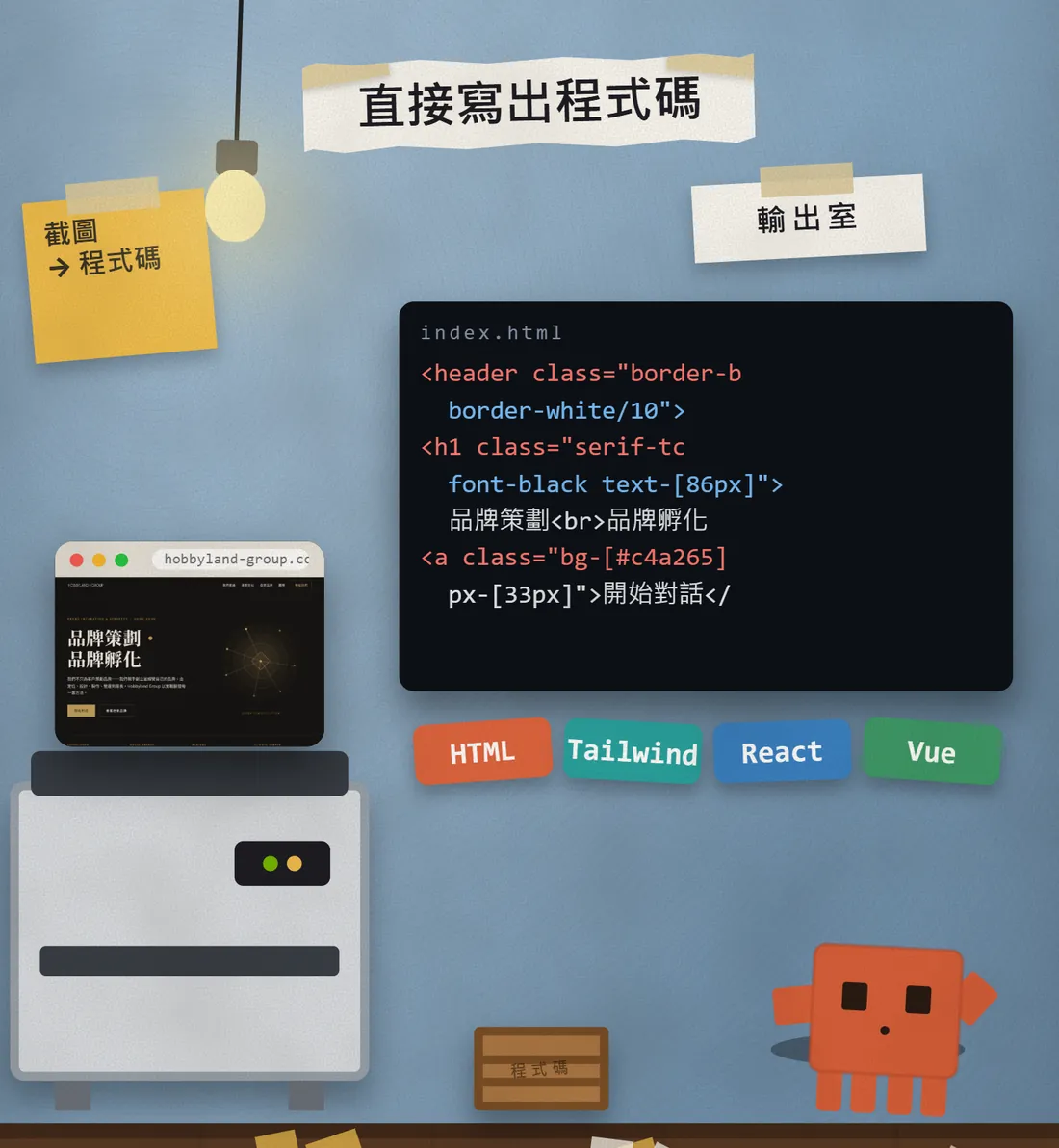
The official site says you can follow up when the first try isn't perfect, for example make the header sticky, use a darker palette or add a mobile menu. Use a format like this and change one thing at a time:
Change only the [header / footer / button] and leave everything else as it is: [for example: make the header sticky, tighten the spacing, add a mobile menu].
05Even better: give it a website recording and get a clickable prototype
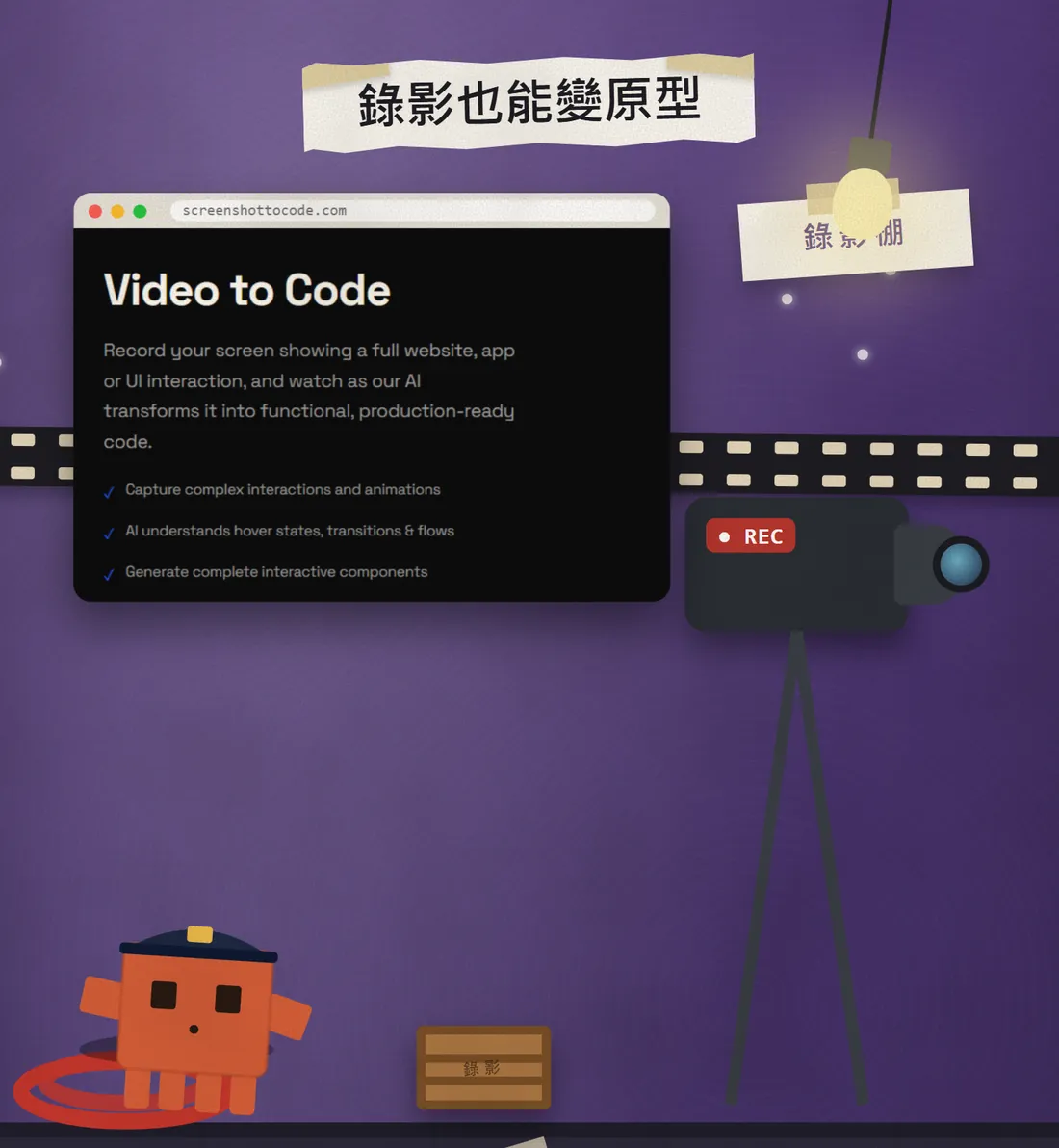
Besides screenshots it can work from a screen recording. On the official site (screenshottocode.com), Video to Code says: record your screen showing a full website, app or UI interaction, and the AI turns it into functional code. The listed points are capturing complex interactions and animations, understanding hover states, transitions and flows, and generating complete interactive components.
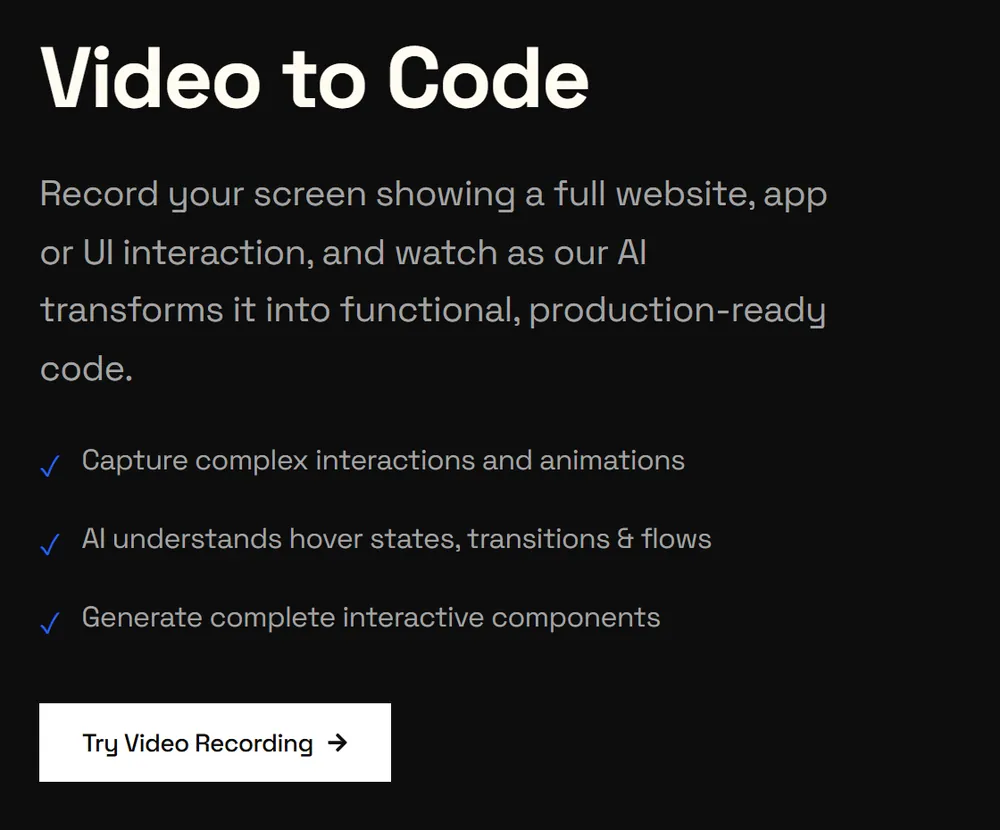
- Get your Gemini key ready (required for video mode).
- Record a short clip of your own site or app and walk through the interaction once.
- Upload it using the tool's video mode. I haven't clicked through the exact buttons for this article, so check the README and the official site for the interface.
06Don't want to install anything? Use the official hosted app
The README says the fastest way is the official hosted app at https://screenshottocode.com, with nothing to install. I opened it on 20 October 2026 and it loads fine, with Sign in and Get Started buttons. I couldn't find a clear pricing page for the hosted app, so I won't tell you it's free; check what it says itself.
07Good to know
- Only copy your own site or design. Other people's brands, text, images and layouts are protected, and that includes rebuilding them from a screenshot. My Reel demo uses our own homepage.
- The API key is yours and you pay for usage. A key is like a password: don't paste it where others can see it, and never upload your .env file to GitHub. Set a usage limit with the provider.
- With a local install, the files and keys stay on your computer. With the hosted app your screenshot goes to their service, so don't upload anything sensitive.
- The rebuild won't be identical. Fonts, images and interactions usually need fixing. Think of it as saving most of the starting work, not a one-click finish.
- The project keeps changing (when I checked, the last push was 9 October 2026), so commands and supported models may change. If something breaks, read the README first.
- One more reminder: the "AI rebuild" in the Reel was made by Claude following the tool's prompts. It is not a screenshot of the tool's own interface.
Sources
What should the next reel cover?
I test Claude and AI tools every day and turn the useful ones into reels. Follow @vivianlin.tech to catch each new guide.