~/guides/ROUTINE.md
Claude Code scheduled tasks (formerly Routines): a Monday 8 a.m. briefing while your computer is off
Cloud scheduled tasks run on time with your computer off. A briefing prompt, how to set Monday 08:00, and the step before Create: drop unused connectors.
Watch the reel on InstagramComment #ROUTINE to get this guide
Every Monday at 8 a.m., my briefing shows up by itself while my computer is still off. This is Claude Code's scheduled tasks feature (formerly Routines): you write one prompt, pick a time, and it runs on Anthropic's cloud on schedule, so you don't have to leave anything on overnight. This is the full version of the ROUTINE reel. First you'll see what the briefing looks like, then where to create the task, how to write the prompt, how to pick the time, and the one thing to do before you click Create: check the connectors. By default, every connector on your account is included, and removing the ones you don't need is up to you. The docs screenshots below are ones I took on the official help pages on 23 October 2026, and the briefing is real Claude output from the same day.
01The result: Monday 8 a.m., the briefing is waiting
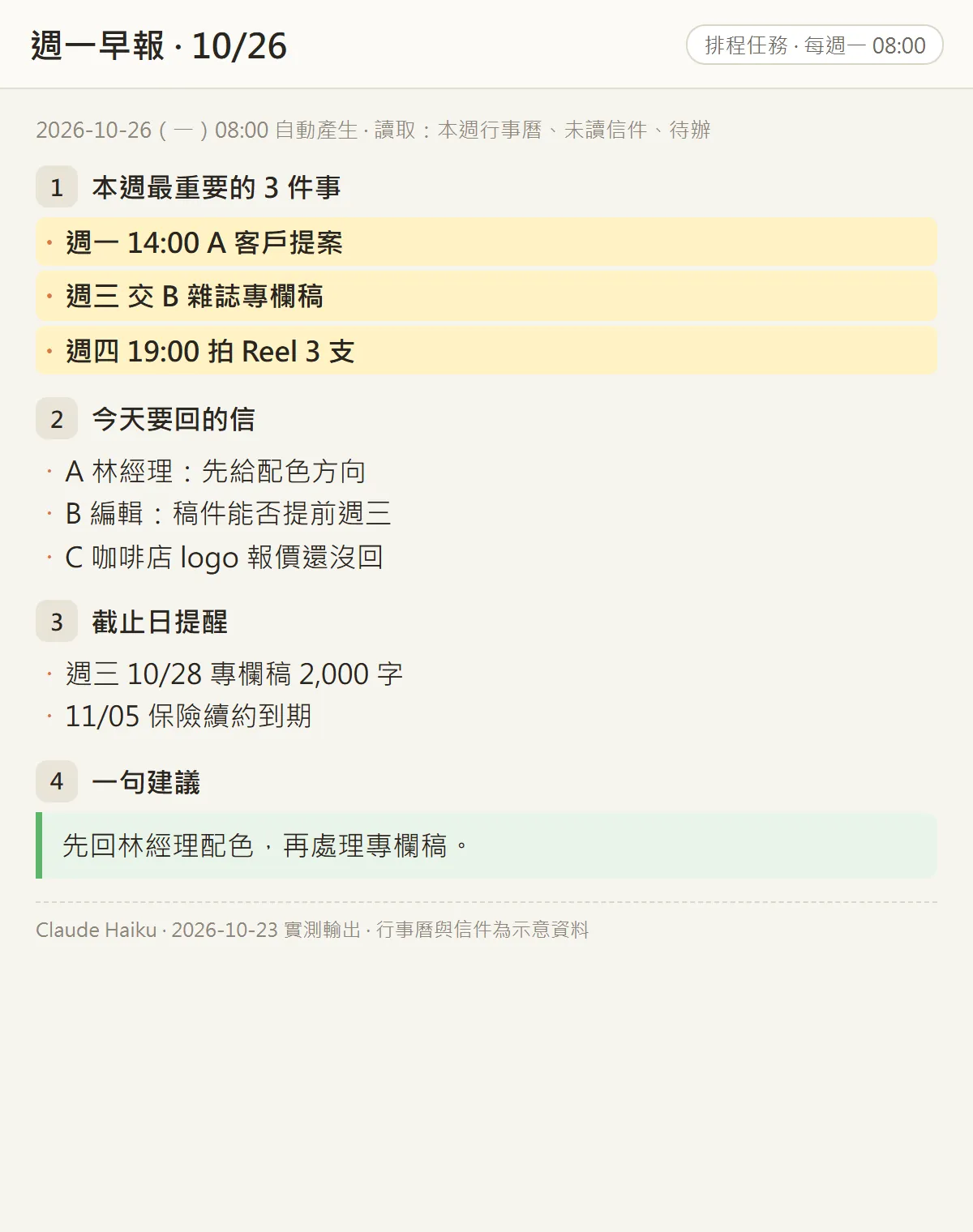
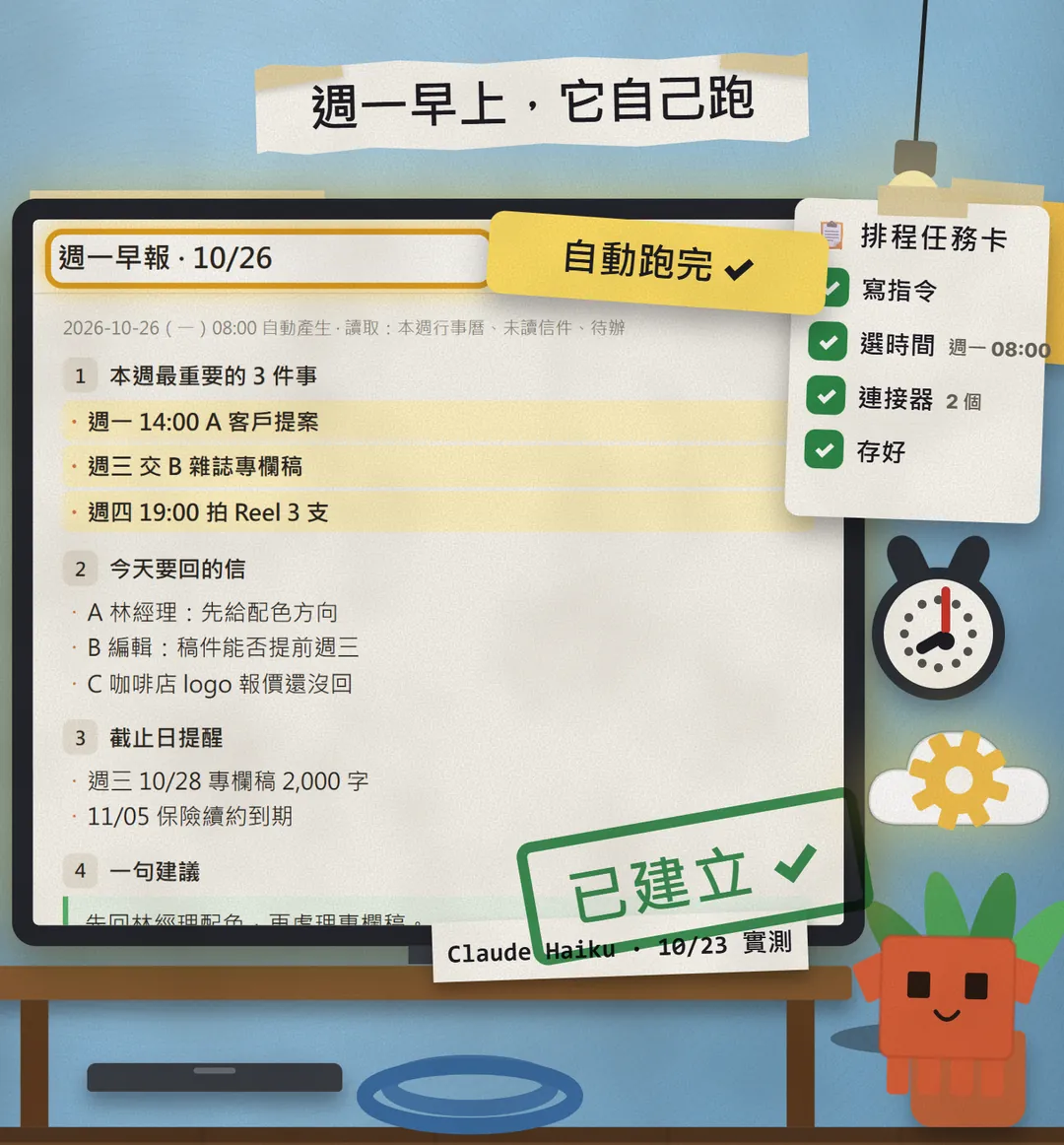
The briefing has four parts: the 3 most important things this week, the emails to answer today, deadline reminders, and one line telling me what to do first. I gave Claude Haiku a prompt close to the one in this guide, plus a week of sample calendar entries and emails, and the image above is what it wrote. Once your task is set up, it runs at the time you pick, and the briefing is there when you open your laptop on Monday.

- Where to create it: on the web, in the Desktop app or in the CLI. All three show the same tasks.
- One prompt: a briefing prompt you can paste as is.
- Picking the time: how to set Monday 08:00, and why I'd use 08:07.
- Before you click Create: keep only the connectors you need, then click Run now to test it.
02First: it's called scheduled tasks now, formerly Routines
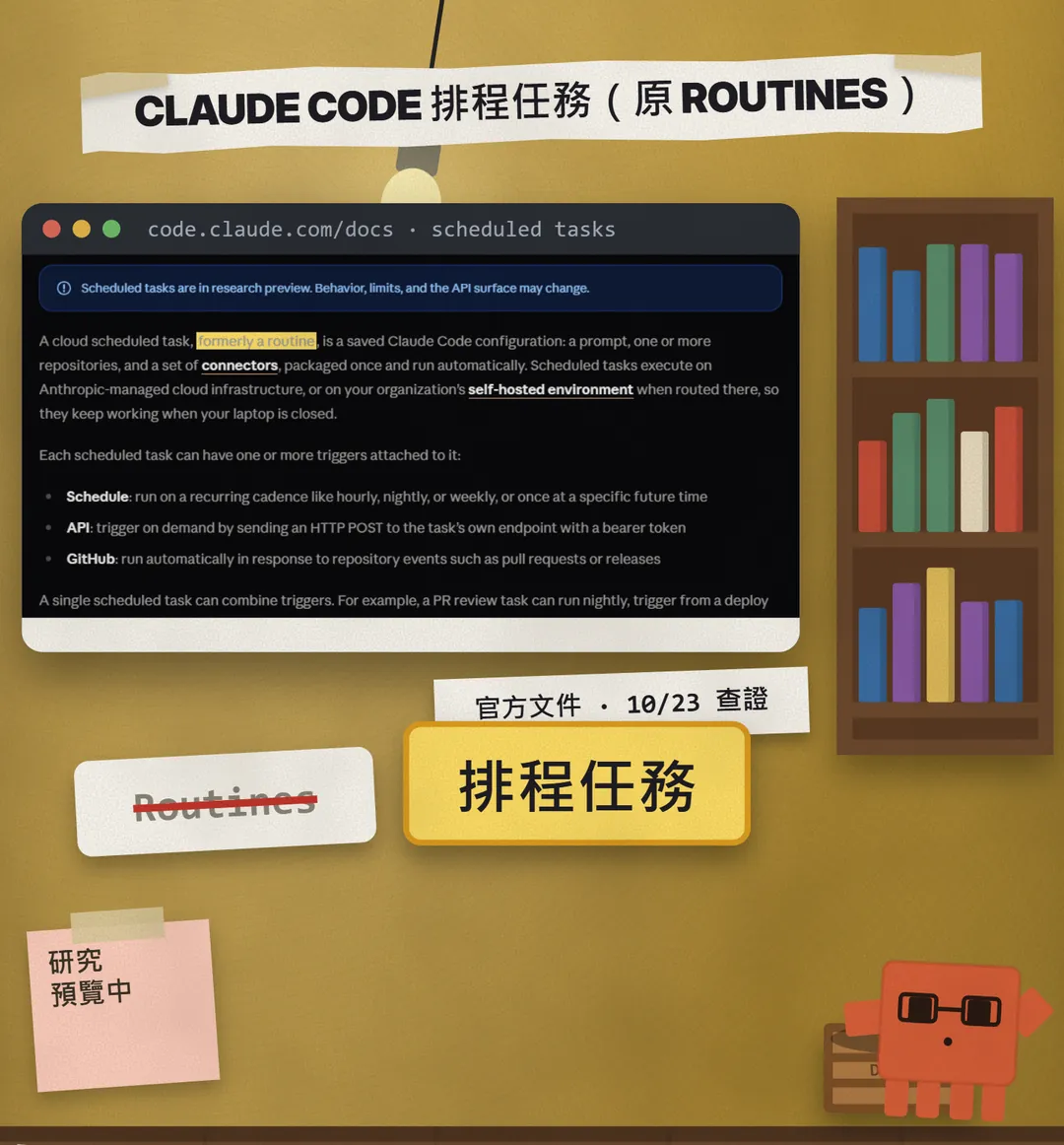
The official name is now "cloud scheduled task", and the docs say it was formerly called a routine. It's a saved Claude Code setup: a prompt, a GitHub repo if you need one, and a set of connectors, saved once and run automatically. The old name still shows up in a few places: the web address claude.ai/code/routines, the /routines command in the CLI, and the API.
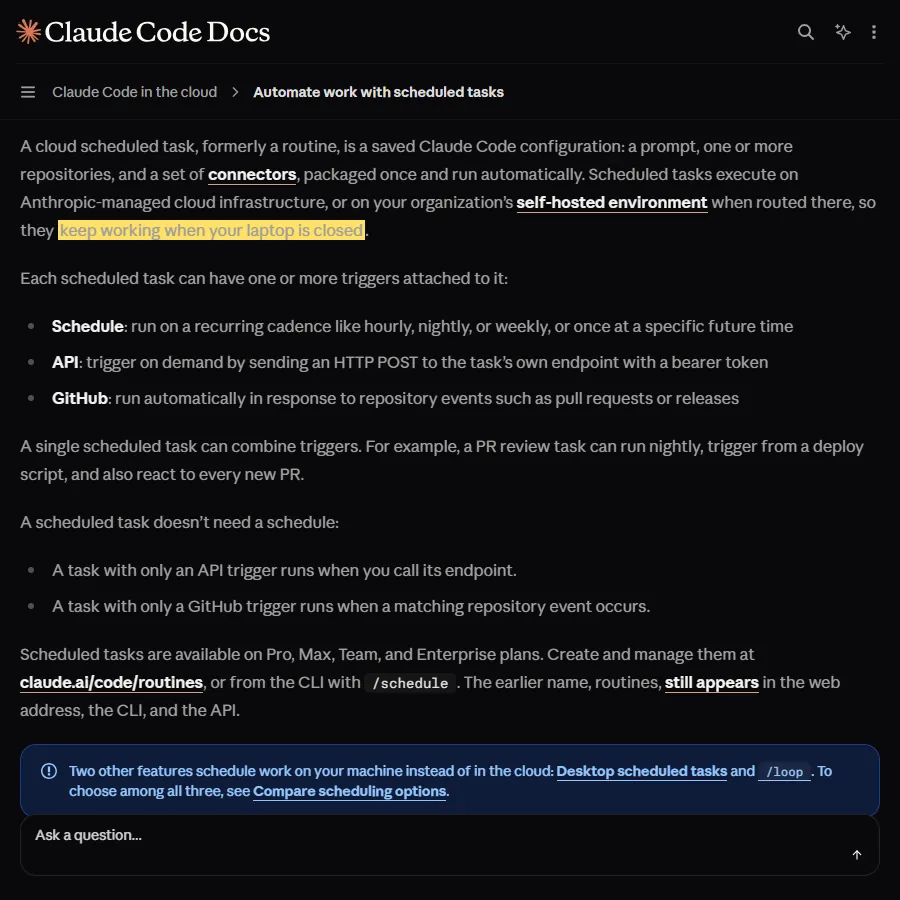
The key point is that it runs on Anthropic-managed cloud infrastructure, so it runs even when your computer is off. Claude Code has two other ways to schedule work: Desktop scheduled tasks and /loop. Both run on your own machine, which has to stay on. If you want it to run while you sleep, the cloud version is the one you want.
- Plans: available on Pro, Max, Team and Enterprise, not on Free.
- It's a research preview, so features and limits may change.
- Every run counts against your subscription usage, the same as using Claude Code yourself.
03Step 1: create a task and write one prompt
- Web: go to claude.ai/code/routines and click "New task". If a menu opens first, choose "Set up manually".
- Desktop app: in the Code tab, click "Scheduled" in the sidebar (or in the sidebar's More menu), then "New task".
- CLI: type /schedule in Claude Code (the old /routines also works). It asks about the time and the prompt in a conversation, then saves the task for you.
- Give the task a clear name, such as "Monday briefing", paste the prompt below, and pick a model in the selector next to the prompt box.
Every Monday morning, use my connected calendar and email to review the week and write a briefing in under 120 words:
1. The 3 most important things this week (date + time)
2. Emails to answer today (sender + one line on what to reply)
3. Deadline reminders
4. One suggestion: what to do first today
Read only. Don't send, delete or change any emails or calendar events. If there's no data for a section, write "none" instead of making something up.
About me: [e.g. freelance designer in Taipei, I start work at 10 on weekdays]
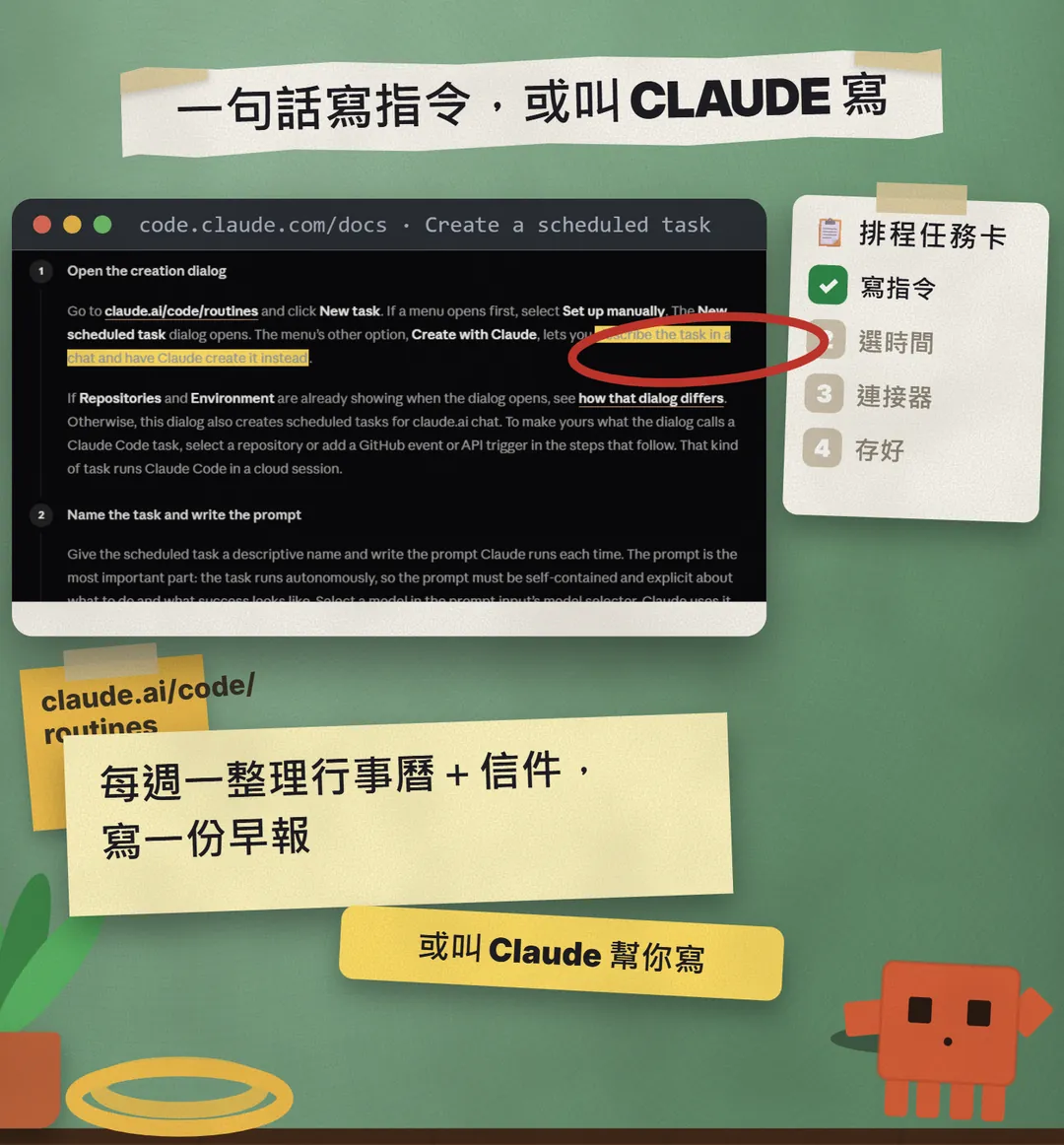
The docs call the prompt the most important part of the task. You won't be there when it runs, so it has to stand on its own: what to do, and what a good result looks like. If you'd rather not write it, choose "Create with Claude" after clicking New task, describe what you want in a chat, and let Claude set the task up.
04Step 2: pick the time, Monday 08:00
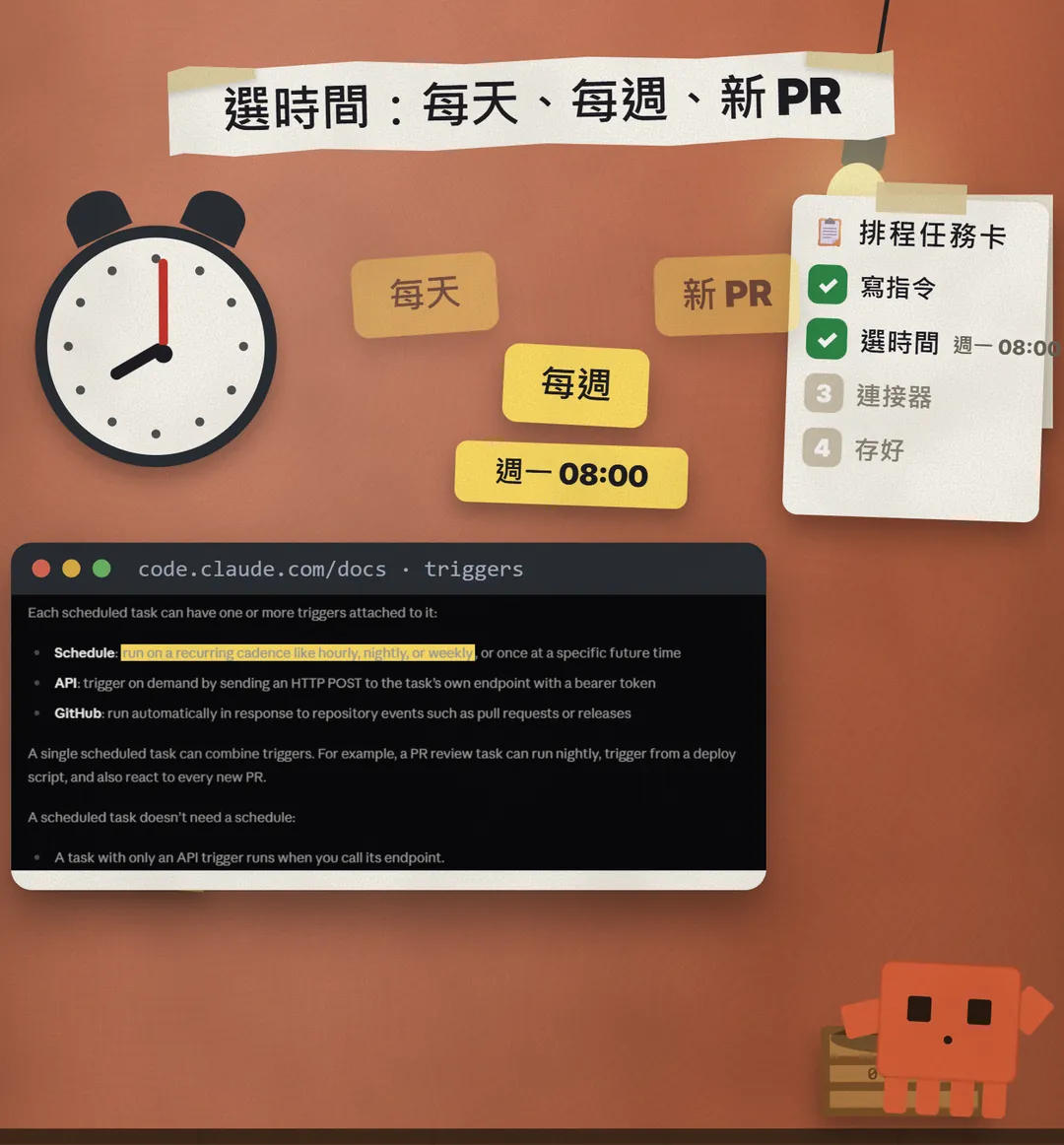
- In the Trigger row, choose "Schedule", pick weekly, and set Monday morning.
- Enter the time in your local time zone; no converting needed.
- A run set exactly on the hour (like 08:00) can start a few minutes late. The docs suggest a few minutes past the hour, such as 08:07.
- If the presets don't fit, create the task, then choose "Custom" in the edit dialog and enter a cron expression. Nothing more often than once an hour.
- Other triggers: API (a URL plus a token starts a run) and GitHub events (such as a new pull request or release). One task can have several.
05Step 3: before you click Create, check the connectors
This is the step I won't skip. The docs are clear: when you create a task, every connector connected to your account is included by default, and Claude can use any included connector during a run, including writes. So if your email connector can send mail, the task can send mail too.
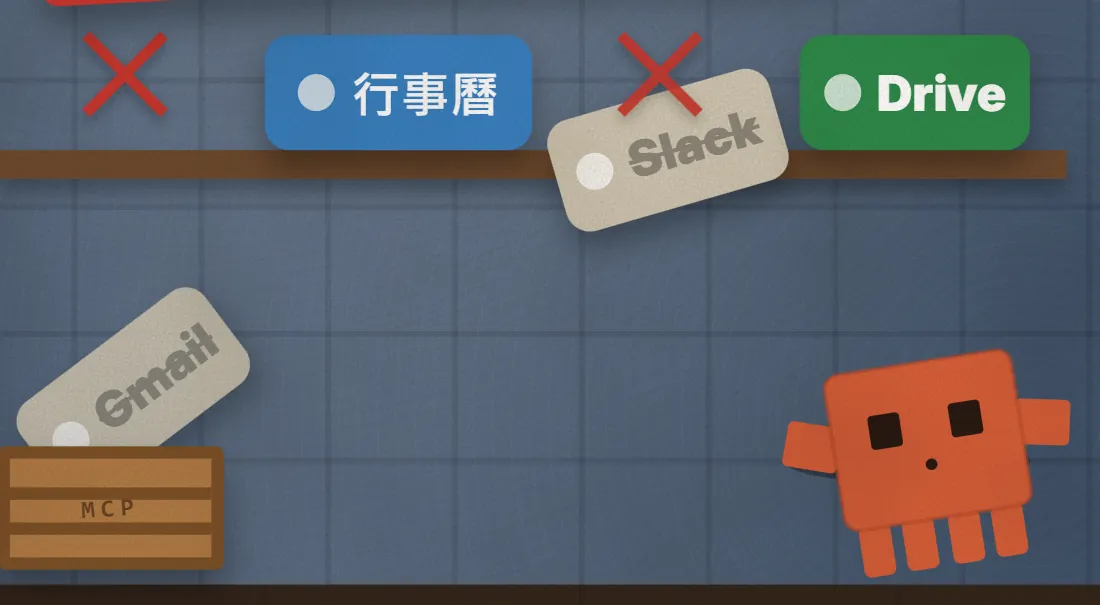
- Before creating the task, expand "Advanced settings" and open the "Connectors" tab.
- Keep only what this task needs. For a briefing, that's your calendar and email.
- Remove the rest (chat tools, cloud drives, project tools).
- To add a connector, do it in the same dialog or manage them at claude.ai/customize/connectors.
Cloud runs start in auto mode by default: a classifier model decides which actions go ahead and which are blocked, and the run only stops to wait for you in a few cases. So don't count on it asking you at every step. And anything the task does through a connector is done as you, under your accounts.
06Step 4: save it, then click Run now to test
- Click "Create". The task's detail page opens.
- Don't wait for Monday: click "Run now" to run it once straight away.
- Open that run from the "History" list to see what Claude actually did and whether the briefing is right.
- Not happy? Choose "Edit" from the menu next to the task name, change the prompt and try again.
- To pause it, use the switch at the top of the page; to remove it, choose Delete from the same menu. In the CLI you can use /schedule list, /schedule update and /schedule run.
07Good to know
- Scheduled tasks are a research preview, so names, screens and limits may change. This guide follows the official docs as of 23 October 2026.
- Not available on Free; every run counts against your subscription usage. If your subscription is paused, your tasks are put on hold.
- Tasks belong to your own claude.ai account and aren't shared with teammates. Emails or messages they send through connectors go out under your name.
- All connectors are included by default. Remove the ones you don't need before you create the task, and say read-only in the prompt.
- Team and Enterprise owners can turn the feature off for everyone. If you can't find New task or /schedule, ask your admin.
- Desktop scheduled tasks and /loop run on your own machine, which has to stay on. For runs while your computer is off, use cloud scheduled tasks.
- The briefing in this guide was made from sample data. Yours will depend on your own calendar and email.
Sources
What should the next reel cover?
I test Claude and AI tools every day and turn the useful ones into reels. Follow @vivianlin.tech to catch each new guide.