~/guides/SPEAK.md
Clone your own voice from 3–10 seconds of audio: free, open-source VoiceStudio, then Claude Code reads in your voice
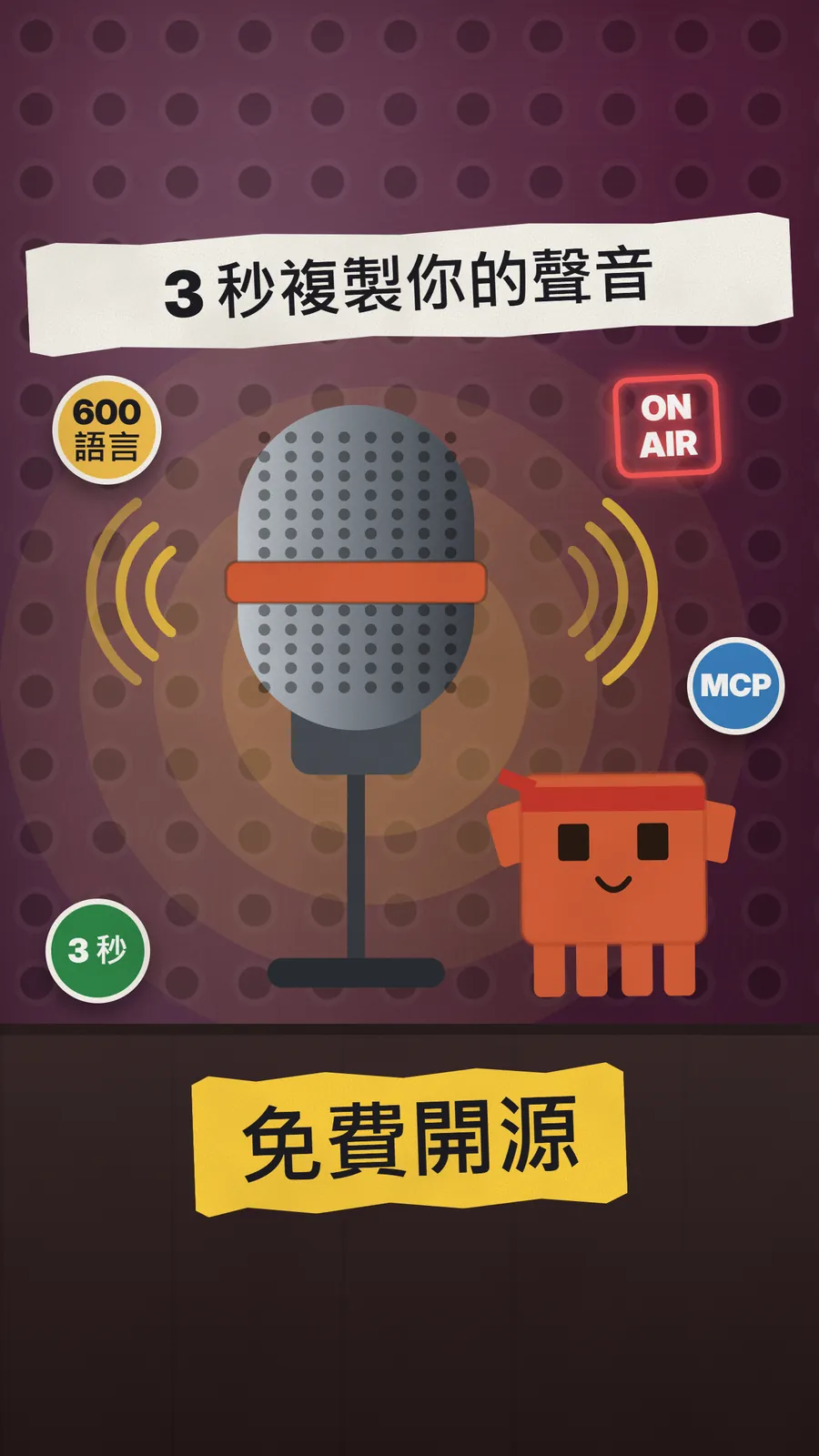
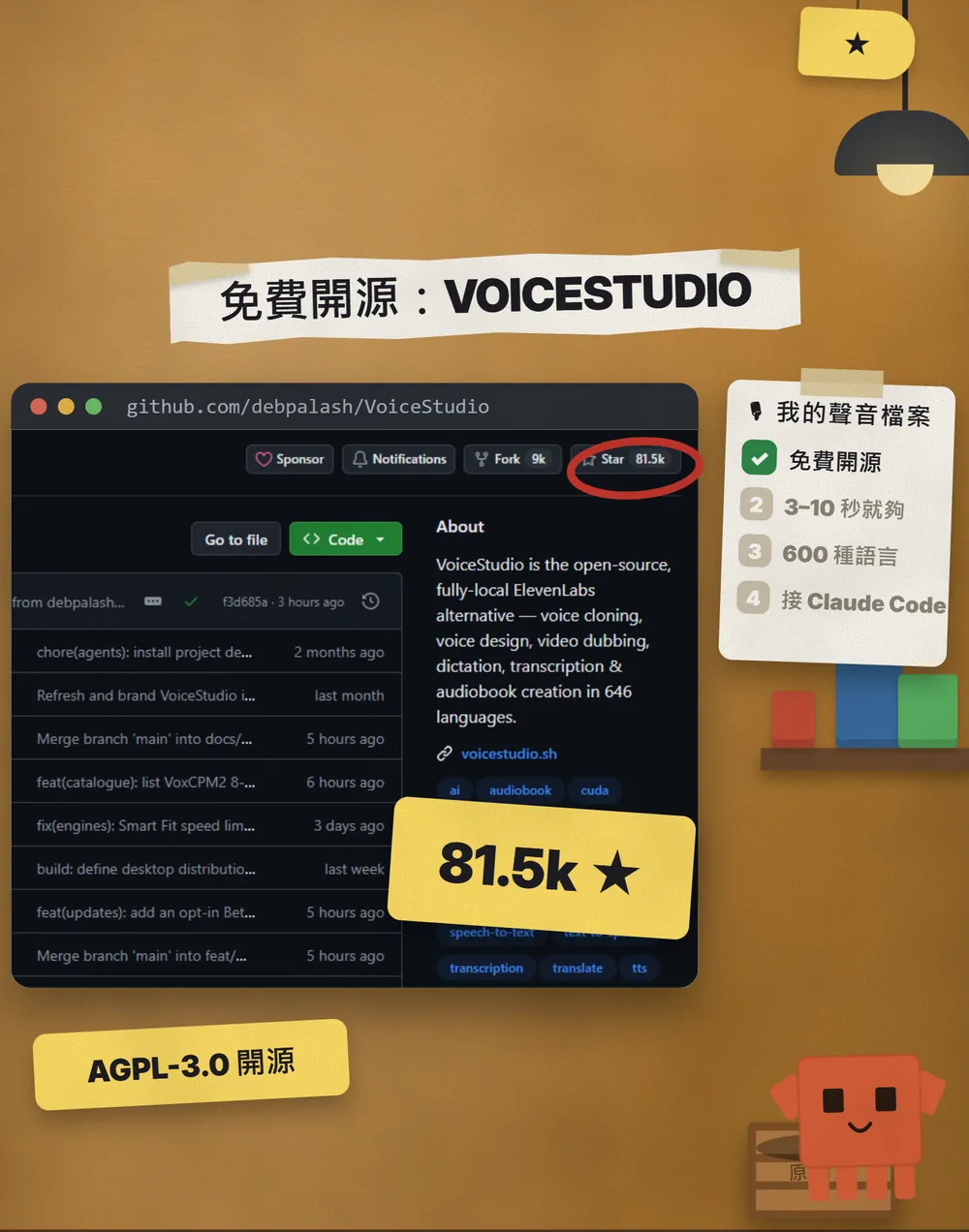
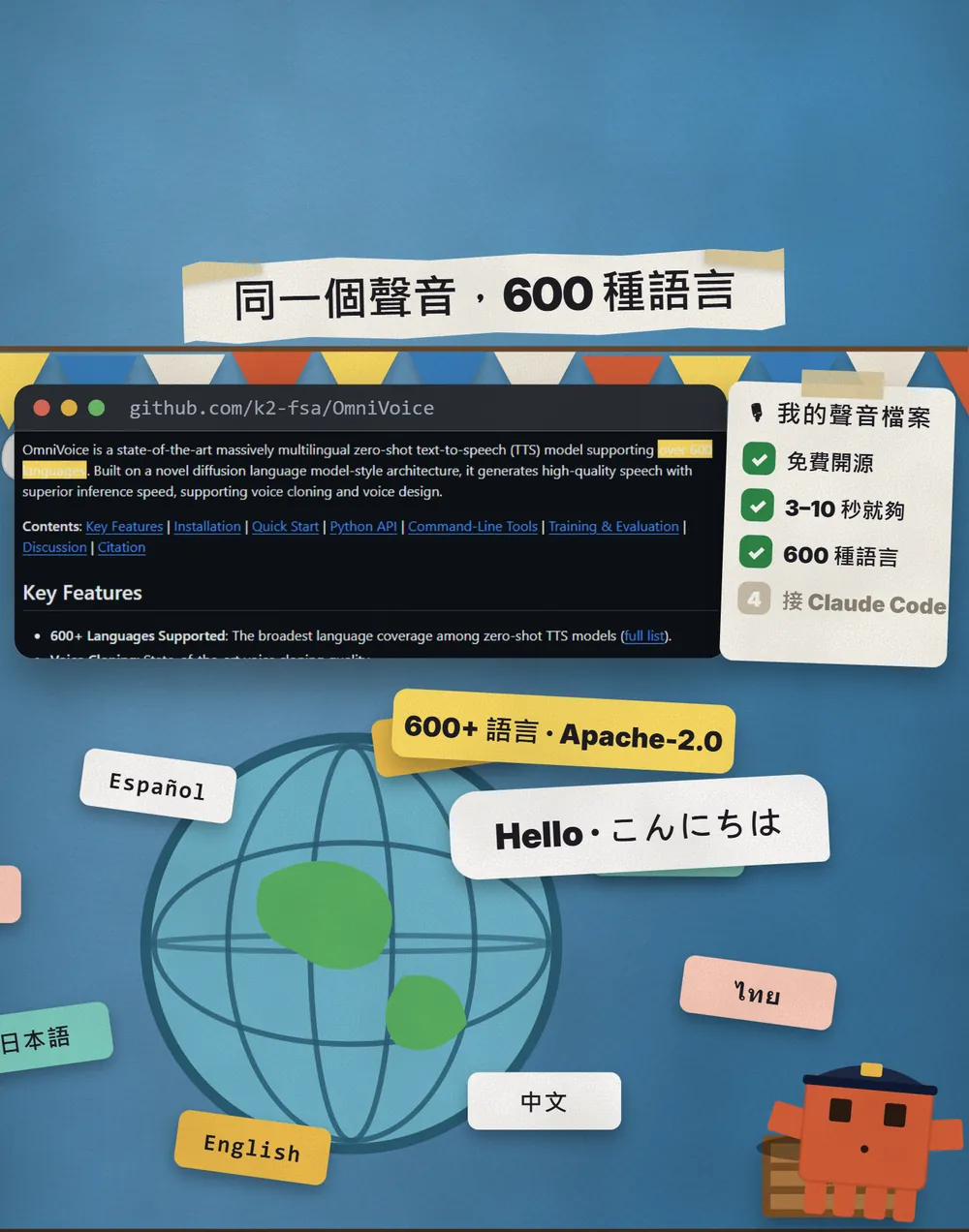
VoiceStudio is a free, open-source (AGPL-3.0) voice-cloning app built on OmniVoice (600+ languages). Install, record, generate, connect Claude Code via MCP.
Watch the reel on InstagramComment #SPEAK to get this guide
With a few seconds of audio, AI can say anything in your voice. This is the full version of the SPEAK reel: what VoiceStudio is, how to install it, how to record your sample, how to switch languages, and the best part, connecting it to Claude Code over MCP so it writes a script and reads it out in your voice. Two things up front: only clone your own voice, or a voice whose owner has agreed in writing; and we did not manage to produce a working clone ourselves. I'll explain why below.
01What you get: a few seconds of audio becomes a you that speaks 600+ languages
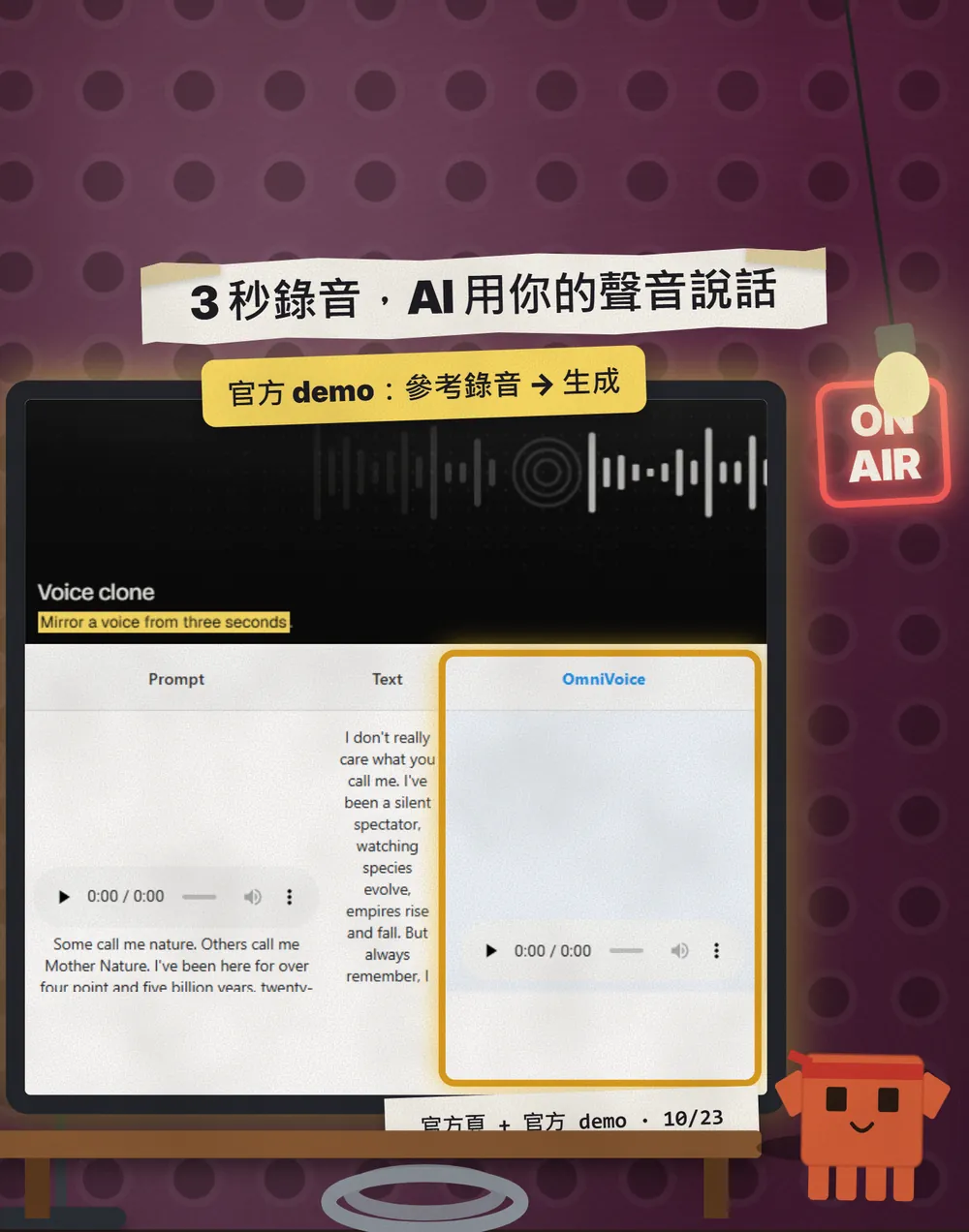
VoiceStudio is a desktop app that clones voices, designs new voices, dubs videos, makes audiobooks and transcribes speech. It's open source on GitHub under AGPL-3.0, and the desktop app is free. The official site says it can "Mirror a voice from three seconds".
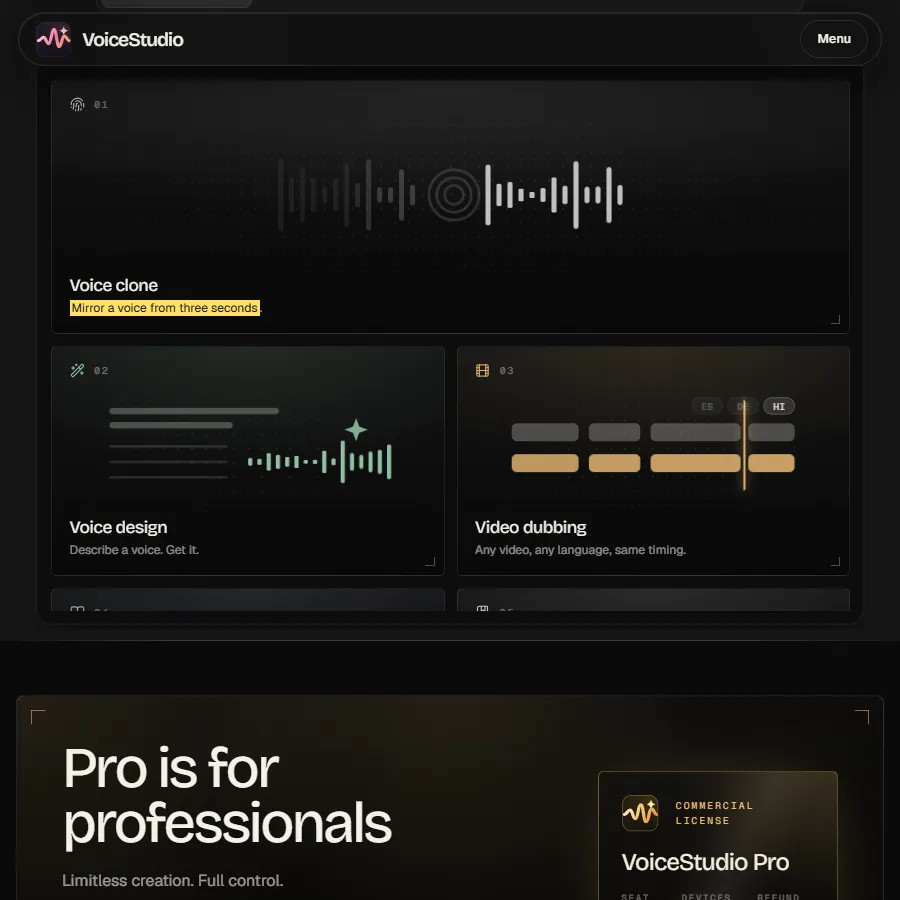
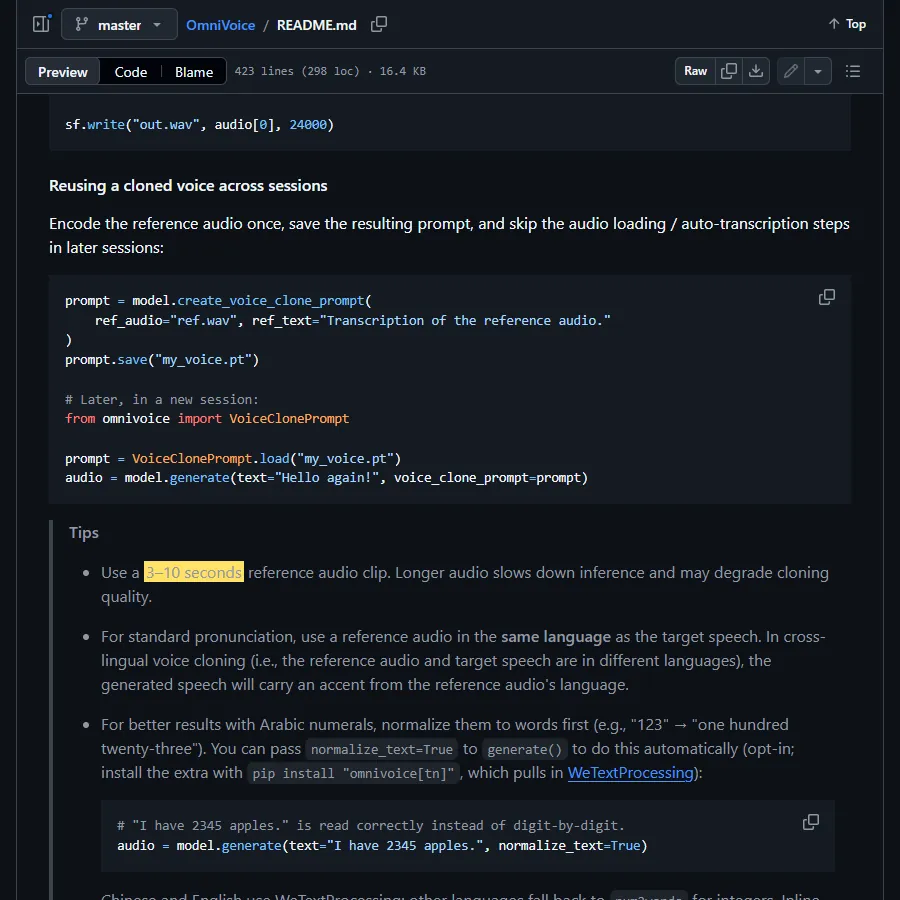
Its default engine is OmniVoice, open-sourced by the k2-fsa team (Apache-2.0). The official README says it supports over 600 languages and recommends a 3–10 second reference clip. VoiceStudio itself says 646 languages. So "3 seconds" in the reel is the website's claim; when you actually record, 3–10 seconds as the README says is the safe choice.
To be honest: we tried it ourselves. On a computer with no dedicated graphics card (GPU), we installed the underlying model, OmniVoice, with Python and cut a 5-second sample from our own channel's voiceover. The 3.1 GB model downloaded and loaded fine, but the first 20-character line was still generating after 12 minutes, so we stopped it. That's why this guide has no clone of our own: the steps and numbers come from the official pages, and I've noted the source for each.
- What to prepare: a computer, disk space and one clean recording.
- Install the desktop app (Windows / macOS / Linux), or install with one command.
- Record 3–10 seconds of your own voice and save it as your voice.
- Type, pick a language, generate.
- Connect Claude Code over MCP so it reads your scripts in your voice.
- Read the warnings: consent, licensing, speed and security.
023 things to prepare first
- A computer. An NVIDIA GPU (Windows / Linux) or an Apple Silicon Mac is fastest. It also runs without a dedicated GPU: the site says about 8 GB of RAM is enough to start, but it's much slower. On an Intel Mac only the app UI runs, connected to a backend on another machine.
- Disk space. The official Windows guide says to keep about 10 GB free for the app, its Python environment and the models.
- 3–10 seconds of your own voice recorded somewhere quiet. A phone voice-memo app is fine; the next section shows how.
03Step 1: install the desktop app
- Go to the Releases page on the official GitHub and download the build for your system: .dmg for macOS, .exe for Windows, .AppImage or .deb for Linux.
- Or install with the official one-liner (the two blocks below). The installer keeps your settings, projects and models.
- On first launch the app sets up Python, FFmpeg and the models it needs itself; you don't need any developer tools.
- Open Voice cloning, and when it asks you to install a model, install it.
curl -fsSL https://voicestudio.sh/install | sh
irm https://voicestudio.sh/install | iex
If you already use Claude Code, the project also gives you an "ask your agent to install it" prompt. It follows the official agent guide: it detects your hardware, asks before downloading models, and finishes with a test generation.
Install the VoiceStudio Electron app on this device and verify it works, following
https://github.com/debpalash/VoiceStudio/blob/main/docs/install/agent.md
04Step 2: record 3–10 seconds of your own voice
- Find a quiet room, switch off fans and air conditioning, and hold the phone about a hand's width from your mouth.
- At your normal speaking pace, read the text below (with your own name and details). It takes about 5–8 seconds.
- Listen back. If there's noise, breathing or background music, record again. Clean matters more than long.
- In VoiceStudio, open Voice cloning, add the recording and save it as your voice.
Hi, I'm [your name]. Today I want to try letting AI read [something you do often, e.g. my weekly work notes] in my own voice.
05Step 3: type, pick a language, generate
- In Voice cloning, pick the voice you just saved.
- Type what you want it to say.
- Pick a language and generate. The first run is slower because the model has to load.
- Listen. If it doesn't sound like you, try a cleaner sample first; that usually helps more than changing settings.
06Step 4: connect Claude Code so it reads scripts in your voice
This is my favourite part. VoiceStudio has a built-in MCP server, so AI agents such as Claude Code and Cursor can call it directly: generate speech, clone voices, transcribe audio and list your voices. The official docs say the server runs whenever the app is open; there's nothing extra to start.
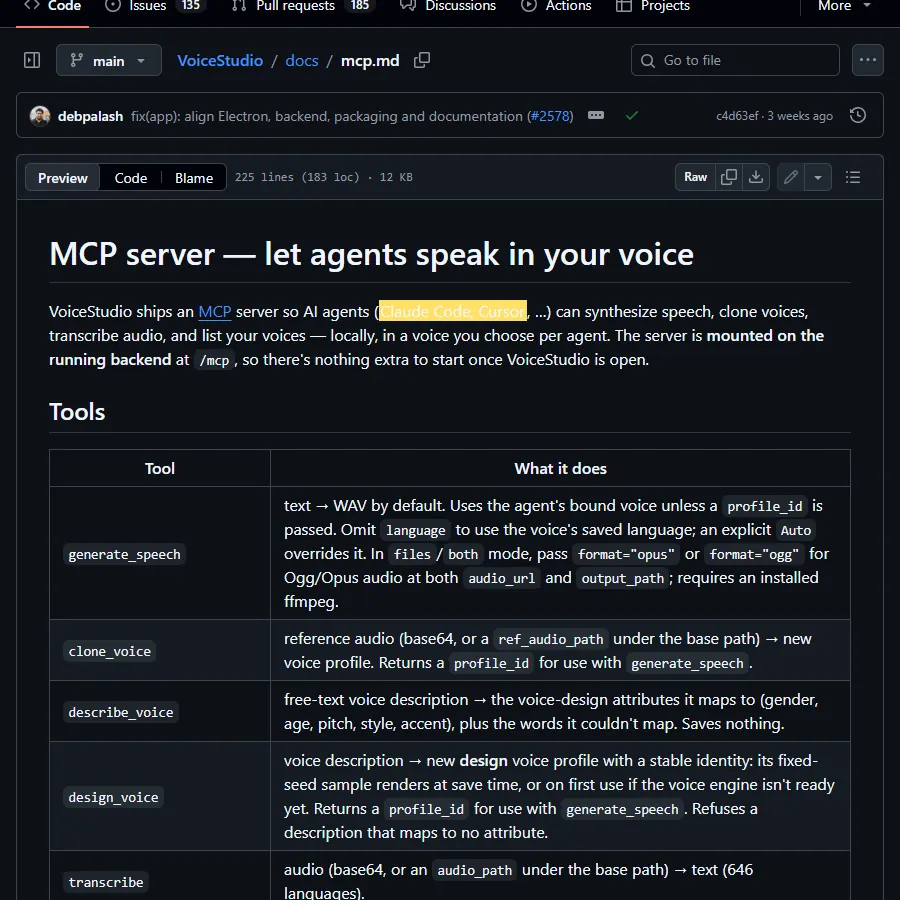
- Open VoiceStudio and leave it running. The MCP address is http://localhost:3900/mcp/ (keep the trailing slash).
- In the app's Integrations, find Claude Code, export the .mcp.json and put it at the top level of your project folder.
- Open Claude Code in that folder. The first time, it asks whether to allow this project's MCP server; check that it's VoiceStudio, then allow it.
- Type /mcp in Claude Code. If VoiceStudio shows as connected, you're done.
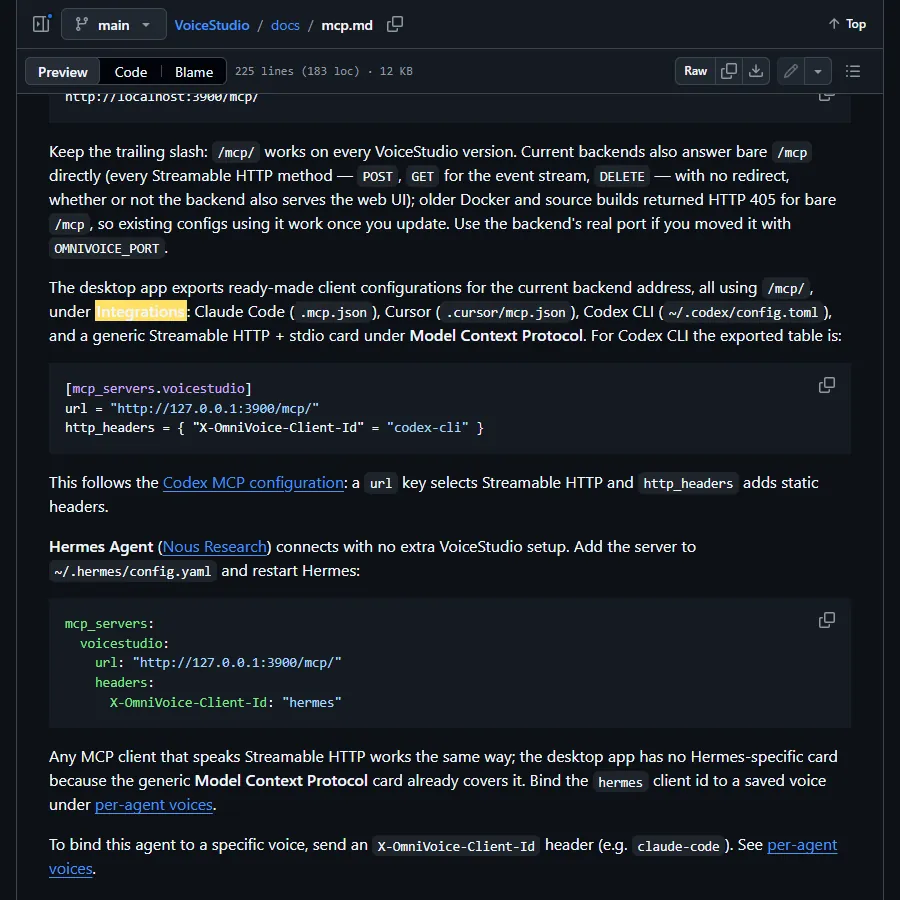
If you'd rather not use the exported file, add it with Claude Code's own command in a terminal. The header at the end is the "client id" from the official doc, which later lets Claude Code always use one particular voice.
claude mcp add --transport http voicestudio http://localhost:3900/mcp/ --header "X-OmniVoice-Client-Id: claude-code"
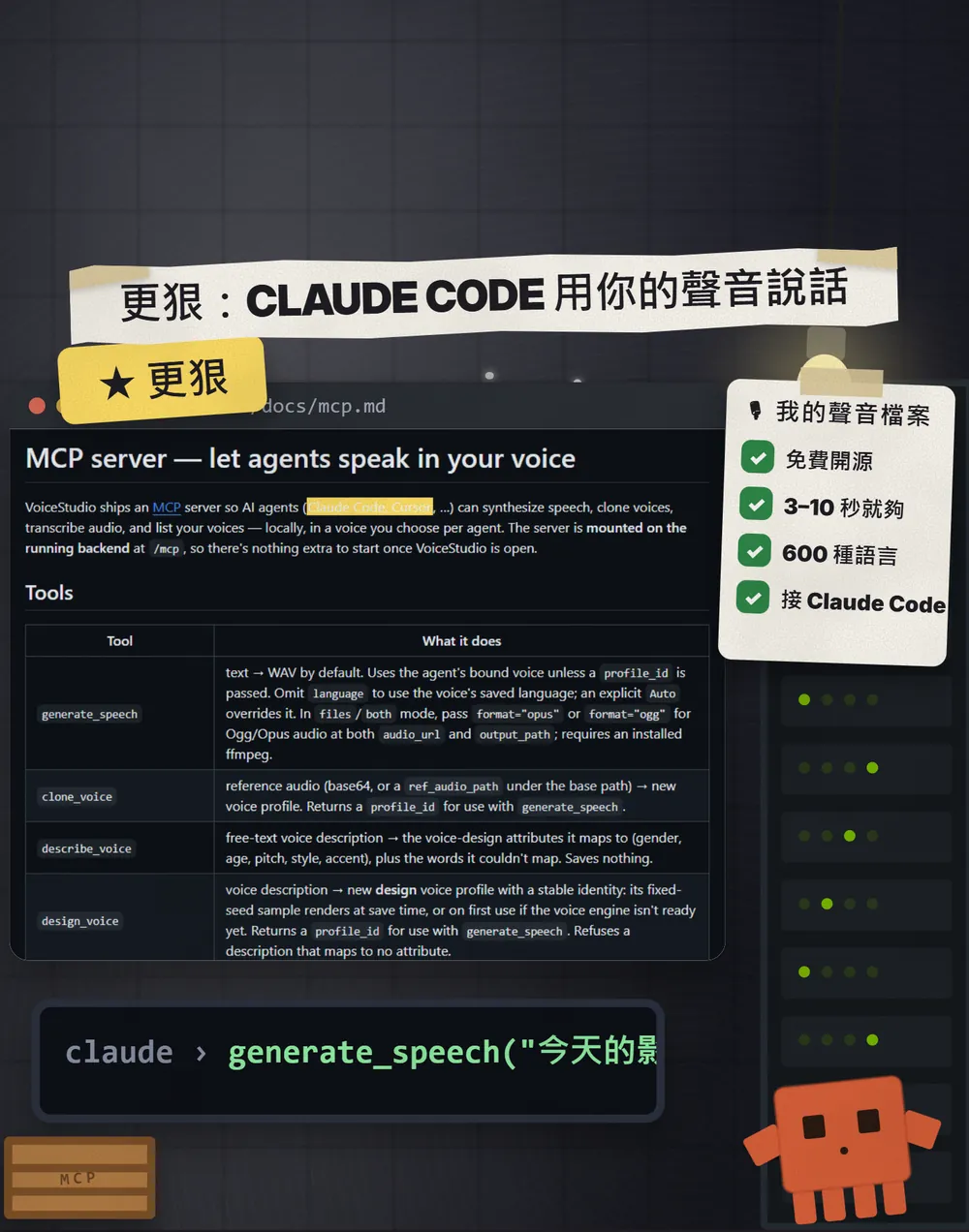
Write a [30-second] [product intro / weekly work update] about [your topic].
Then read it out with VoiceStudio's generate_speech, using [the name of your saved voice], in [English].
Finally, tell me where the audio file is.
07Good to know
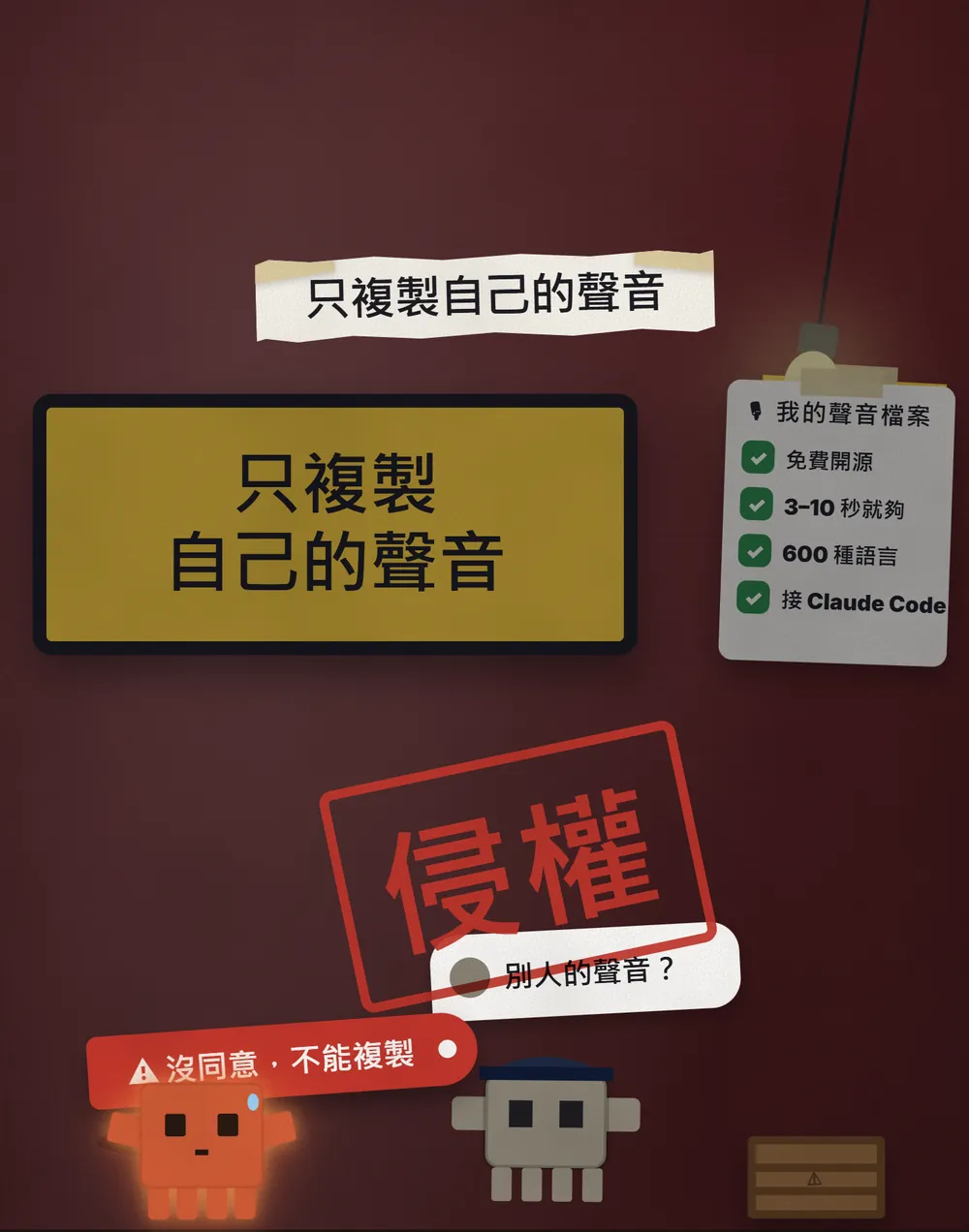
- Only clone your own voice, or a voice whose owner has agreed in writing. The official site is blunt: only with the owner's say-so; impersonation and fraud are off the table. Generating with someone else's voice can violate their rights and is an easy tool for scams.
- If you get a voice message that sounds like someone you know asking for money, hang up and call them back on a number you already have. Cloning a voice really does take only seconds now.
- It's slow without a GPU. The project says the CPU is fully usable, just slower; our own CPU machine didn't finish a 20-character line in 12 minutes.
- The free part is the desktop app (AGPL-3.0). Pro and Lifetime are a separate closed-source build with a paid commercial licence: the site lists $99/year or $299 once. The README also notes that models, voices and generated output have their own licence terms, so read the official licence notes before any commercial use.
- MCP has no password. The official doc says the MCP transport isn't authenticated, so don't expose it to the open internet; to use it from another machine, stay on a trusted local network or use an encrypted tunnel.
- Only install from known sources: github.com/debpalash/VoiceStudio, voicestudio.sh and github.com/k2-fsa/OmniVoice.
- We haven't fully tested these steps ourselves (CPU too slow, no working clone). The content comes from the official pages, checked on 23 Oct 2026; versions, star counts and button names may change, so follow the official docs if you get stuck.
Sources
- VoiceStudio official GitHub (README: install, hardware, licence; checked 23 Oct 2026)
- VoiceStudio official site (three-second clone, Pro pricing, consent rule; checked 23 Oct 2026)
- VoiceStudio docs: MCP server (checked 23 Oct 2026)
- VoiceStudio docs: Install on Windows
- OmniVoice official GitHub (600+ languages, 3–10 s tip, cross-lingual accent; checked 23 Oct 2026)
- OmniVoice official demo page
- Claude Code docs: Connect Claude Code to tools via MCP
What should the next reel cover?
I test Claude and AI tools every day and turn the useful ones into reels. Follow @vivianlin.tech to catch each new guide.