~/guides/EVOLVE.md
Task Observer: make Claude Code log every correction and turn it into skill changes you approve (free)
Task Observer is a free Claude Code skill (CC BY 4.0) that logs your corrections and proposes skill changes you approve in a weekly review. Setup and prompts.
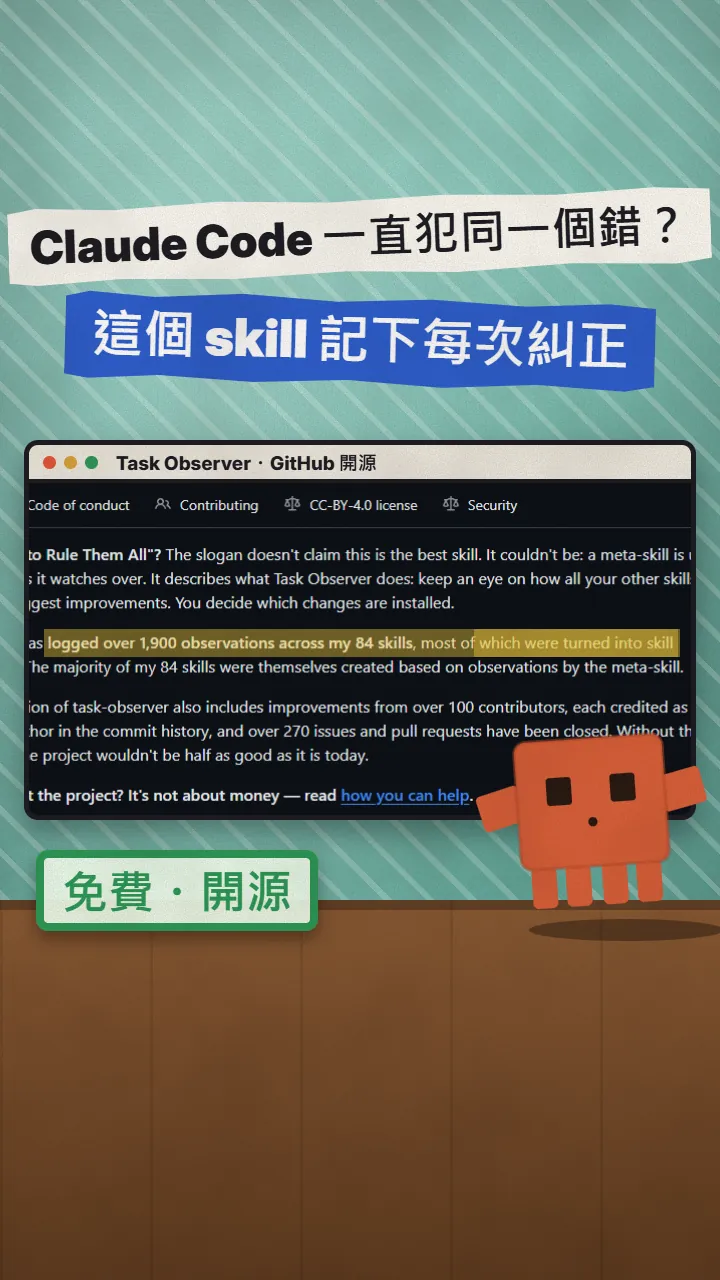
Does Claude Code keep making the same mistake, forgetting in a new chat what you told it in the last one? Task Observer is a free Claude Code skill: every time you correct Claude it writes down an observation, and roughly once a week it asks you to review them; only the changes you approve make it into your skills. This is the full version of the EVOLVE reel: what it actually does (honestly, it is not a self-evolving AI), how to install it, how to really activate it, what an observation looks like, how to approve or reject changes in the review, and what to watch out for.
01First: why Claude keeps making the same mistake, and what Task Observer does
You have probably seen this: you tell Claude Code "stop using var", it behaves for the rest of the chat, and in the next chat it is back to var. The reason is simple: a new chat does not remember corrections from an earlier chat unless they were written somewhere it reads every time, such as CLAUDE.md, a skill or project memory.
Task Observer is the skill that does the writing down. It is a free skill by Eoghan Henn (rebelytics), licensed CC BY 4.0. Once it is activated it watches you work: every time you correct Claude, state a preference or hit something no skill covers, it writes an "observation" as a small file. After a while it asks you to review them together and turns them into skill changes, which only count once you approve them.

Follow this guide and you get:
- Task Observer installed and actually starting on its own in every new chat (most people stop at "installed" and never get it to run).
- A file for every correction: what went wrong, the suggested fix, and the general principle behind it.
- A review roughly once a week: it turns observations into skill changes and asks you to approve or reject each one.
- Repeated work flagged as "new skill candidates", so you do not start a skill from a blank page.
- Prompts you can paste into Claude: to add the activation block, to check for new observations at the end of a chat, and to run a review right now.
02Step 1: install it with one command
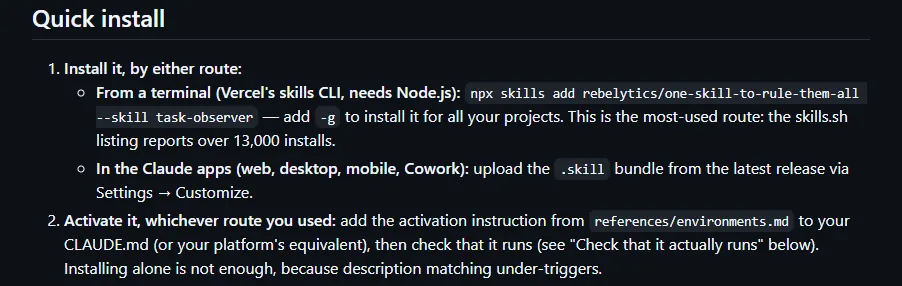
The quickest route is one terminal command. It uses Vercel's skills CLI (not an Anthropic tool), so you need Node.js installed first.
- No Node.js yet? Install it from nodejs.org first.
- In a terminal, go to your project folder and paste the line below: this installs it for that project only.
- To use it in every project, add -g at the end.
- Using the Claude apps (web, desktop, mobile, Cowork)? Download task-observer.skill from the GitHub Releases page and upload it under Settings → Customize.
- Installing by hand? Put SKILL.md, references/ and scripts/ together in .claude/skills/task-observer/ and keep the folder structure intact.
npx skills add rebelytics/one-skill-to-rule-them-all --skill task-observer
npx skills add rebelytics/one-skill-to-rule-them-all --skill task-observer -g
- Task Observer on GitHub (official) — by Eoghan Henn (rebelytics)
- Latest release — v3.9.0 on 2026-11-05, with task-observer.skill
03Step 2: activate it: add the activation block to CLAUDE.md (or install the hook)
This is the step that matters. The README says it plainly: "Installing alone is not enough". Installed but not activated, it often never runs. Claude decides whether to use a skill from its description, and a skill whose job is to watch in the background rarely gets picked that way. So you put a fixed activation block in CLAUDE.md that makes every new chat load it first.
- Open references/environments.md inside the installed task-observer folder (you can also read it on GitHub) and find the section "The activation block".
- Copy the whole block, starting from its first line (task-observer activation block — template of v3.9.0). Do not rewrite or shorten it.
- Paste it into CLAUDE.md: the project's root CLAUDE.md for one project, or the user-level ~/.claude/CLAUDE.md if you installed it with -g for all projects.
- Replace the brackets: [ABSOLUTE PATH] is a fixed folder for the observations (not a git worktree or temp folder, which get deleted and take the log with them); <skill directory> is where task-observer is installed; [PROJECTS ROOT] is the folder your projects live in.
- The block has a line [UPSTREAM CHECK: …]: delete it and reviews stay fully offline.
The block is about a hundred lines and easy to get wrong by hand. What I do is ask Claude to copy and fill it in, and show me before saving:
Help me activate the task-observer skill:
1. Open references/environments.md in the installed task-observer folder, find "The activation block" and copy it whole. Do not rewrite or summarise it.
2. Following "Anchoring the workspace" in the same file, pick a fixed workspace path for [ABSOLUTE PATH], not inside a git worktree or a temp folder. Set <skill directory> to where task-observer is installed, [PROJECTS ROOT] to [the folder my projects live in], [RUN OUTPUT PATHS] to none, and delete the [UPSTREAM CHECK: …] line.
3. It goes into [this project's CLAUDE.md / ~/.claude/CLAUDE.md].
Before writing anything, show me the complete block and the file path, and wait for my OK.
The other option is a hook. Claude can still skip an instruction in CLAUDE.md; the "A session-start hook" section of environments.md has a Claude Code SessionStart hook script that injects "load task-observer first" plus the number of open observations at the start of every chat. The author calls it the only enforced option. On Windows, the same section says to register the hook with the full path to Git Bash.
Finally, check that it really runs:
- After saving CLAUDE.md, open a new chat. The chat you installed in proves nothing.
- Work normally in that chat without mentioning task-observer; naming it calls it by hand, which does not count.
- After a few sessions, check whether skill-observations/observation-log/ exists in the workspace. If not, it never activated.
- If it does, open skill-observations/checkpoints.log: the date on the last "session-start scan" line is the last time it started.
- references/environments.md (activation block, hook) — sections "The activation block" and "A session-start hook"
- README: Check that it actually runs — the official activation check
04Step 3: what an observation looks like, and approving or rejecting in the weekly review
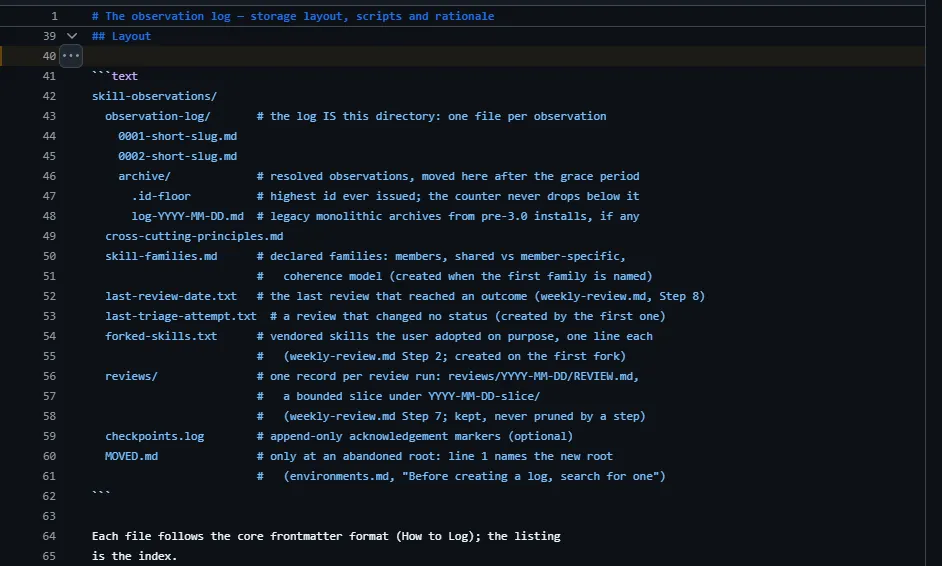
Everything it writes lives in your workspace as plain Markdown and text files you can open and read:
- skill-observations/observation-log/: one file per observation, named NNNN-slug.md, e.g. 0001-stop-using-var.md. Resolved ones move to archive/.
- skill-observations/cross-cutting-principles.md: general principles that apply beyond one skill.
- skill-observations/checkpoints.log and last-review-date.txt: its own bookkeeping, when it last started and last reviewed.
- skill-observations/reviews/: one record per review.
- skill-updates/: updated skills staged here after a review, not installed yet.
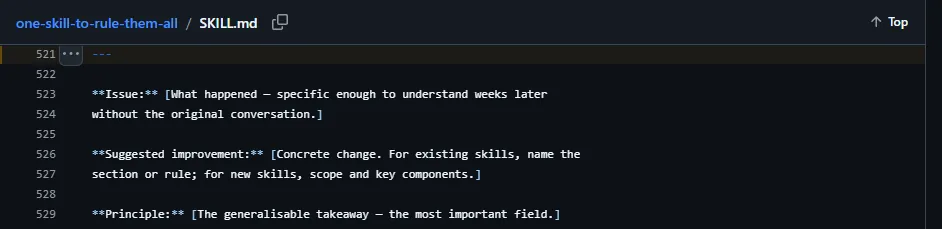
Each observation file starts with a YAML header: a title, a status (status: open means not handled yet), which skill it concerns, whether it argues for a new skill (proposes_skill), and the date. Below that come three parts: Issue, Suggested improvement and Principle. The author calls Principle the most important field, because it is the line that carries over to next time.
How the review starts: at the beginning of each chat it checks, and if the last review was 7 or more days ago (or never) and there are open observations, it offers the review in one line. You can say yes or carry on; it never blocks your task.
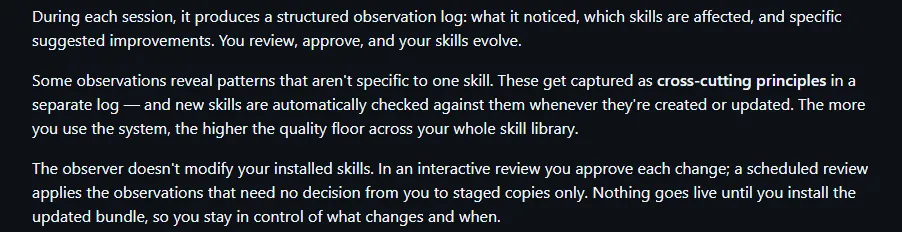
In the review it checks the open observations against your skills and proposes concrete changes. What you approve gets staged as an updated skill in skill-updates/; what you reject is marked declined. When you are done, you install the staged version yourself, and only then does the new rule take effect. You do not have to wait for the offer; you can ask for a review directly:
Use task-observer to run a review now:
- List every observation in observation-log with status open, grouped by skill;
- For each one, say in one sentence what went wrong and what it suggests;
- Ask me about each one: approve, reject, or leave for next time;
- Put approved changes only into staged copies under skill-updates/, and do not touch my installed skills;
- At the end, tell me how to install the staged versions.
The author's own habit is to ask "Any observations logged?" near the end of every chat; sometimes that makes it find things it missed. My version:
Any observations logged in this chat? List their ids and titles. If there are none, list each correction I made in this chat and say in one sentence why it is not an observation.
Look at the observations in observation-log whose proposes_skill is not empty and list the suggested new skills: name, what it would do, and which observations support it. Do not create any skill yet. The thing I repeat most is [e.g. turning client feedback into a weekly report], so check for related observations too.
05Good to know
- Activate it: installed without the activation block (or the hook), it often never runs. No skill-observations/observation-log/ after a few sessions means it never activated.
- It does not change your installed skills on its own. Normally it only logs; it acts only in a review, when you explicitly ask it to update a skill, or when a skill is producing wrong output, and even then the updated version is staged in skill-updates/ for you to install.
- There is a cost: the activation block makes every chat load the whole SKILL.md (about 750 lines) and run its start-up checks, which uses extra tokens. The author is also upfront that for a small setup with a handful of skills, Claude's built-in memory may be enough.
- Where files live: in the workspace you set in the activation block. In Claude Code use a stable location such as ~/.claude/projects/<project-id>/, or ~/.claude/skill-observations/ shared by all projects. Never inside a git worktree: delete the worktree and the observations go with it.
- My tip (not official): if your workspace sits inside the project folder and you do not want the observations committed, add skill-observations/ and skill-updates/ to .gitignore. Observations can mention project details; if you do want them in git, the official docs cover that too.
- The licence is CC BY 4.0: free to use, adapt and even use commercially, as long as you credit it: link the original repo and name the author, Eoghan Henn / rebelytics.com. It is a Creative Commons licence, not a typical software open-source licence; "open source" is the author's own wording.
- In Claude on the web or the mobile app there is no file system, so it gives you a handoff document at the end of the chat instead, which you take to another chat to update your skills.
- The README's "over 1,900 observations across 84 skills" is the author's own figure. The project has no paid tier and no sponsor button.
- All of this was checked on 5 Nov 2026 against the official v3.9.0 files. It changes fast; GitHub is the source of truth.
- You found this guide by typing the keyword EVOLVE at the link in bio. Nothing is sent by DM.
- User guide (USER-GUIDE.md) — the author's guide for everyday users
- LICENSE (CC BY 4.0) — how to credit it is in the README's License section
Sources
- GitHub: one-skill-to-rule-them-all README (Quick install, What it does, Installation, License; checked 2026-11-05)
- GitHub: latest release v3.9.0 (2026-11-02)
- SKILL.md (observation template, review trigger, Acting on Observations)
- references/environments.md (activation block, session-start hook, activation check)
- references/observation-log.md (folder layout)
- references/weekly-review.md (scheduled and in-session review)
- USER-GUIDE.md
- SUPPORT.md (no paid tier or sponsoring)
- LICENSE (CC BY 4.0)
What should the next reel cover?
I test Claude and AI tools every day and turn the useful ones into reels. Follow @vivianlin.tech to catch each new guide.