~/guides/ADOBE.md
PhotoCraft: a free, open-source photo editor that even runs in the browser (plus video, photo and vector apps)
The open-source photo editor ArtCraft wrote from scratch with Claude: download, a first edit step by step, the sister apps, and its honest status (early alpha).
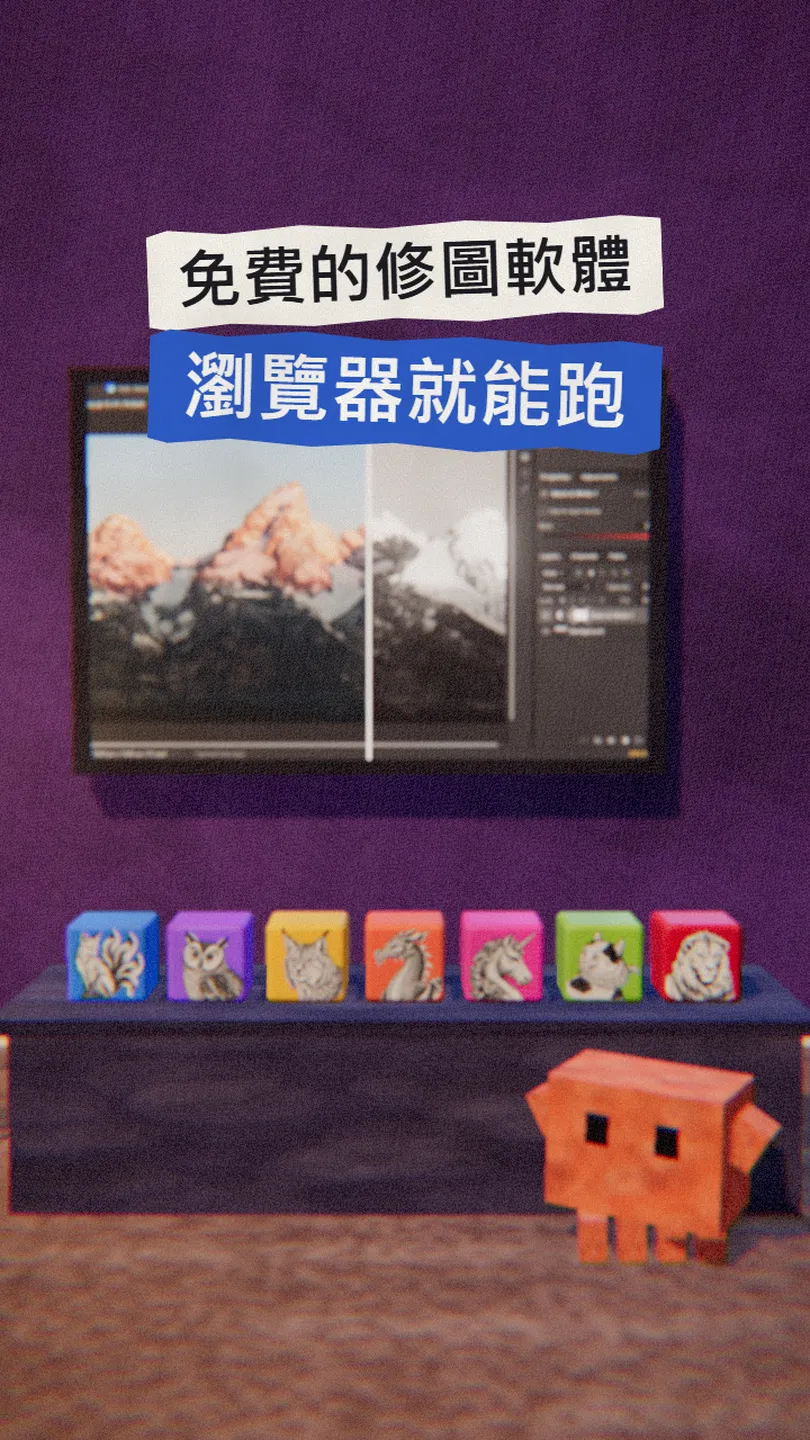
Editing photos doesn't have to mean a monthly fee. PhotoCraft is an open-source photo editor (MIT / Apache 2.0) that the ArtCraft team wrote from scratch in Rust, with layers, adjustment layers, filters and type, built with a lot of help from Claude Opus 5.5. This is the full version of the ADOBE reel: our own real capture of PhotoCraft editing a photo in a browser, where to download it, how to do a first edit, the other apps in the set, and the team's own word on where it stands.
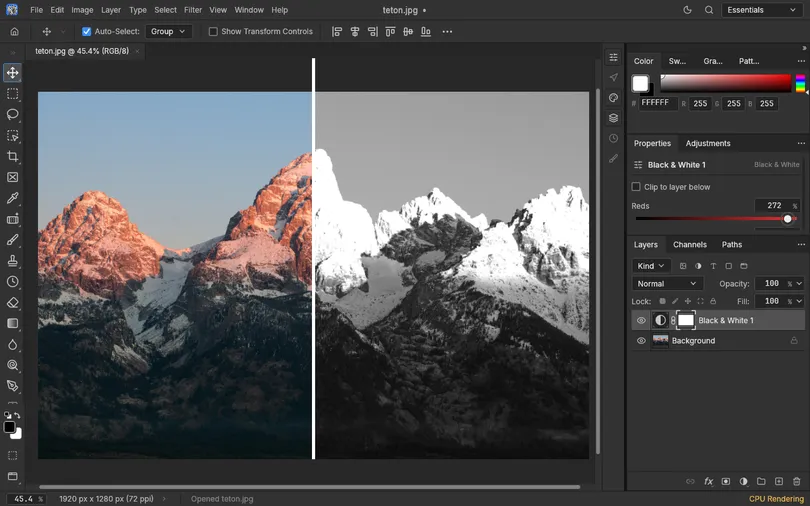
01The result first: PhotoCraft in a browser, turning a photo black and white
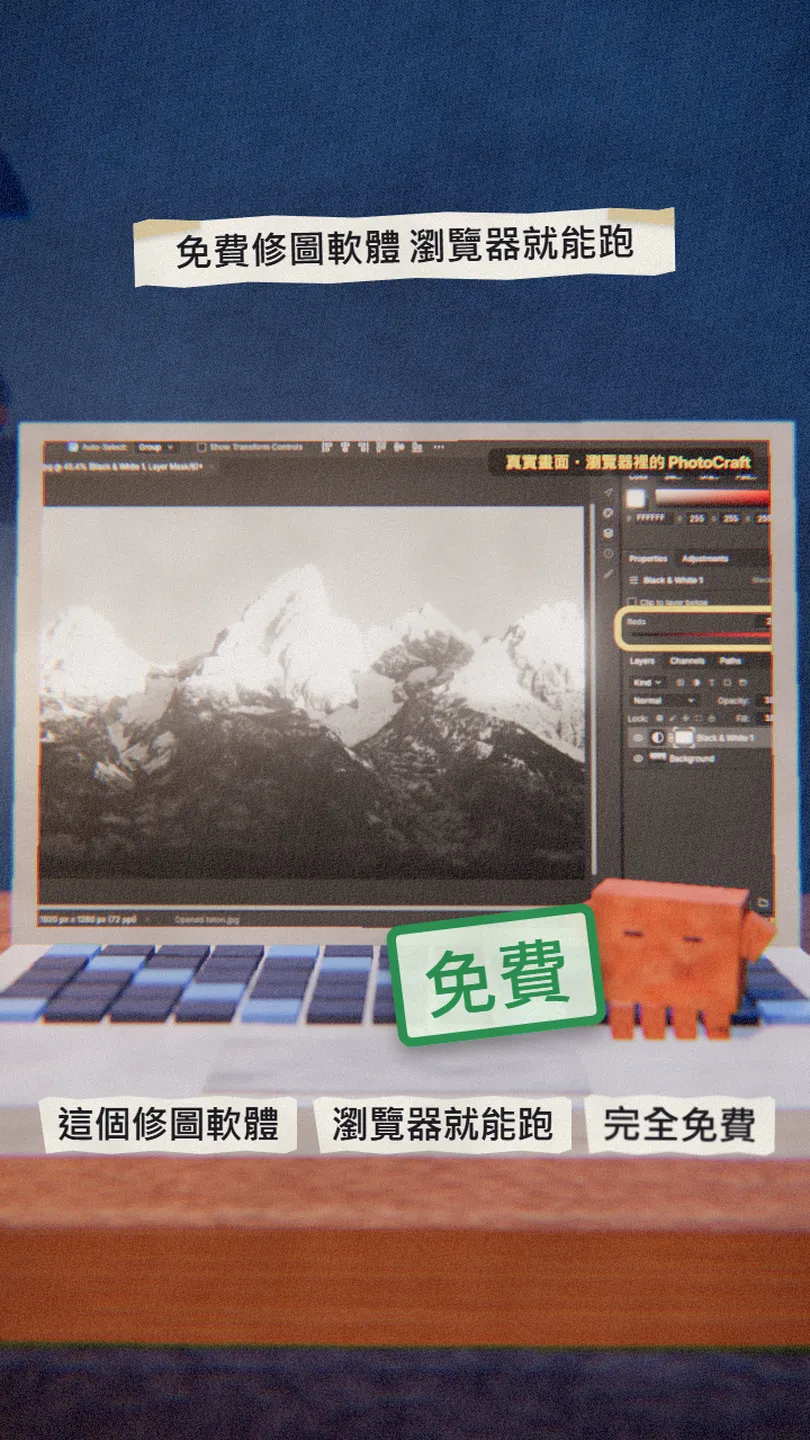
When you are done, you get this:
- A photo editor with no monthly fee, for Windows, Mac and Linux.
- A familiar layout: menus, layers, adjustment layers, filters and the type tool sit where you expect them.
- A complete first edit: open a photo, add an adjustment layer, tune it, export.
- The same team's other free apps: video, photos, vectors, layout and PDFs.
- An honest status, so you don't cancel a subscription too early.
02Step 1: download PhotoCraft from the official site
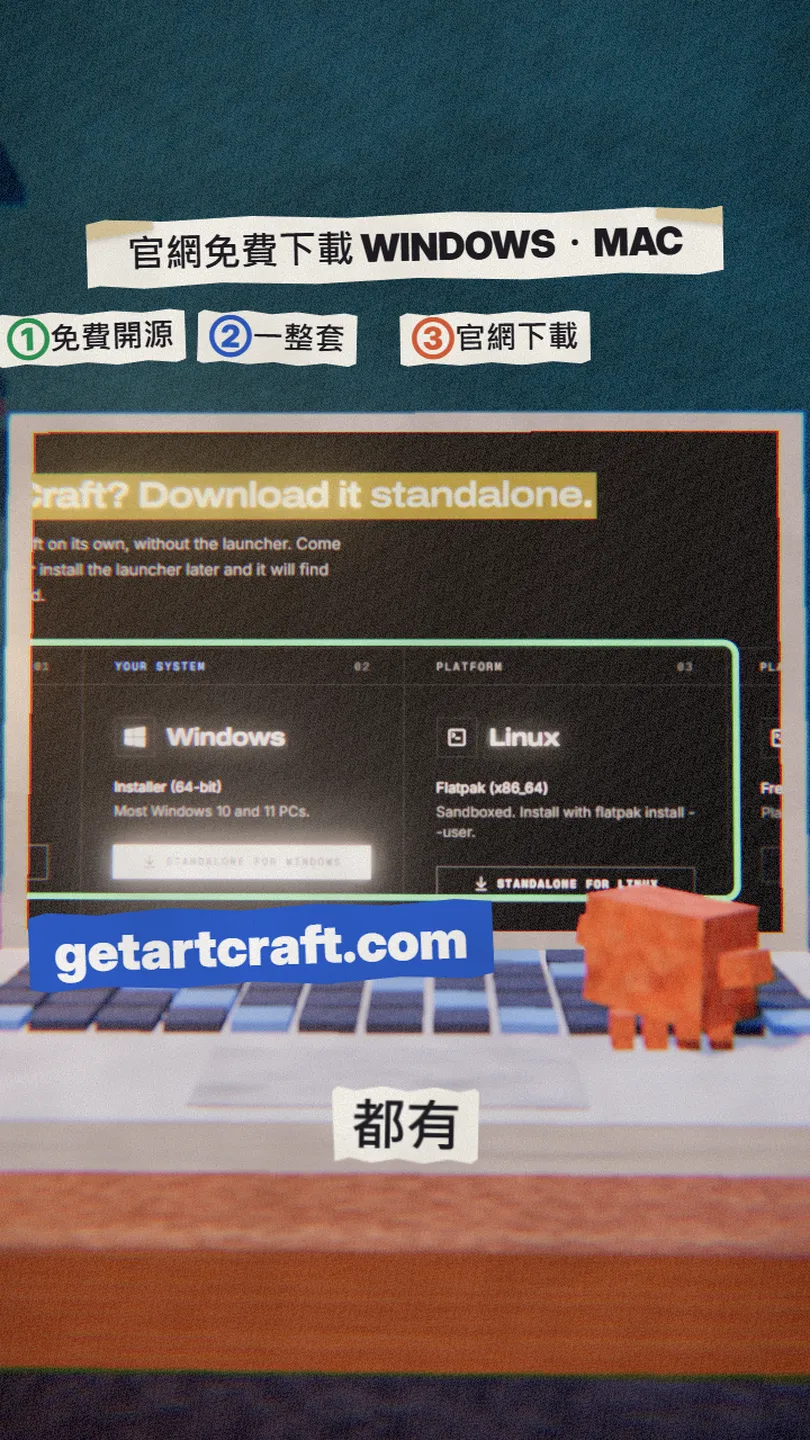
Open the PhotoCraft page on the official site and scroll to Get PhotoCraft. There are two ways to install it:
- ArtCraft Launcher (recommended by the team): installs PhotoCraft and the other Crafting Apps at once and keeps them updated.
- Just PhotoCraft: pick Standalone. Windows gets an .msi installer (or a portable build), Mac a .dmg, Linux an AppImage, .deb, .rpm or Flatpak.
- Open it, choose Open… and pick a photo, or drag a photo onto the window.
- PhotoCraft download page — official
- Every release on GitHub — each one has SHA256SUMS to check
03Step 2: your first edit, a Black & White adjustment layer
These are the steps from the reel (the interface is in English):
- File › Open and pick a photo.
- In the right-hand panel, open the Adjustments tab and click the black-and-white icon (Black & White). A Black & White 1 adjustment layer appears in the Layers panel; the original pixels are not changed.
- Drag the Reds slider in Properties: to the right, the reddish areas (like peaks lit by sunrise) get brighter; to the left, darker.
- Don't like it? Hide the adjustment layer with its eye icon or delete it; the original is still there.
- File › Export As to save a JPG or PNG.
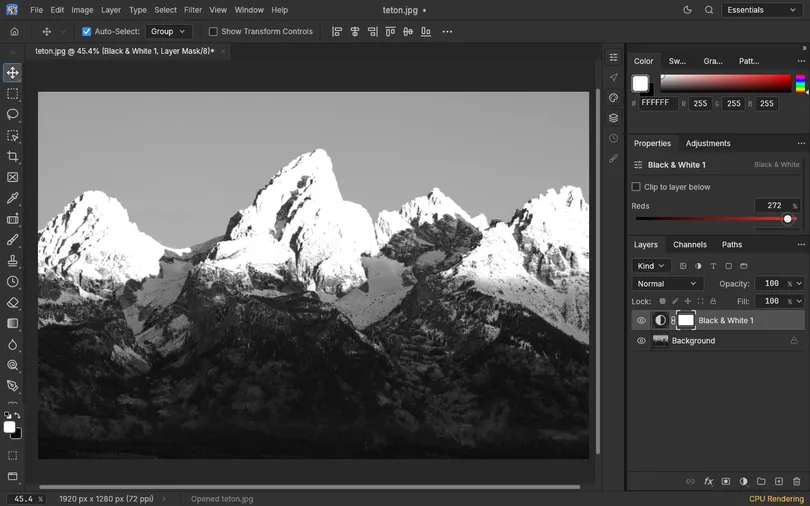
Not sure what to adjust? Ask Claude for the steps, and say you are using PhotoCraft:
I'm editing a photo of [what's in it, e.g. a portrait on the beach at dusk] in PhotoCraft (an open-source photo editor whose interface and menus are close to Photoshop's, English UI). I want [the look, e.g. natural skin tones, a bluer sky, a warm overall feel]. Tell me step by step which adjustment layers to add (with the English menu names), roughly what values to use, and how to export at the end.
04Step 3: the other free apps in the set
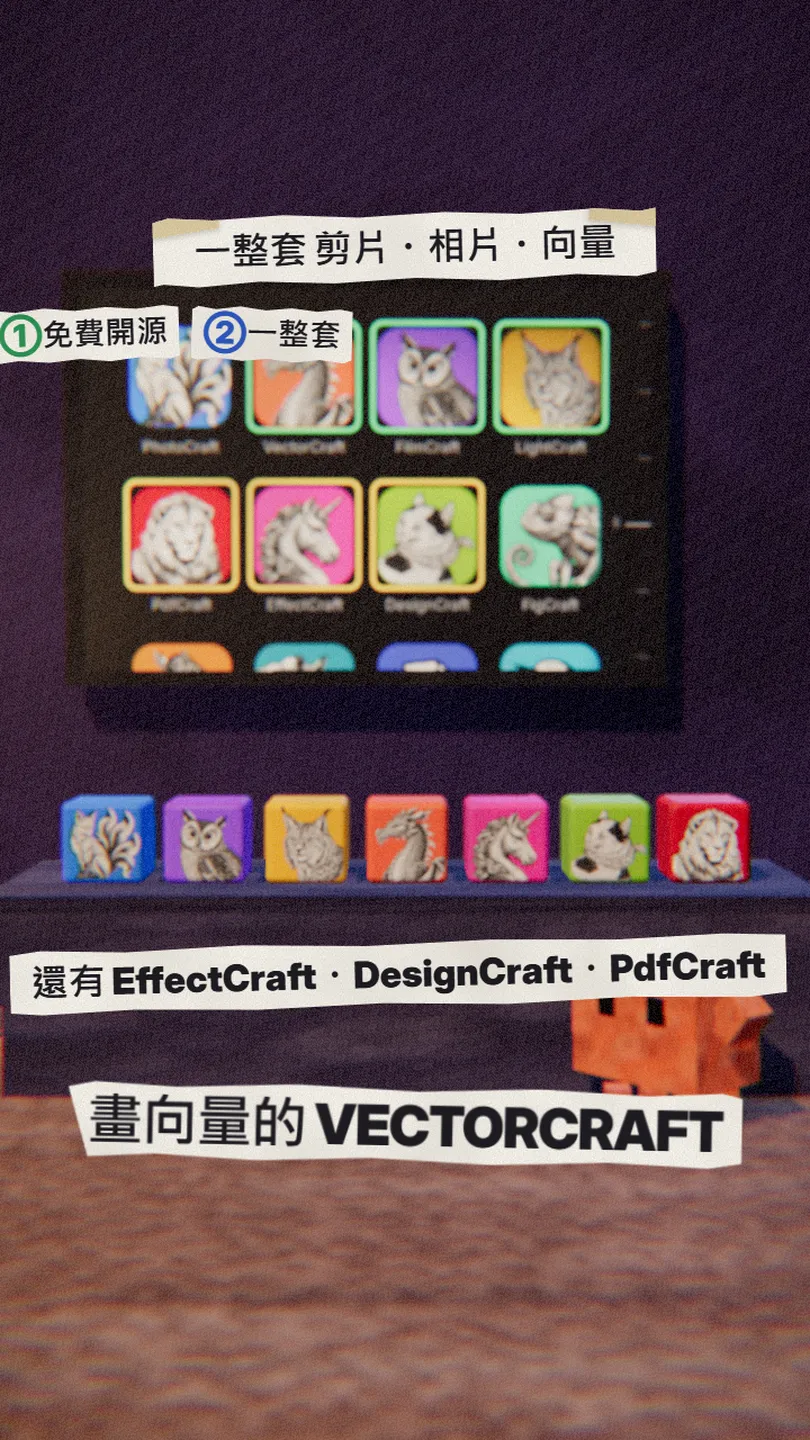
The ArtCraft team calls the set the Crafting Apps; the site lists 16 today (word processing, spreadsheets, slides, CAD and audio too). These are the 7 that match the creative apps in the reel, all open source, written in Rust and with a web build:
- PhotoCraft (image editing, the Photoshop counterpart)
- FilmCraft (video editing, the Premiere Pro counterpart)
- LightCraft (photo library and raw development, the Lightroom counterpart)
- VectorCraft (vector illustration, the Illustrator counterpart)
- EffectCraft (motion graphics and effects, the After Effects counterpart)
- DesignCraft (page layout, the InDesign counterpart)
- PdfCraft (reading and editing PDFs, the Acrobat Pro counterpart)
05Where it stands
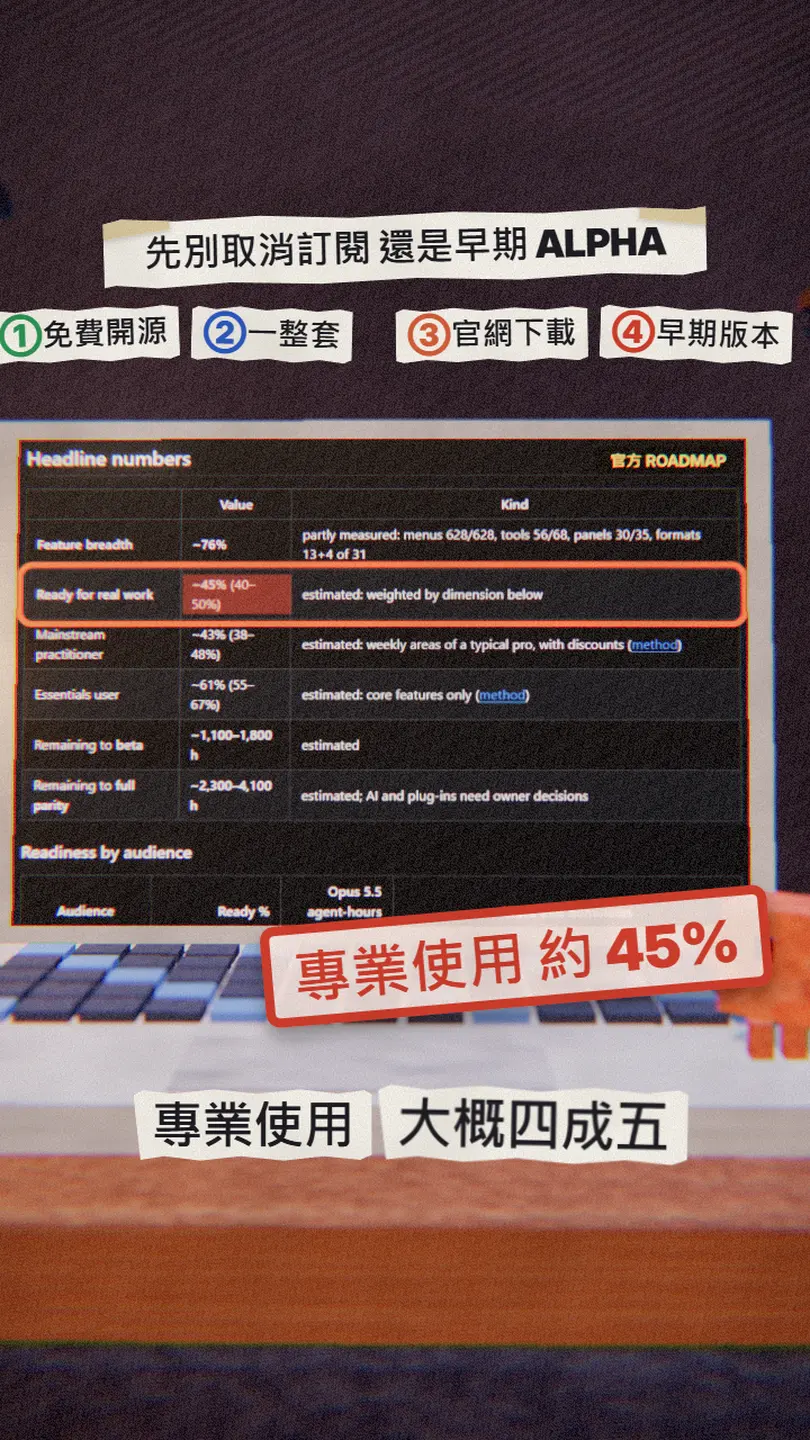
PhotoCraft's README is blunt: it is in early alpha; much of the feature surface exists, but it is not yet a Photoshop replacement for daily professional work. The numbers in the official ROADMAP (updated 17 Oct 2026):
- Feature breadth about 76%: all 628 menu items wired, 56 of 68 tools.
- Ready for real work about 45% (40–50%).
- For people who only use the essentials, about 61%.
- The biggest gaps: AI / generative features, 15 missing tools, depth in typography and pro workflows, plug-in compatibility.
Our take: for colour edits, adding text, practice and simple graphics, it's worth trying now. If you edit photos for clients, run both for a while and don't cancel your subscription yet.
06Good to know
- Still early alpha: the team expects rough edges; report problems as GitHub issues.
- PSD: opening and re-saving mostly works (307 of the 309 files in their test set render the same), but PSDs it writes are not yet reliably accepted by Photoshop.
- AI / generative features are about 10% done, and the full Content-Aware Fill workspace isn't there yet.
- You host the web build yourself (the team ships the photocraft-web zip); community-hosted copies are not official, so keep important files in the desktop app.
- The Pricing page on the site is for ArtCraft's separate AI image and video studio; the Crafting Apps themselves are free and open source.
- You found this guide by typing ADOBE in the link in bio; nothing is sent by DM.
Sources
- GitHub: storytold/photocraft (README: intro, downloads, status; checked 3 Nov 2026)
- PhotoCraft ROADMAP (feature breadth, ready for real work)
- PhotoCraft docs/gaps.md (missing features)
- PhotoCraft contributors.json (commits per AI model)
- PhotoCraft latest release v0.20.1 (3 Nov 2026)
- ArtCraft: PhotoCraft download page
- ArtCraft: all Crafting Apps
- Photo: Morning Light on Grand Teton (Grand Teton NPS, public domain)
What should the next reel cover?
I test Claude and AI tools every day and turn the useful ones into reels. Follow @vivianlin.tech to catch each new guide.