~/guides/PARALLEL.md
Orca: run 5 Claude Codes at once, each writes a version, merge the best (free and open source)
Orca is a free, open-source desktop app that runs several Claude Code or Codex agents side by side, each in its own git worktree. Install, fan out, merge.
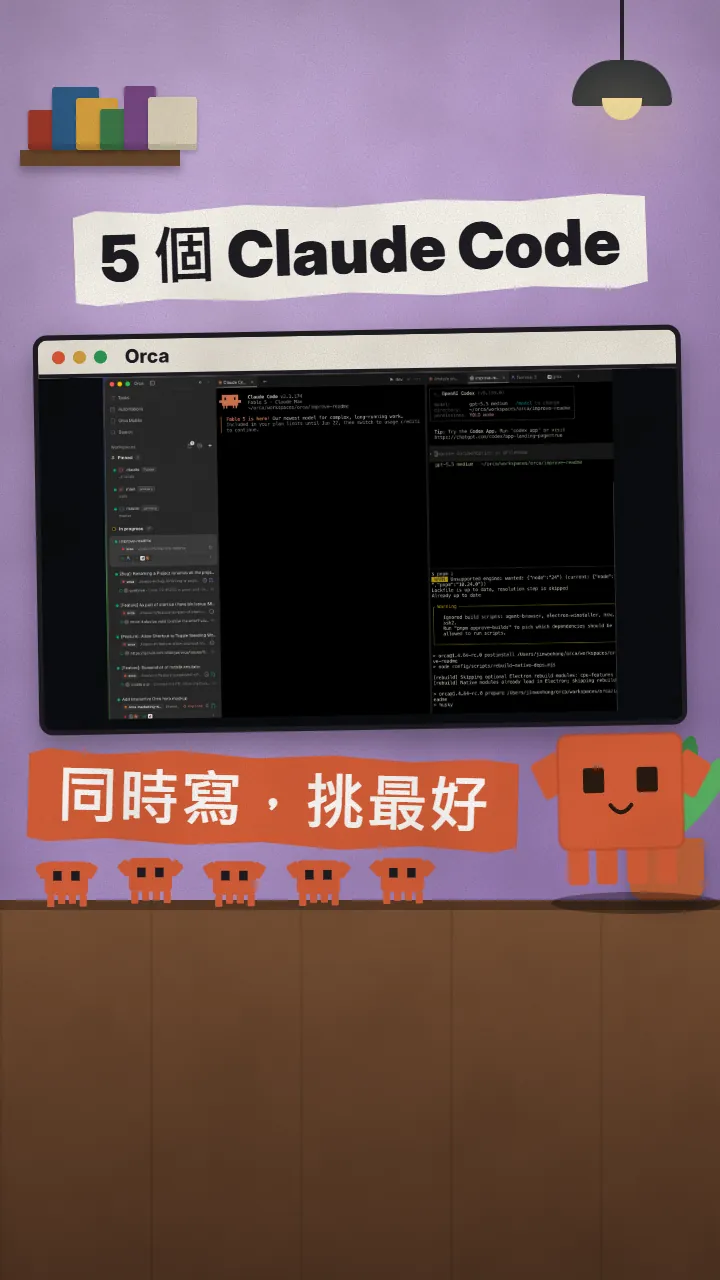
Normally you run one Claude Code at a time, and if it goes the wrong way you start over. Orca does it differently: give the same task to several agents, each writes its own version in its own git worktree, then you compare them side by side, keep the best one and delete the rest in one click. This is the full version of the PARALLEL reel: what Orca is, how to download and install it, how to send one prompt to several agents, how to compare the diffs and merge the best version, and the most important warning about usage.
01The result first: several agents write the same task side by side, you keep the best version
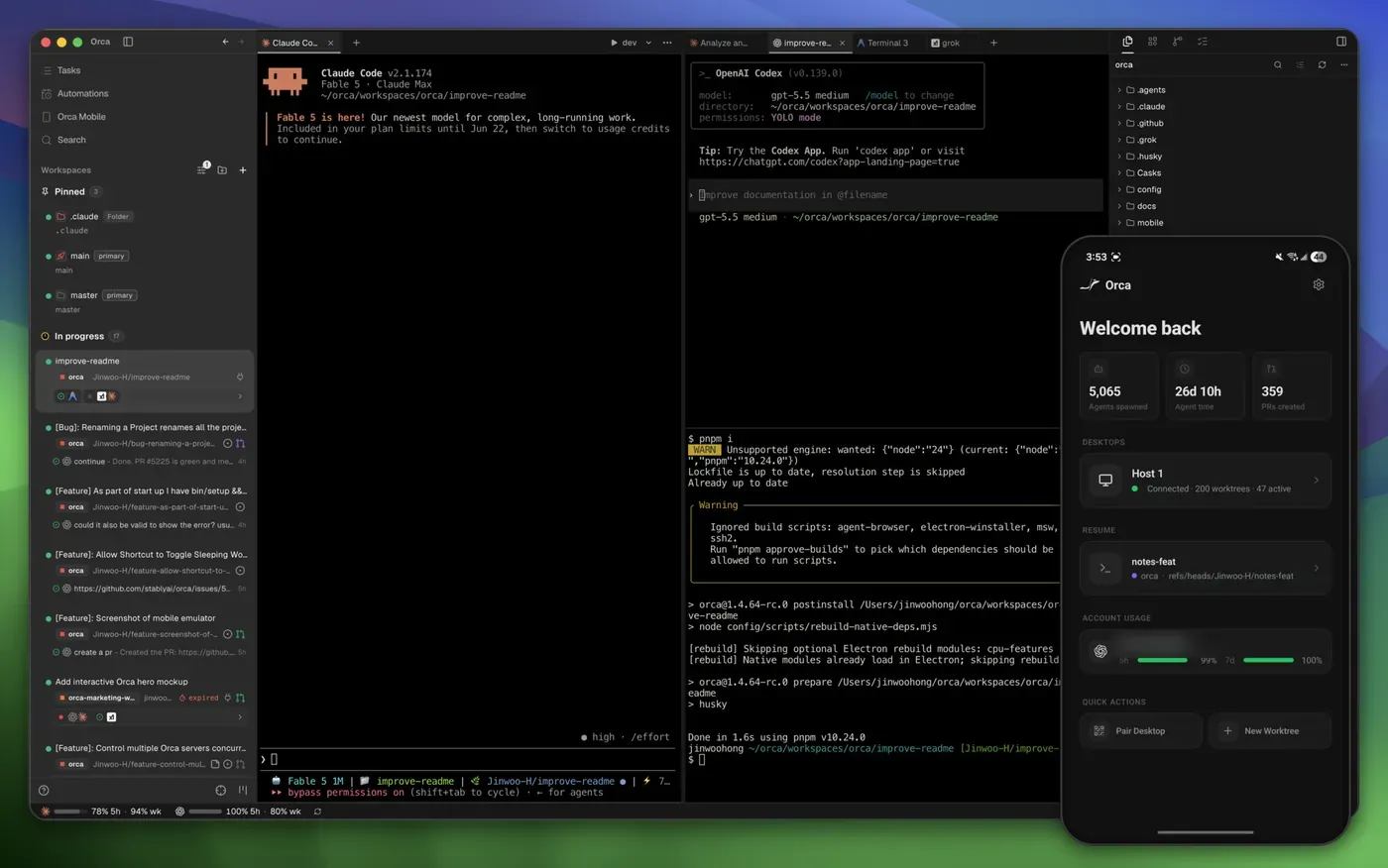
Orca is a free, open-source (MIT) desktop app by Stably for running several coding agents at once. Every task gets its own git worktree (a separate copy of the project with its own branch), so five agents can change the same project without overwriting each other's files.
When you are done, you will have:
- A free desktop app for Mac, Windows and Linux.
- One prompt sent to several agents (Claude Code, Codex or both), each writing its own version on its own branch.
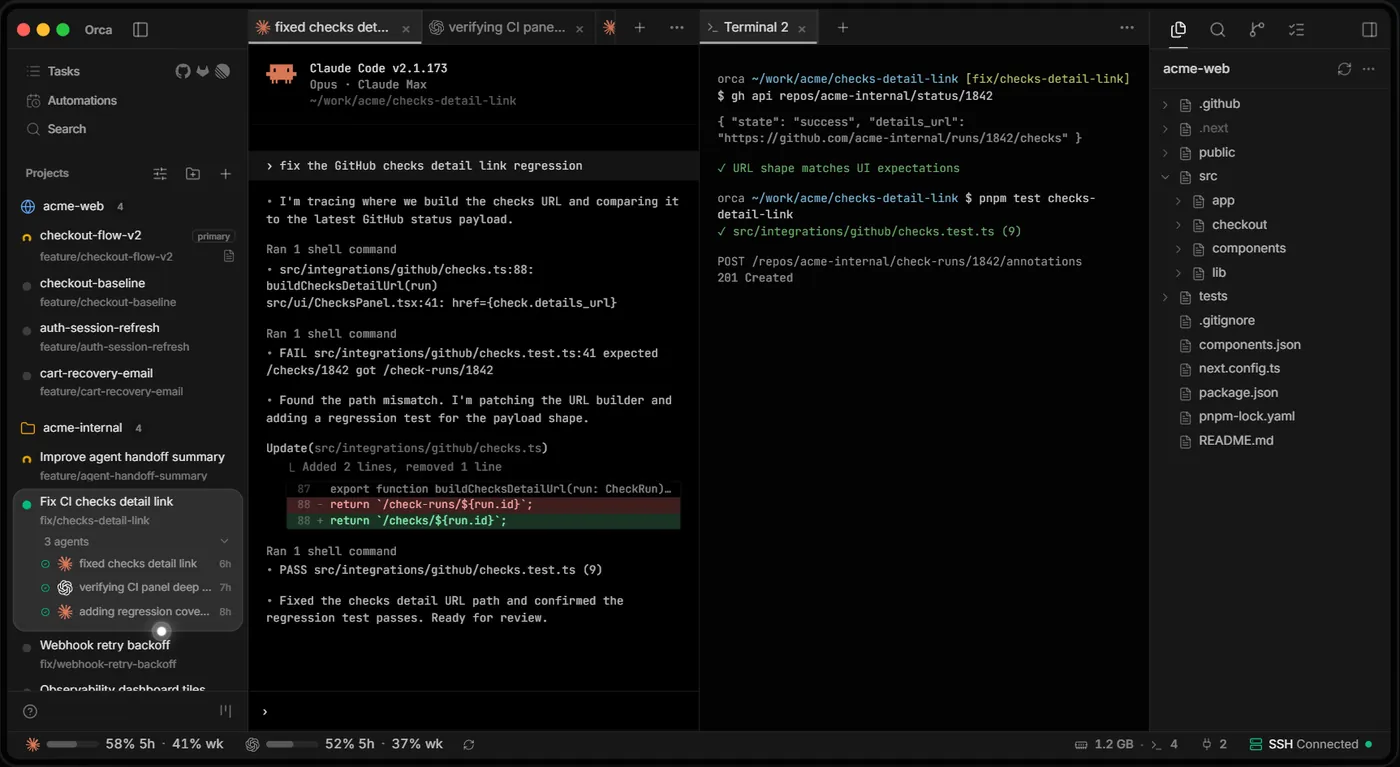
- Every version's diff side by side; you leave notes on the best one for the agent to fix, then commit and open a PR from it.
- The versions you did not pick deleted in one click, worktree and branch together.
- An honest warning: every agent uses your own subscription, so five agents means five times the usage.
02Step 1: Download and install Orca
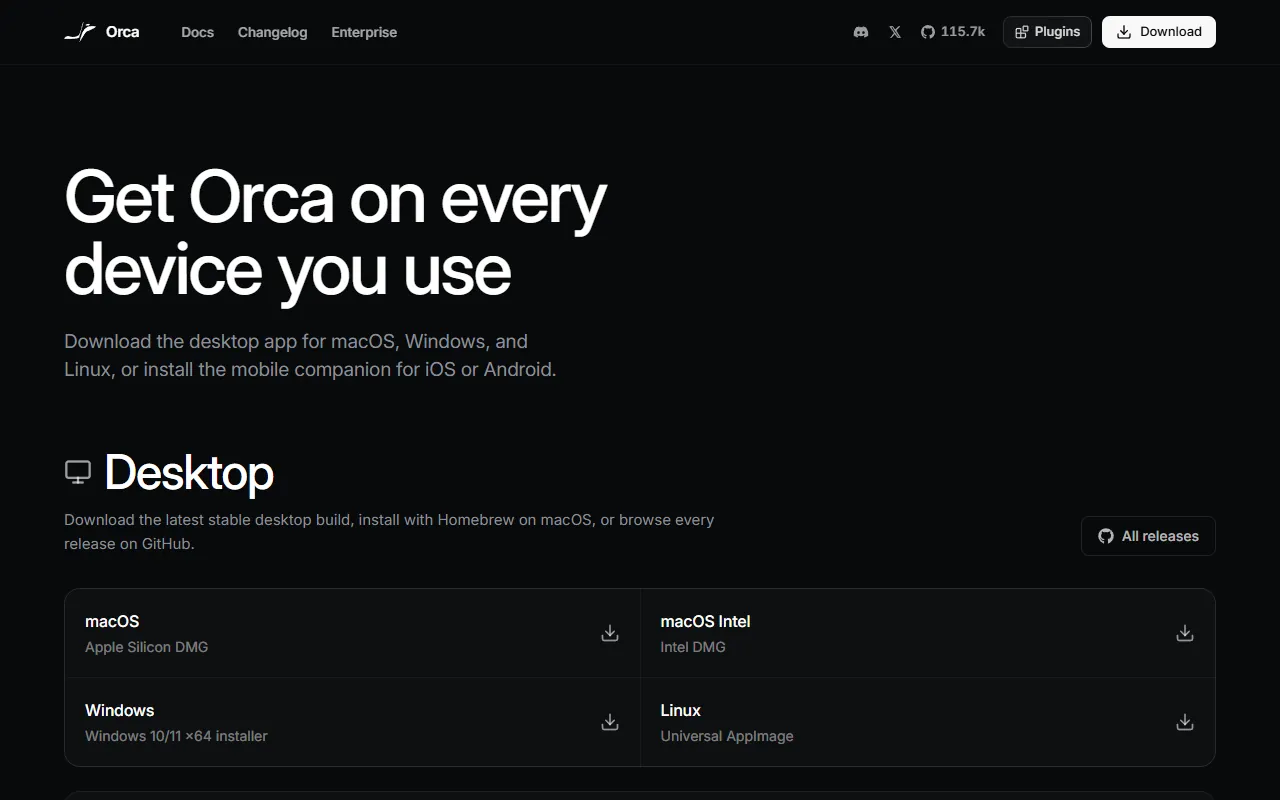
Go to the official download page and pick your system:
- Mac: macOS for Apple silicon (M-series), macOS Intel for older Intel Macs; both are .dmg files.
- Windows: the Windows 10/11 x64 installer (.exe).
- Linux: the AppImage; GitHub Releases also has .deb and .rpm.
- Install and open it; nothing to set up yet, the next step gets the agents ready.
On a Mac you can also use Homebrew, with the full name:
brew install --cask stablyai/orca/orca
- Orca official download page — Official, Mac / Windows / Linux
- Latest GitHub release — v1.4.249 when checked on 2026-11-05
- Source code: stablyai/orca — MIT license
03Step 2: Install Claude Code (or Codex) and log in once
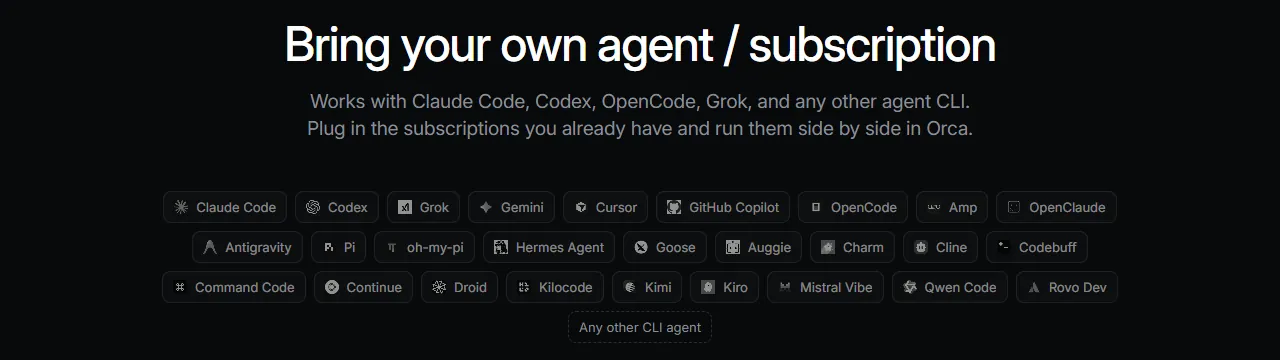
Orca is not an AI itself; it is the control desk. The agents on your computer do the coding, so install and log in to them first.
- Install Claude Code: run npm i -g @anthropic-ai/claude-code in a terminal (or follow Anthropic's instructions).
- Type claude in any terminal and log in once with your own account.
- Back in Orca there is nothing to configure: it picks up ~/.claude on your computer automatically.
- To use Codex or other agents too, install them and log in the same way, following their official instructions.
npm i -g @anthropic-ai/claude-code
04Step 3: Create a few worktrees and send one prompt to several agents
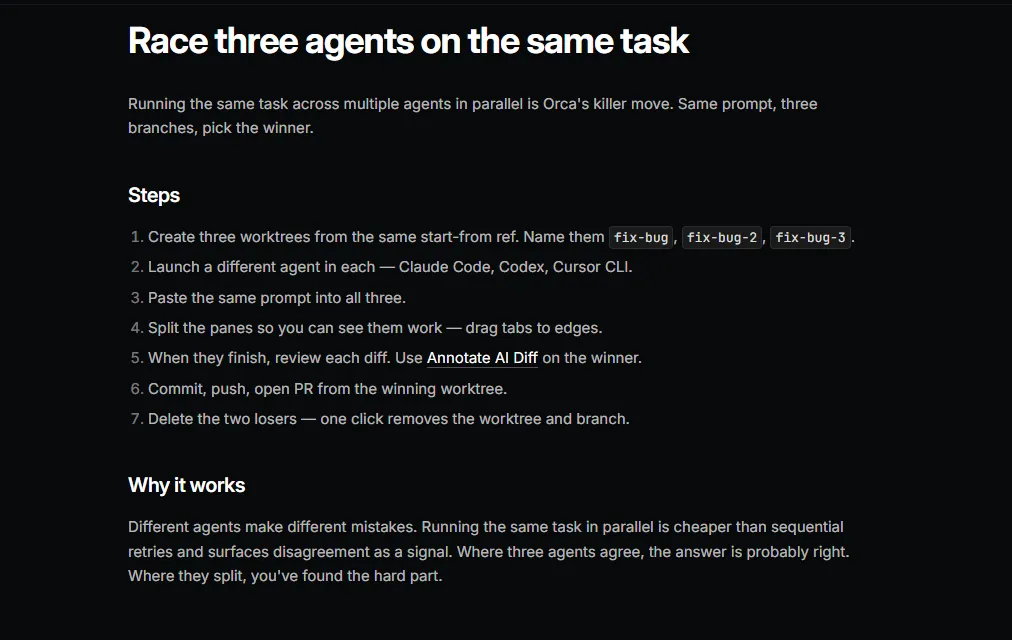
This is the official recipe. I show it with three agents (the website's example uses five; starting with two or three saves usage):
- Add your project (a git repo) in Orca's left sidebar.
- Create three worktrees, all with the same "Branch from" starting point (for example main), named like the official example: fix-bug, fix-bug-2, fix-bug-3. Each worktree gets its own branch automatically.
- Start one agent in each worktree: all Claude Code, or a mix like Claude Code, Codex and Cursor CLI.
- Paste the same prompt into all three agents.
- Drag the tabs to the edges of the window to split the panes and watch them work side by side.
Spell out the scope and what "done" means, so the three versions can be compared. This is how I write it:
[Fix / build] [the feature or bug, for example: clicking the checkout button twice places two orders].
Scope: only change [folder or files, for example src/checkout/]; leave everything else alone.
Done when: [test command, for example npm test] passes, plus one new test that covers this case.
When finished, explain in 3 sentences: what you changed, why, and any risks.
05Step 4: Compare the diffs side by side and merge the best version
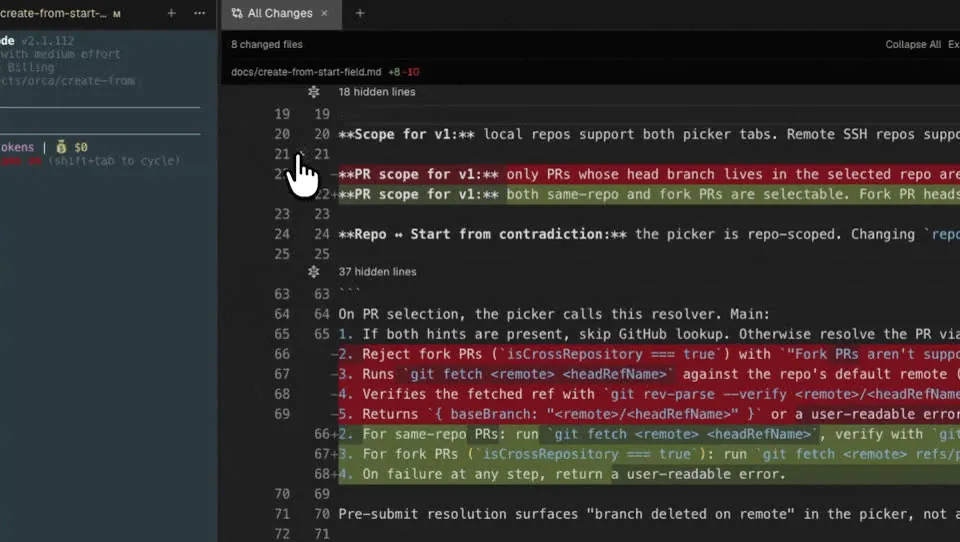
Once all three are done:
- Go through each worktree's diff and pick the best version.
- Leave notes on that diff: hover over a line, click the "+" in the gutter (or press c), type what to change, press Enter to save.
- Click "Send to agent" at the top of the diff: Orca combines all notes into one prompt, each tied to its line, and sends it to the agent to fix.
- When you are happy, commit, push and open a PR from that worktree; that is how the best version gets merged.
- Delete the other two: one click removes the worktree and its branch (after a confirmation).
If the three look about the same and I can't decide, I start one more agent to compare them. The worktrees are branches of the same repo, so it can see all of them:
Compare the diffs of the branches [fix-bug], [fix-bug-2] and [fix-bug-3] against [main].
Make a table: which files each one changed, how the approaches differ, whether the tests pass, and any risks.
Then recommend one version in 3 sentences or fewer. Do not change any code yet.
- Official recipe: Race three agents on the same task — Source for steps 3 and 4
- Official docs: Worktrees — Create, name, delete, .worktreeinclude
- Official docs: Annotate AI Diff — Notes on a diff, sent back to the agent
06Good to know
- Usage: every agent runs on your own subscription, so five agents means five times the usage and you hit your limits five times faster. Start with two or three and watch the usage in Orca's status bar before adding more.
- Orca itself is free and open source (MIT) and the website lists no paid plan for individuals; what costs money is your Claude / Codex subscription.
- Deleting a worktree deletes its branch too. Commit and push the winning version before you delete the others.
- With Homebrew, always type the full stablyai/orca/orca; plain orca is a different app.
- Orca sends anonymous usage data by default (no prompts, responses, terminal contents or file paths). To turn it off: Settings → Privacy, switch off "Share anonymous usage data", or set the environment variable DO_NOT_TRACK=1.
- The only official places are github.com/stablyai/orca and onorca.dev. The repo had about 116K stars on 5 Nov 2026 and ships new versions almost daily, so the screens may differ a little from this guide.
- You found this page by typing PARALLEL in the link in bio; there are no DMs.
Sources
- GitHub: stablyai/orca (README, Install, Supported Agents, MIT license; checked 2026-11-05)
- GitHub: latest Orca release v1.4.249 (checked 2026-11-05)
- Orca website onorca.dev (Parallel Worktrees, Bring your own agent / subscription)
- Orca official download page
- Orca official recipe: Race three agents on the same task
- Orca official docs: Worktrees
- Orca official docs: Claude Code
- Orca official docs: Annotate AI Diff
- Orca official docs: Usage tracking
- Orca official docs: Privacy & Telemetry
What should the next reel cover?
I test Claude and AI tools every day and turn the useful ones into reels. Follow @vivianlin.tech to catch each new guide.