~/guides/WIFI.md
Use Claude Code to find out why your Wi-Fi is slow: a read-only check of band, channel and DNS
Before upgrading your plan, have Claude Code run read-only checks of band, channel, signal and DNS. Never paste router passwords into AI.
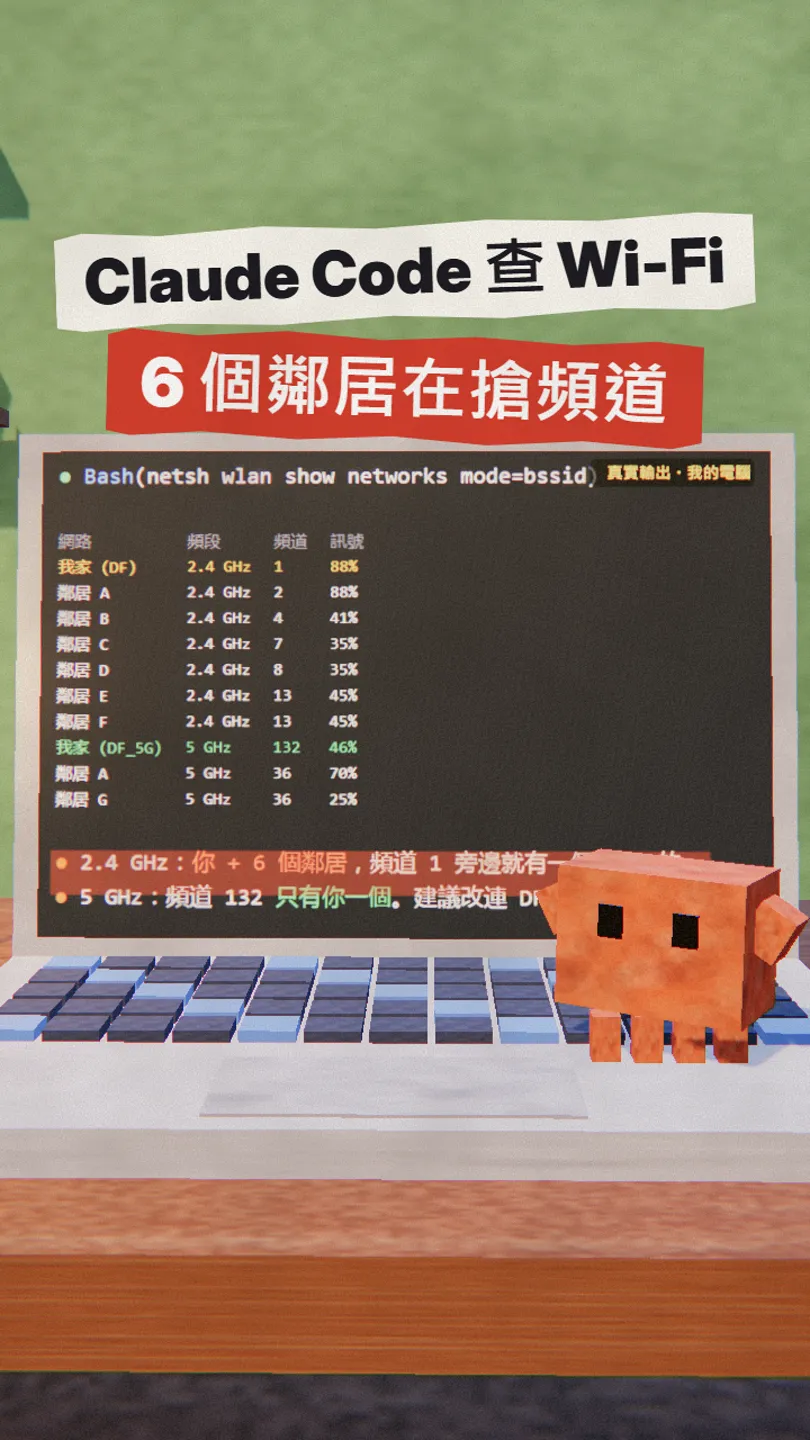
When the internet is slow, the first thought is often upgrading the plan. But a lot of the time the channel is just crowded: several neighbours fighting over the same 2.4 GHz channel. This is the full version of my WIFI reel: have Claude Code check with read-only commands only, understand the result, then decide yourself what to change. At my place, 6 neighbours were crowding 2.4G and I had my 5G channel to myself, so switching to 5G fixed it.
01What you get: a Wi-Fi check-up you can read
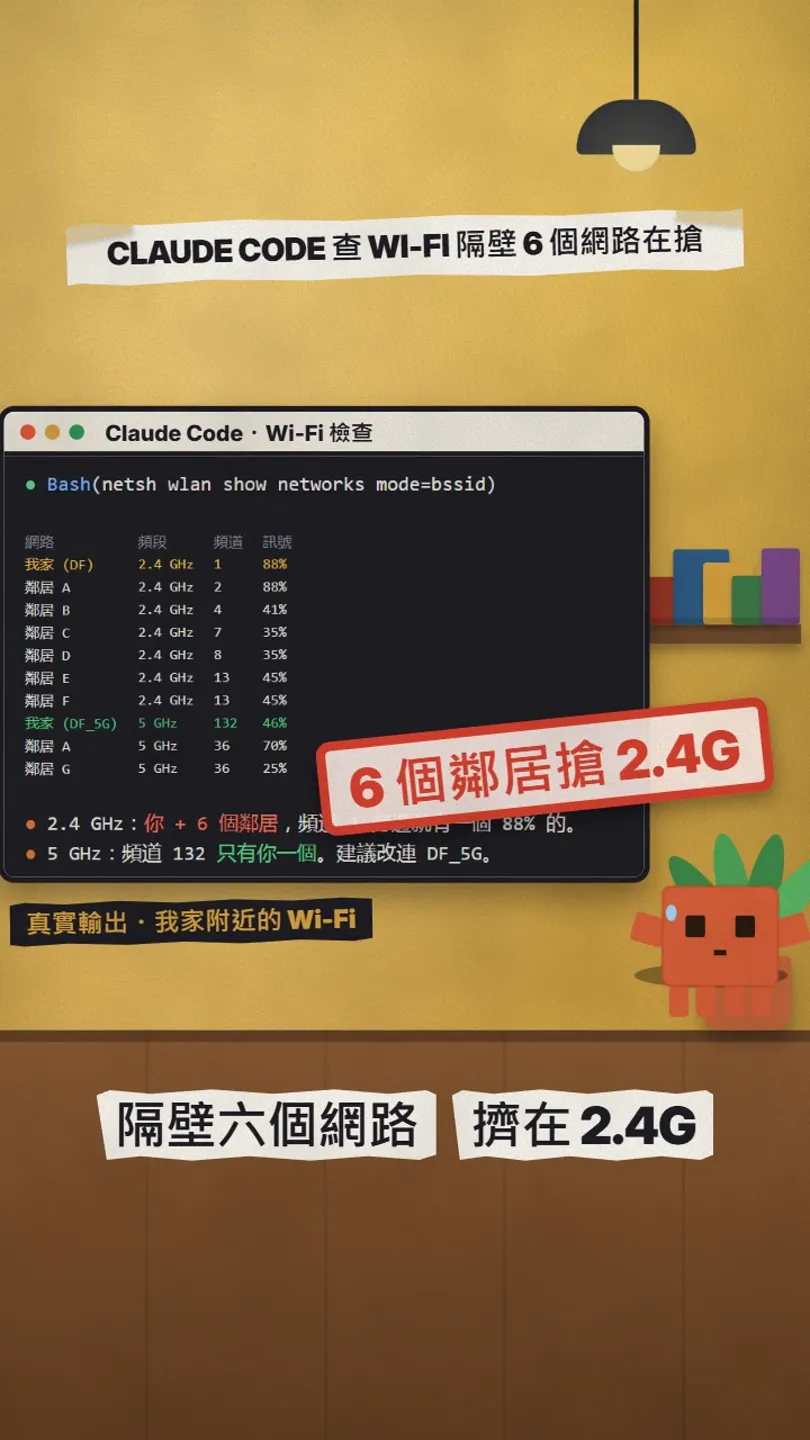
The whole check only looks, it changes nothing. Claude Code reads what your computer sees and tells you:
- Whether you're on 2.4 GHz or 5 GHz, and how strong the signal is.
- How many networks share your channel.
- Whether your DNS is fast compared with 1.1.1.1 and 8.8.8.8.
- The most likely cause, and fixes you can do yourself.
02Step 1: tell Claude Code to look, not change
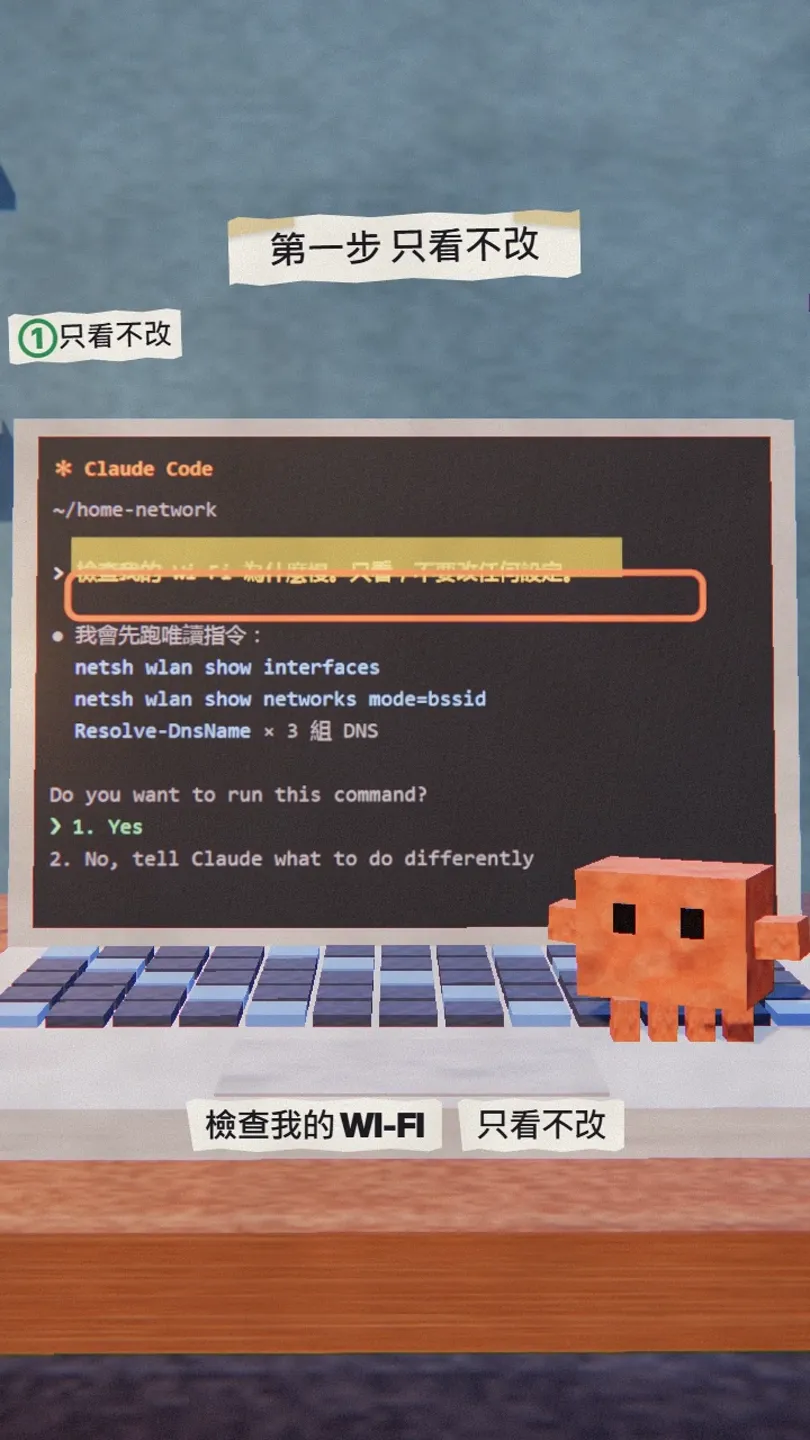
Open Claude Code (official page: claude.com/product/claude-code), in any folder, and paste:
Check why my Wi-Fi is slow. Use read-only commands only and don't change any settings.
It asks before running each command. On Windows it will usually be these two built-in commands, which only read data:
netsh wlan show interfaces
netsh wlan show networks mode=bssid
03Step 2: read band, channel and signal, then compare DNS
Look for three things: your band, how many neighbours share your channel, and your signal percentage. Then ask it to compare DNS:
Compare DNS speed read-only: my router, 1.1.1.1 and 8.8.8.8, 10 lookups each, and give the averages.
04Step 3: common fixes (you do them yourself)
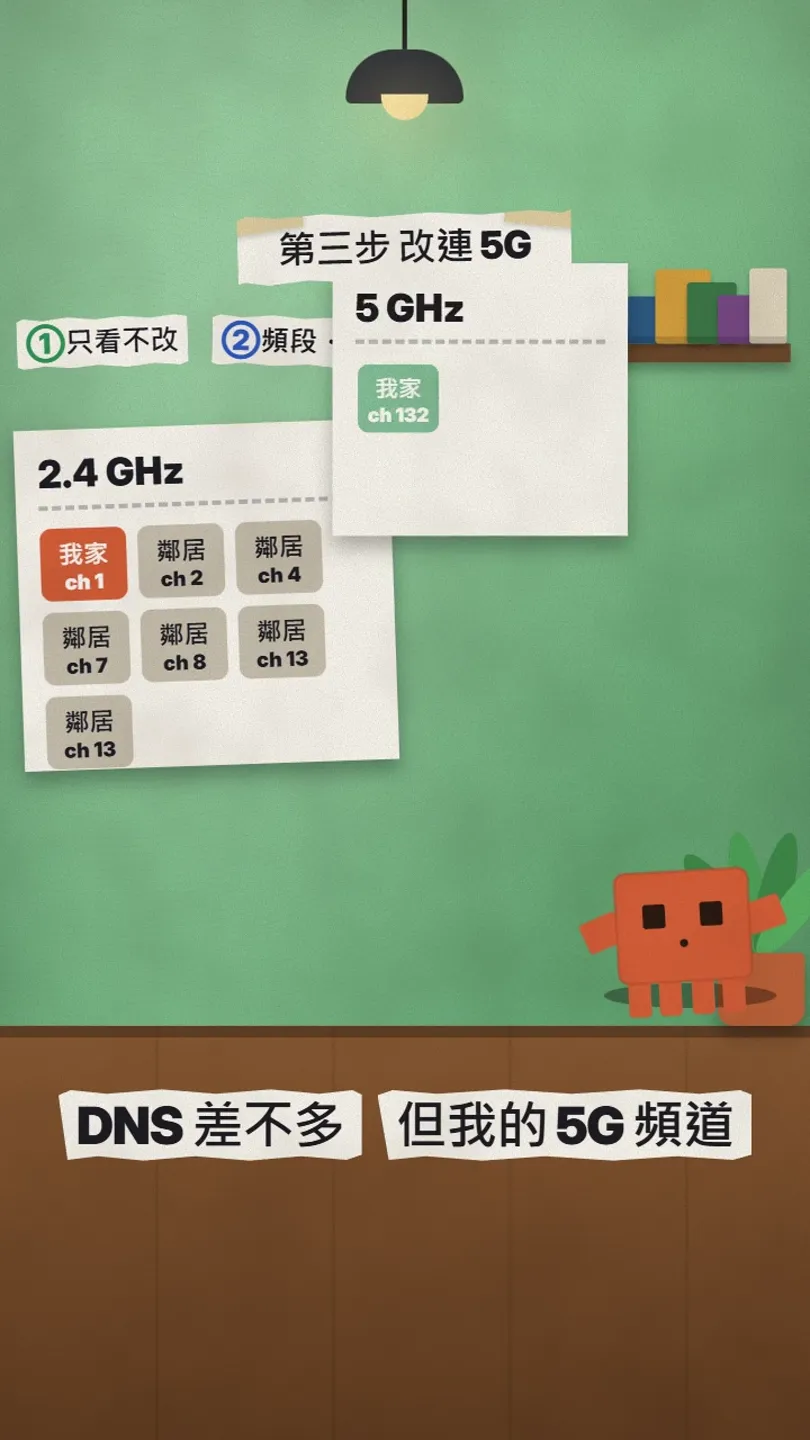
- Switch to 5 GHz: usually faster and less crowded at close range.
- Move the router to the middle of your home, not inside a cabinet.
- Pick a quieter channel in the router's admin page; on 2.4 GHz use 1, 6 or 11, the three that don't overlap.

05Good to know
- Type router and Wi-Fi passwords yourself; never paste them into AI.
- This guide only has Claude Code read data; change router settings yourself in its admin page.
- Understand each command before pressing Yes; if unsure, choose No and ask it to explain or do it differently.
- Results are your home right now; other times of day or rooms may differ.
Sources
What should the next reel cover?
I test Claude and AI tools every day and turn the useful ones into reels. Follow @vivianlin.tech to catch each new guide.