~/guides/DISCOUNT.md
ChatGPT found 8 discount codes in 2 minutes, then Work tried them at checkout one by one
Paste a product URL: ChatGPT lists codes, sources and the cheapest combo. Then Work tests them at checkout. Two prompts, plan limits, what to confirm.
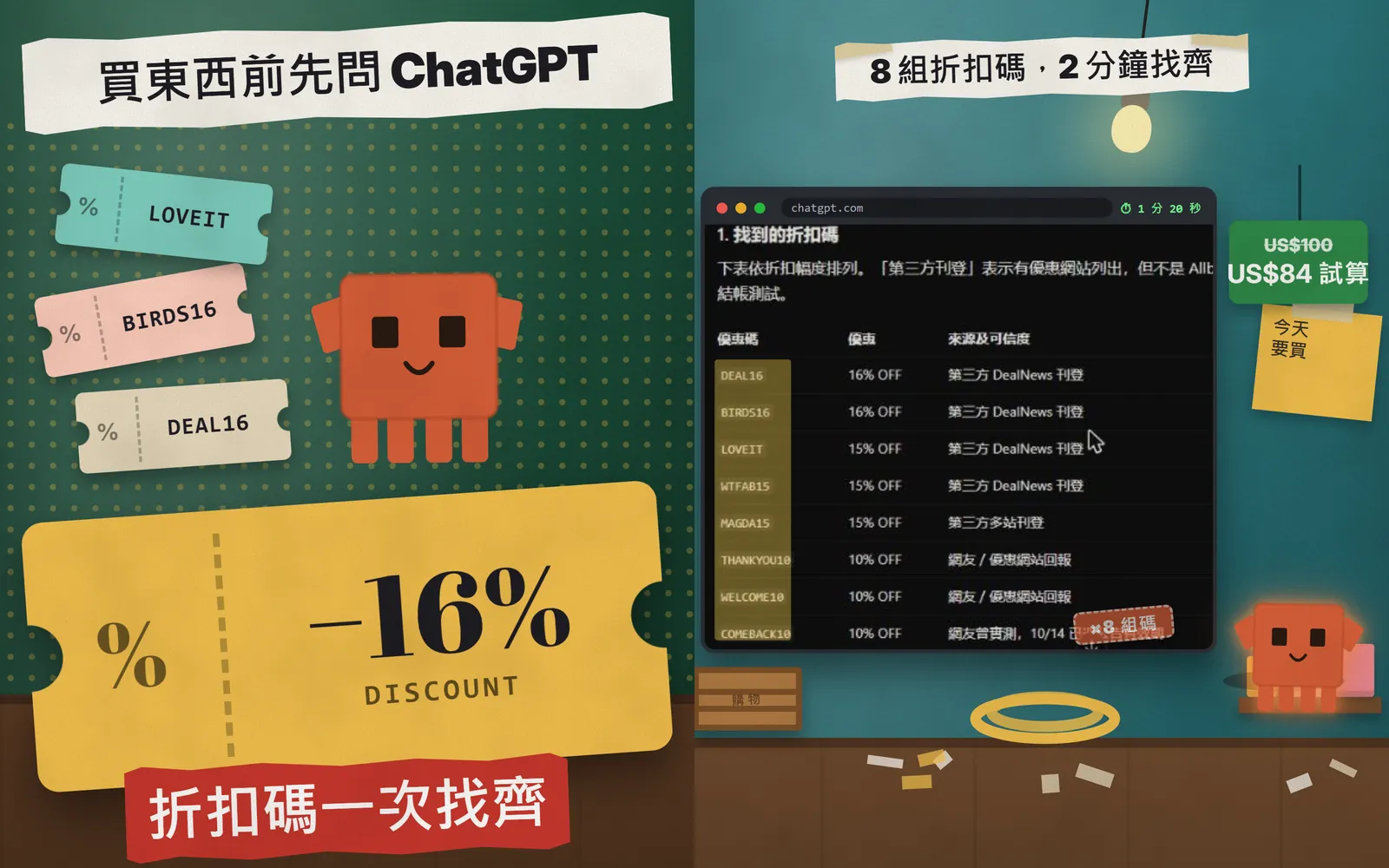
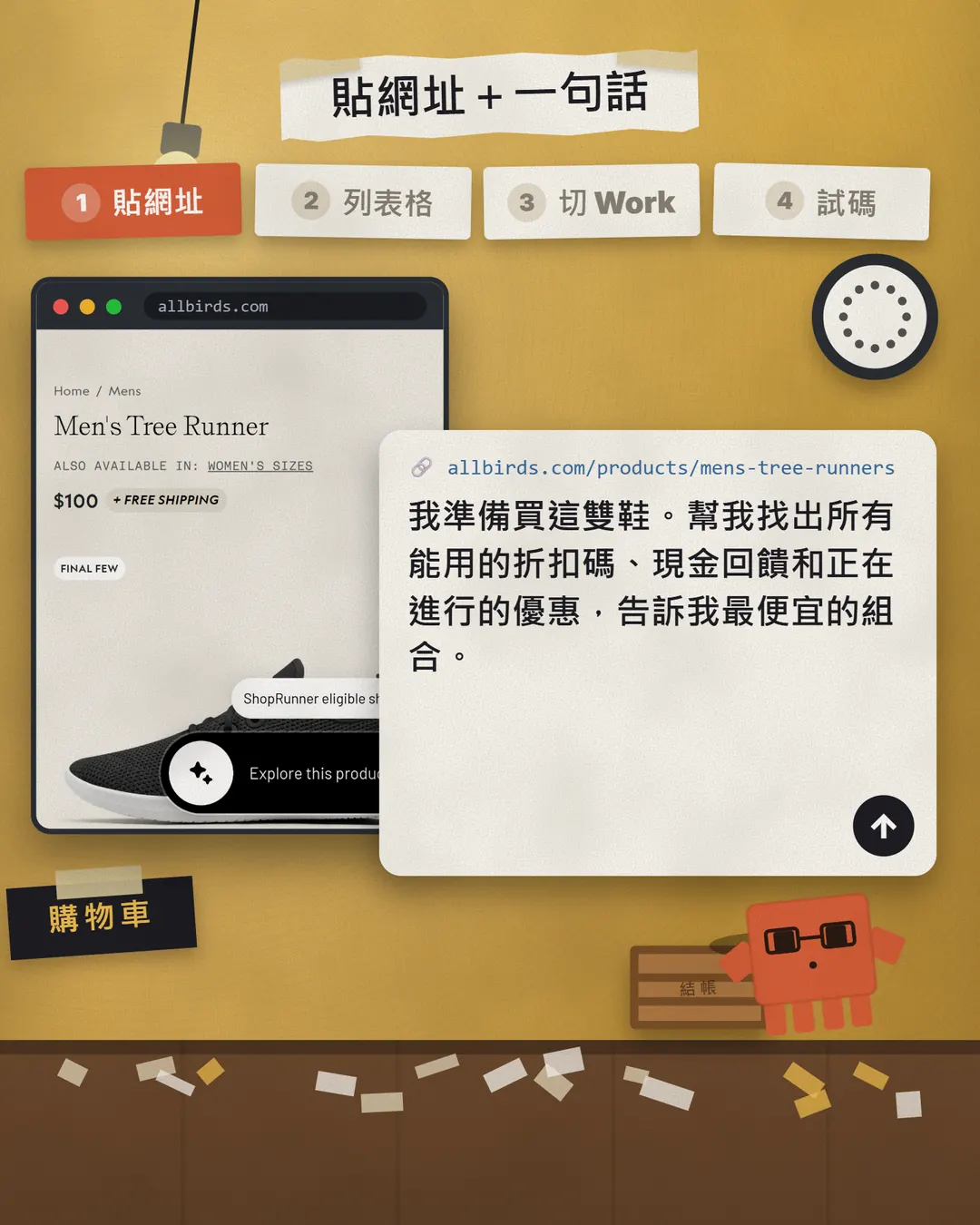
Before you buy something, do you search for "brand discount code" and end up opening ten sites that all want you to sign up? This time I handed that job to ChatGPT. I pasted one product URL and in under two minutes it gave me 8 discount codes, the source of each, and the cheapest combination. But many codes online are long dead, so for step two I switched to ChatGPT’s Work mode and had it try the codes at checkout one by one. This article is the full version of the two prompts in the Reel: how to paste them, how to switch to Work, which plans can use it, and what you must confirm before paying. This Reel is about ChatGPT, not Claude. The mascot on screen is our orange block character.
01The result first: what one URL gets you
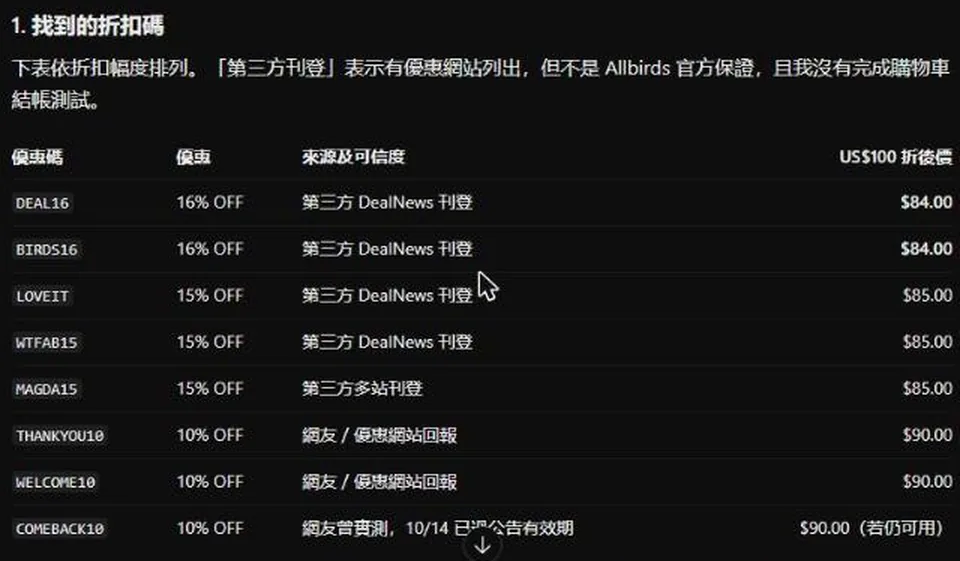
I used a shoe that is sold publicly (Allbirds Men’s Tree Runner, listed at US$100 on the official site). In a normal ChatGPT chat (Chat mode) I pasted the product URL plus one request. ChatGPT worked for 1 minute 20 seconds and sent back a write-up in Traditional Chinese.
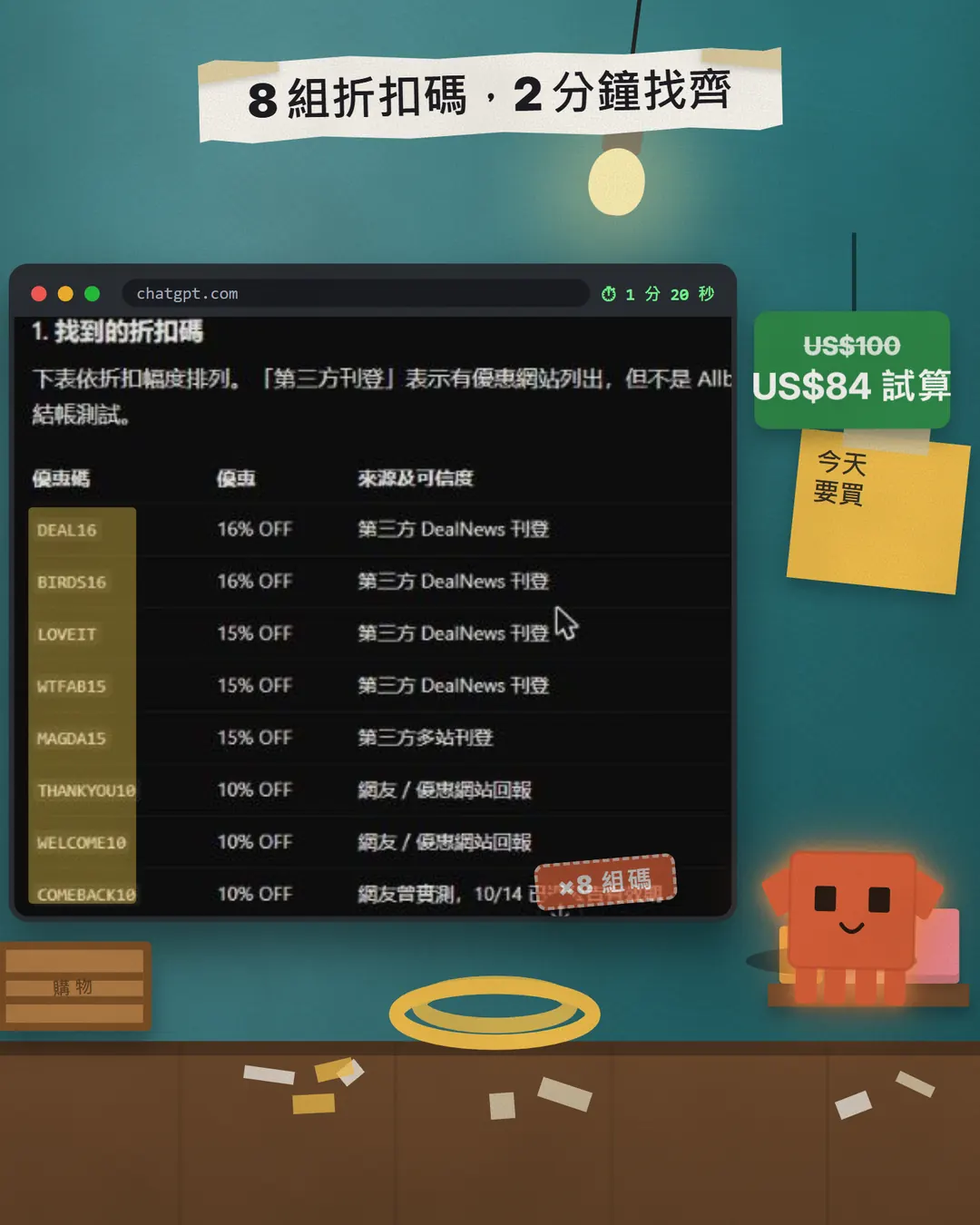
The write-up has three things in it, and this is why I find the trick so useful:
- A discount-code table: 8 codes, each with the discount, the price after discount, and a "source and reliability" column.
- The source of every code: the brand itself, a third-party deal site, or user reports. ChatGPT itself says a third-party listing is not a guarantee from the brand.
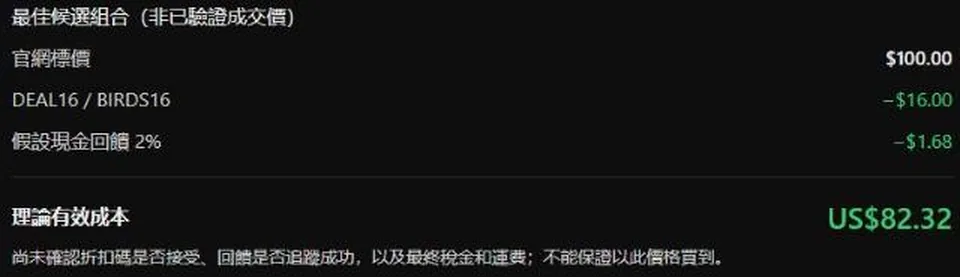
- The cheapest combination: it adds up the list price, the code and an assumed cashback to estimate a "theoretical effective cost".
02Step 1: paste the URL and have ChatGPT build the table
The first prompt is short. It asks for three things: codes, cashback and current offers; the source of every code; and the cheapest combination at the end. Replace the [ ] with your own details.
- Open chatgpt.com or the app and use normal Chat mode (don’t pick Work yet).
- Paste the URL of the product you want.
- Paste the prompt below and send it.
- When it finishes, read the table and the "cheapest combination" block.
I am about to buy this: [paste the product URL]
I am buying in [Taiwan / the US / another region].

Find every discount code, cashback offer and current promotion that works. Answer in English as a table with these columns: code, discount, source, reliability, price after discount.
Name the source of every code. If you did not test a code yourself, write "unverified".
Finally tell me the cheapest combination and work out the estimated final price.
The "best candidate combination" block is the one I look at most. It splits the list price, the code and the cashback into separate lines, so you see at a glance how much each one saves.
03Why Work too: many codes online are long dead
Step one gives you a list, not an answer. Codes floating around online are often expired, new-customer-only, or not even for this brand. In my own example, one code’s source is a user’s test report dated 10/14, and ChatGPT added "if still valid" after its price. That is why I say "many" codes fail, not all.
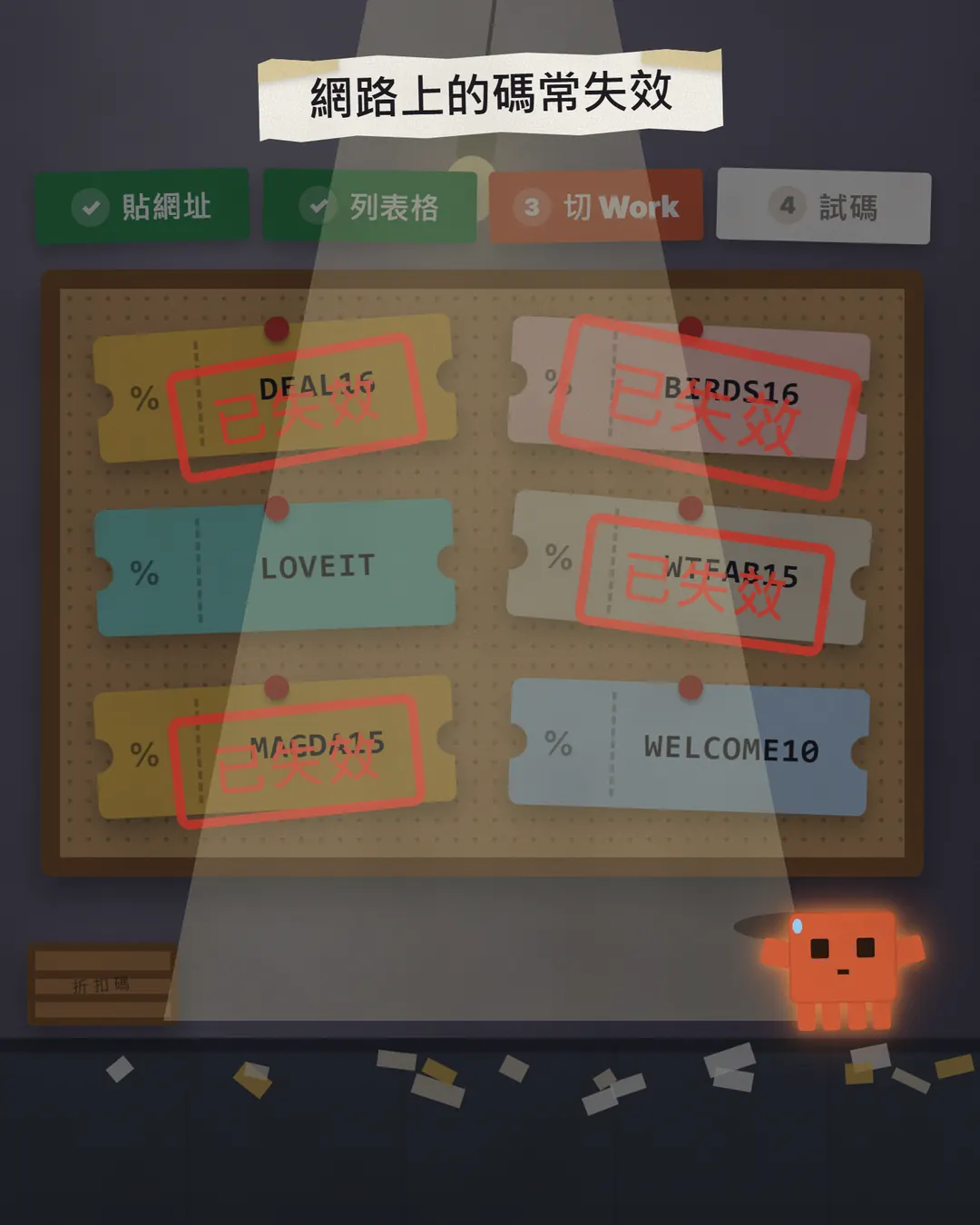
The most reliable way to know if a code works is to type it at checkout. That tedious one-by-one job is what Work is for.
- Don’t pay yet. Keep the table from step one as your list of codes to try.
- Switch to Work at the top of ChatGPT (next section shows how).
- Use the second prompt to send it to the checkout page.
04Step 2: switch to Work and try the codes at checkout
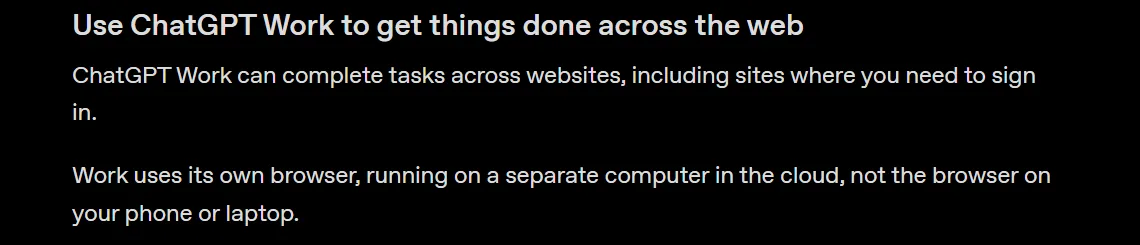
Work is another mode inside ChatGPT. OpenAI’s docs say it plainly: Work uses its own browser, running on a separate computer in the cloud, not the browser on your phone or laptop. It can read, click and type on web pages to finish tasks across websites.
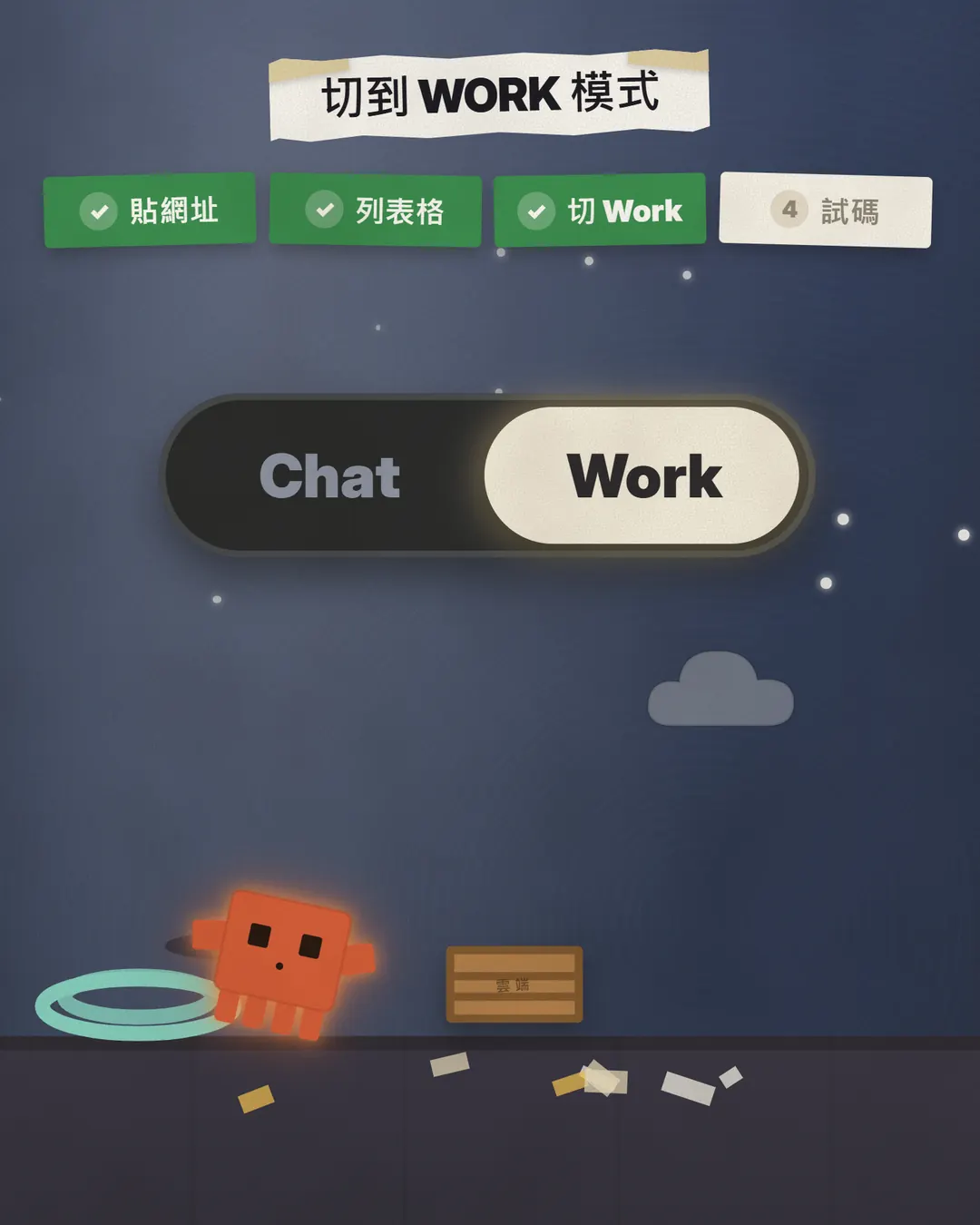
- At the top of ChatGPT, switch Chat to Work.
- The same conversation or a new one both work, as long as it can see the codes from step one.
- Paste the prompt below and send it.
- The first time it wants to open a new website it asks you first. Check the address, then approve.
- When it finishes it reports the result for each code, and you decide whether to buy.
Go to the checkout page for [product URL] and try the discount codes from the table above, one at a time.

Rules:
1. First add the item to the cart with my choice: [size / colour / quantity].
2. Try every code once and note the result: valid or invalid, how much it takes off, and the total after the code (including shipping and tax when visible).
3. Keep the best deal.
4. Do not place the order and do not fill in anything in the payment fields. Stop at the payment step and ask me.

At the end, give me the results for every code as a table.
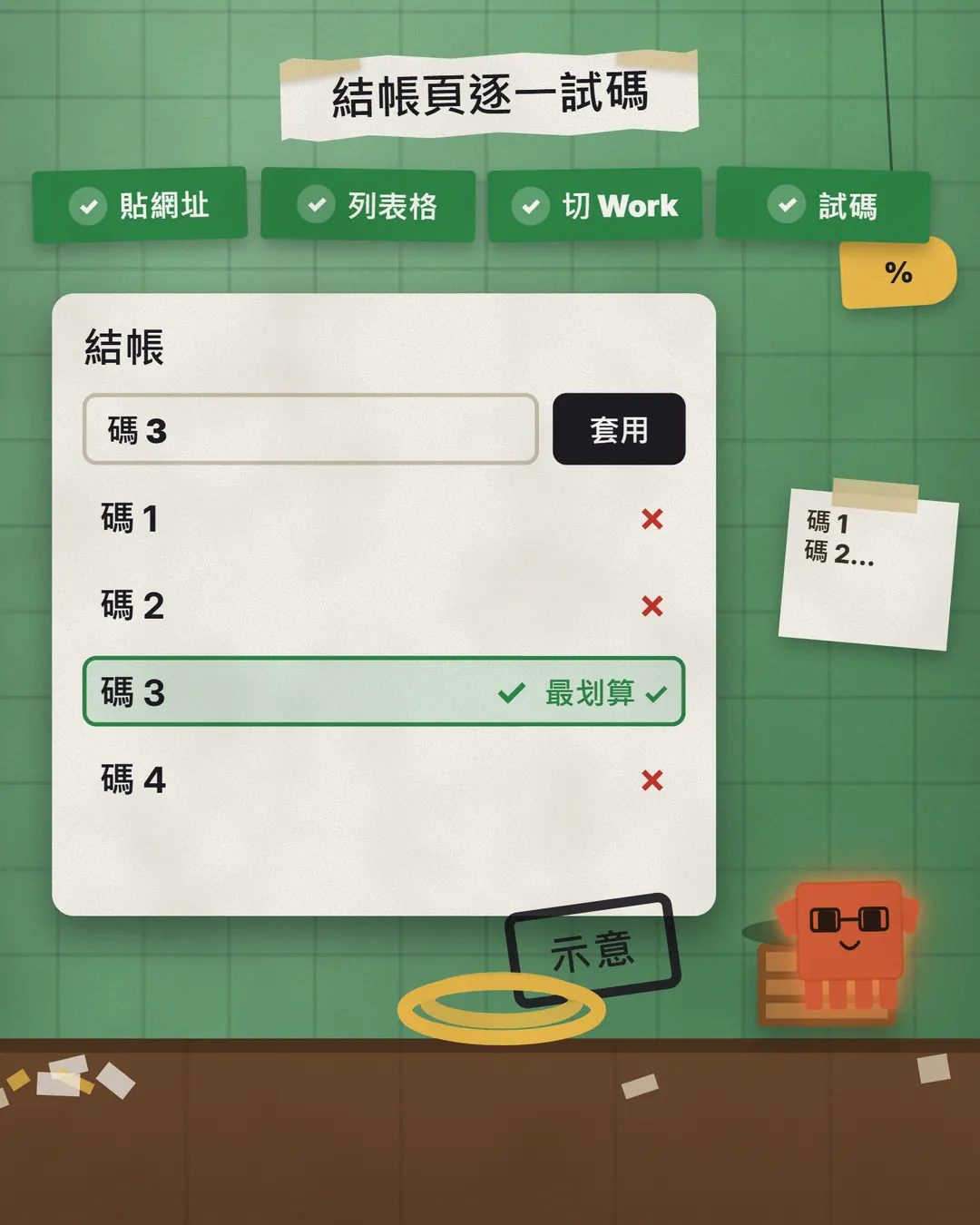
If Work fails, that is fine. The step-one table is still useful: you can type the codes into checkout yourself, one by one.
05Before it pays, it stops and asks you
When you let an AI loose on a checkout page, the first worry is: will it just pay? OpenAI’s docs say: "ChatGPT Work will always ask for confirmation before consequential actions, such as submitting your information to book an appointment or completing a payment." In other words, before it does something with consequences, like submitting your data or completing a payment, it asks you first.


However, another part of the same page says "trained to ask for confirmation", meaning it has been trained to ask first. So I don’t treat that sentence as a 100% safety net. I also write "stop at the payment step and ask me" in the prompt, and the final confirm button is always pressed by me.
- When it stops before payment, check the cart first: the item, the quantity, the size.
- Then check the final total: did the discount really apply, and were shipping and tax added.
- If it all looks right, press pay yourself. If you are unsure, cancel and check out on the store’s own site.
06Which plans can use Work
This is where people waste the most time. OpenAI’s docs say cloud browsing is available in all regions on paid plans other than Free and Go. It also depends on your plan, workspace settings and rollout, so during a rollout the browser may not show up in your account even if your plan supports it.
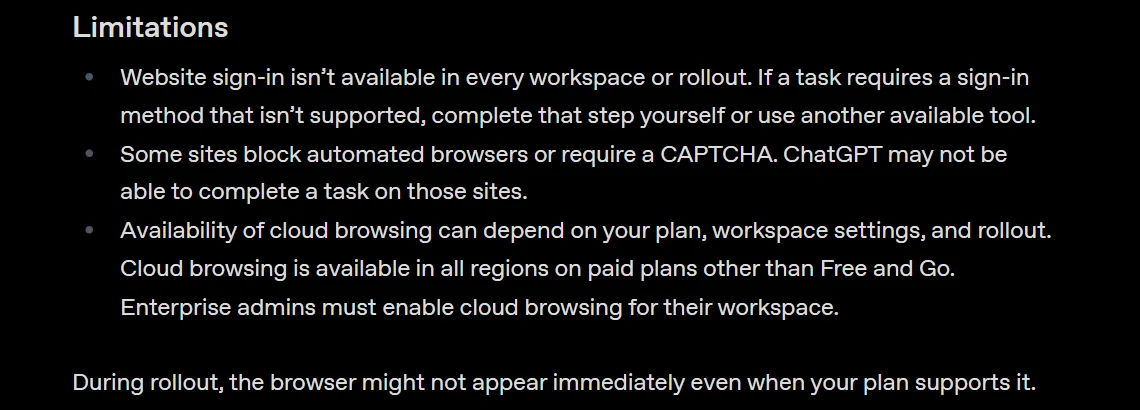
- Free and Go: step one (listing codes and working out the lowest price in Chat mode) still works. For the Work step, the docs currently don’t include these two plans.
- Paid plans: look for Work at the top of ChatGPT. If you don’t see it, it may not have reached your account yet.
- Work or school accounts: Enterprise admins have to turn cloud browsing on first, and website sign-in is not available for Enterprise or Edu workspaces.
07Things to watch out for
- The checkout page is the final word on codes. ChatGPT itself says it did not test them, and the sources are mostly third-party sites, so you only know by entering them.
- Confirm every payment yourself. Even if the docs say Work asks first, you look at the cart and the total before you press the button.
- Never paste passwords into the chat. When a store needs a sign-in, use the secure sign-in form ChatGPT gives you. The docs say: "Don’t send passwords in the chat."
- Make sure it is the real store. Searching for codes makes it easy to land on look-alike fake sites. Check the address before you enter card details.
- "How much you save" is an estimate, not a promise. In our example, US$84 assumes a 16% code works, before tax and shipping.
- This article has no sponsor and no affiliate links. The product is just a public item that often has codes. I have no partnership with the brand.
Sources
What should the next reel cover?
I test Claude and AI tools every day and turn the useful ones into reels. Follow @vivianlin.tech to catch each new guide.