~/guides/GUARD.md
3 AI bodyguard prompts: a verdict on a suspicious text first, then every red flag
Not secret codes, just 3 prompts: /bodyguard spots scam red flags, SHOWME answers with a diagram, /interview scores you. Plus how to save them.
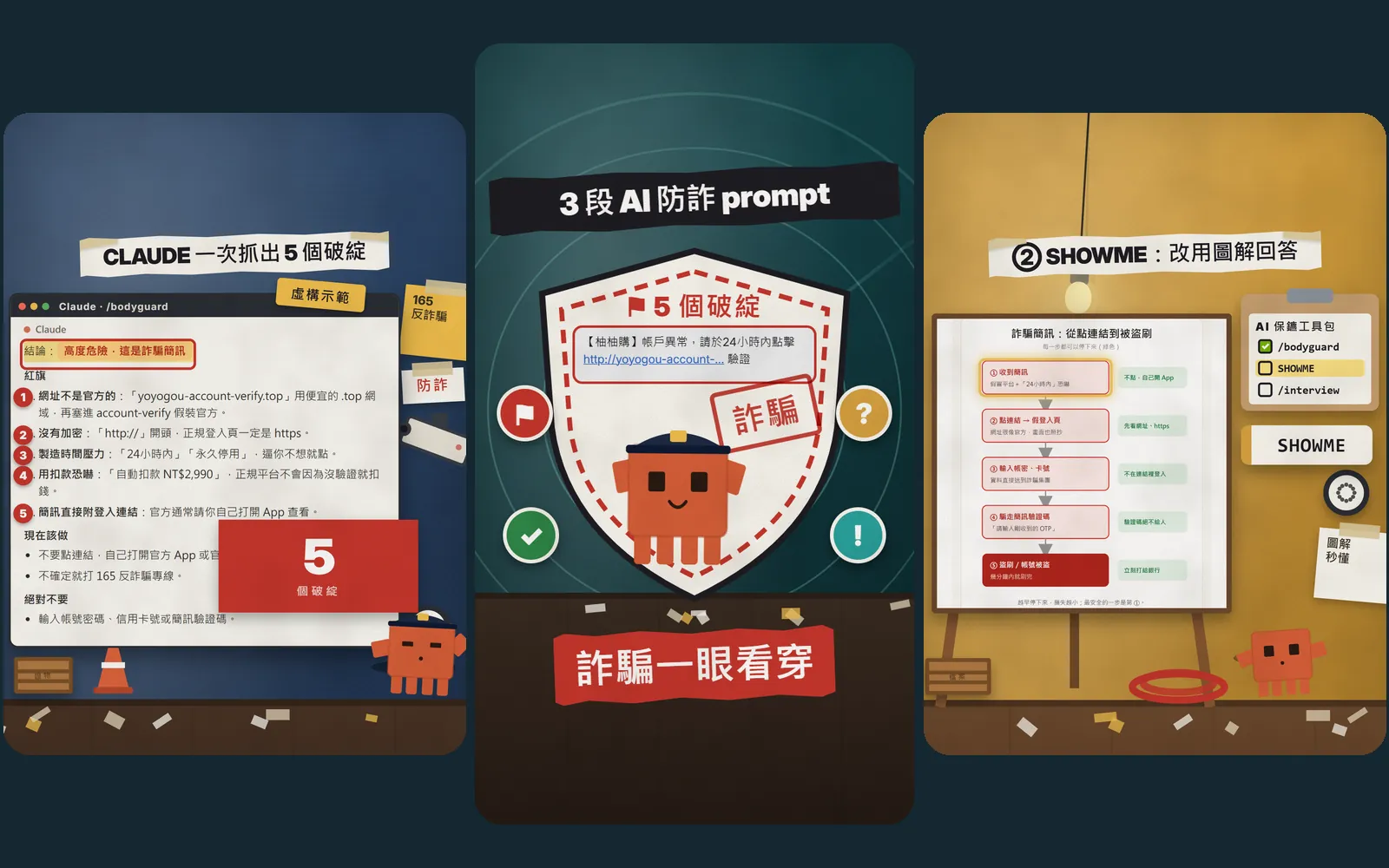
Online, people call bodyguard, SHOWME and interview AI "secret codes". Let me be clear: they aren't hidden commands, just 3 well-written prompts. This is the full version of the GUARD prompts from my Reel: all 3 prompts in full, how to use them on a suspicious text, a diagram and a mock interview, how to save them in Claude's settings so every chat has them, and what to be careful about. The images are scenes from our Reel, starring the orange block mascot. The text message and the store "YoYoGo" are fictional examples, and the Claude answers are samples written from the same prompts.
01What the 3 prompts do
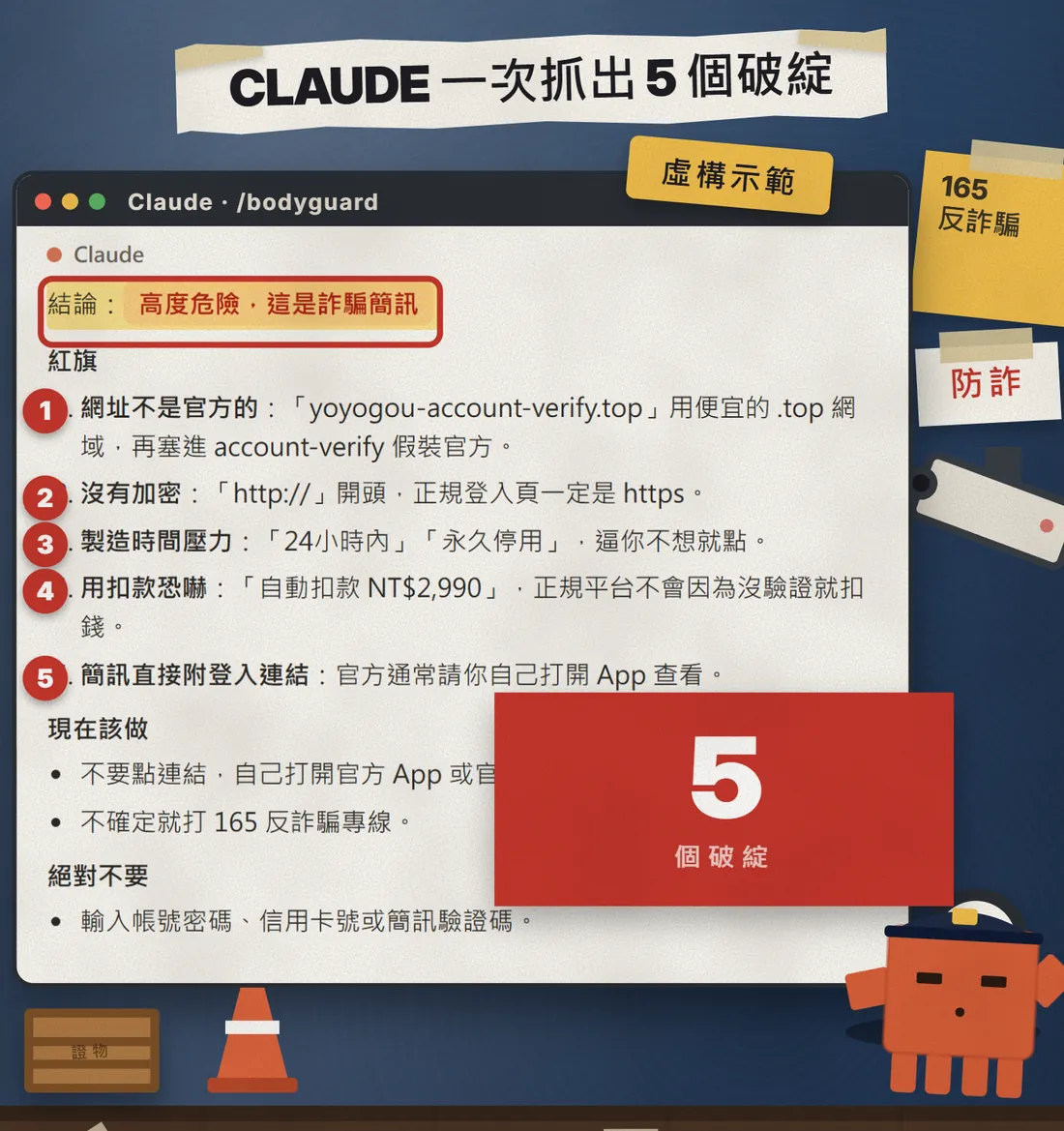
The Reel opens on the result: I paste a scam text, and /bodyguard first gives a one-line verdict, "high risk", then picks out the 5 red flags one by one. The first prompt gets you exactly this.
- /bodyguard: paste a suspicious link, text, email or contract. It gives a verdict first (safe / suspicious / high risk), then quotes the original to list every red flag, then says what to do and what never to do.
- SHOWME: it answers with one diagram (a flowchart, comparison table or sketch), with at most three sentences underneath.
- /interview: it plays the hiring manager and asks one question at a time. After each answer it scores you 1-10, points out your weakest spot and follows up. 5 questions, then an overall verdict.
Why do I keep saying "not secret codes"? Some people online call them hidden AI commands. In Claude's chat, /bodyguard isn't a built-in command, and typing the word alone doesn't switch any mode. The prompt behind it is what works. Paste it in and both Claude and ChatGPT understand it.
021. /bodyguard: verdict first, then the red flags
Got a suspicious text, email, link or contract? Don't click or reply. Copy it and paste it into /bodyguard. This is the prompt from my video, with one [ ] slot for your content.
Enter bodyguard mode (/bodyguard): I'll paste a suspicious link, text message, email or contract. Act as my anti-scam bodyguard:
1. First line: a verdict - safe / suspicious / high risk.
2. List every red flag, quoting the original text to show what's wrong.
3. Tell me what to do now and what I must never do.
4. If you don't have enough information, ask me.
Answer in short bullet points, no pleasantries.

What to check:
[paste the text message, link, email or contract]
- Open claude.ai (ChatGPT works too) and start a new chat.
- Paste the prompt above and replace the [ ] part with the original text of the suspicious message, link, email or contract.
- Send it. Read the verdict on the first line, then each red flag, then follow the "do" and "never do" lists.
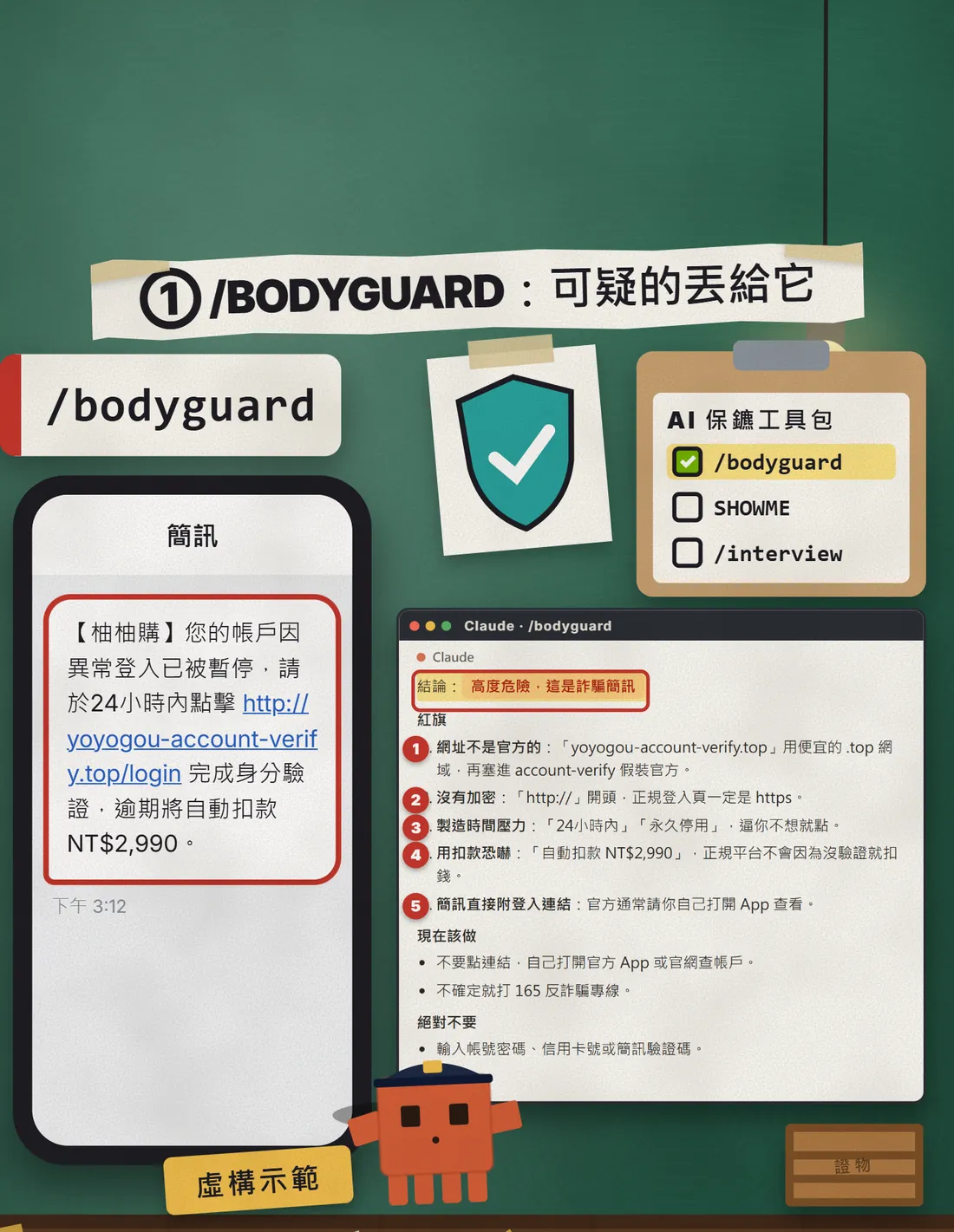
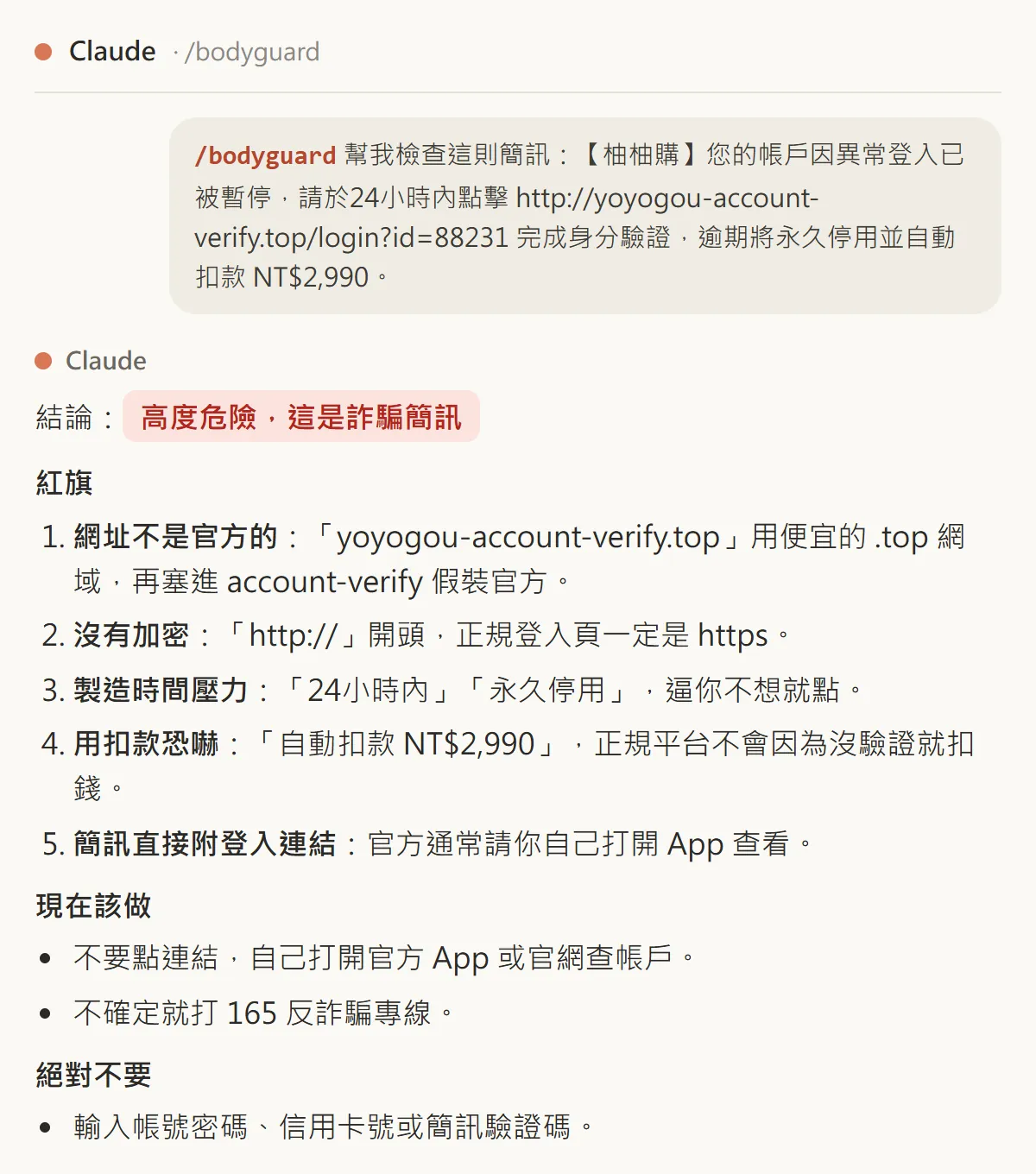
The text in the video is one I made up: it pretends to be "YoYoGo" and tells you to tap a link within 24 hours or be charged NT$2,990. I also checked that the domain doesn't exist. Here is the text version of the answer. The 5 red flags: the address isn't an official one, no encryption (http), time pressure, a threat of being charged, and a login link inside a text message.
032. SHOWME: answer with one diagram
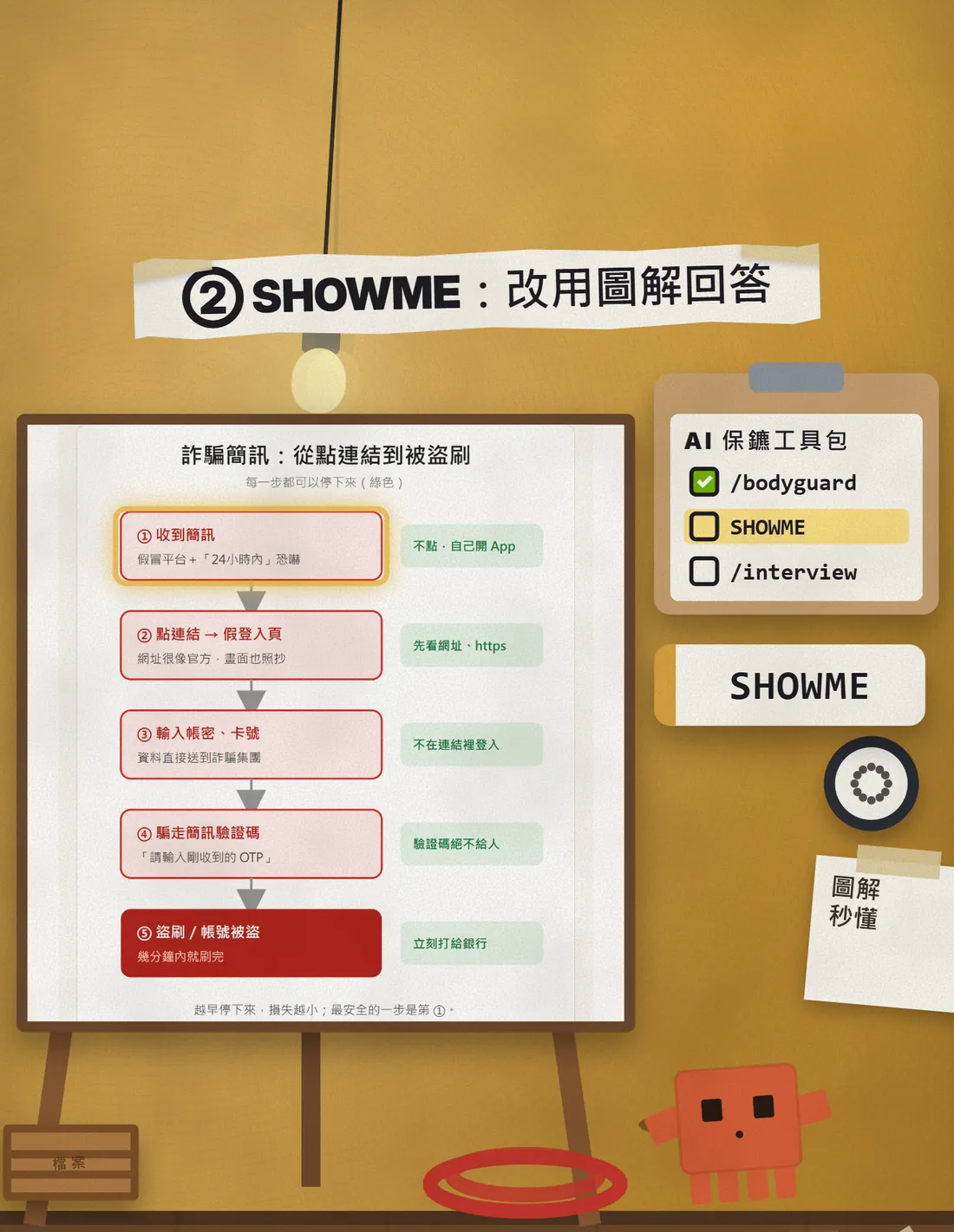
Some things are hard to explain in words, like how a scam text turns into card fraud step by step. SHOWME asks the AI to answer with a diagram (a flowchart, comparison table or sketch) and leave only three sentences underneath.
Enter SHOWME mode: when you answer my question, don't give me only text. Answer with one diagram (a flowchart, comparison table or sketch), and add at most three sentences under it.

SHOWME: [the question you want to understand, e.g. A scam text: what actually happens between me tapping the link and my credit card being charged?]
- Make the question specific, for example "I tapped the link but haven't entered anything yet; what happens next?"
- If you want a specific kind of diagram, say so: "use a comparison table" or "use a flowchart".
- If the text in the diagram is hard to read, ask it for "bigger text, at most 8 words per box".
043. /interview: it plays the hiring manager and scores you question by question
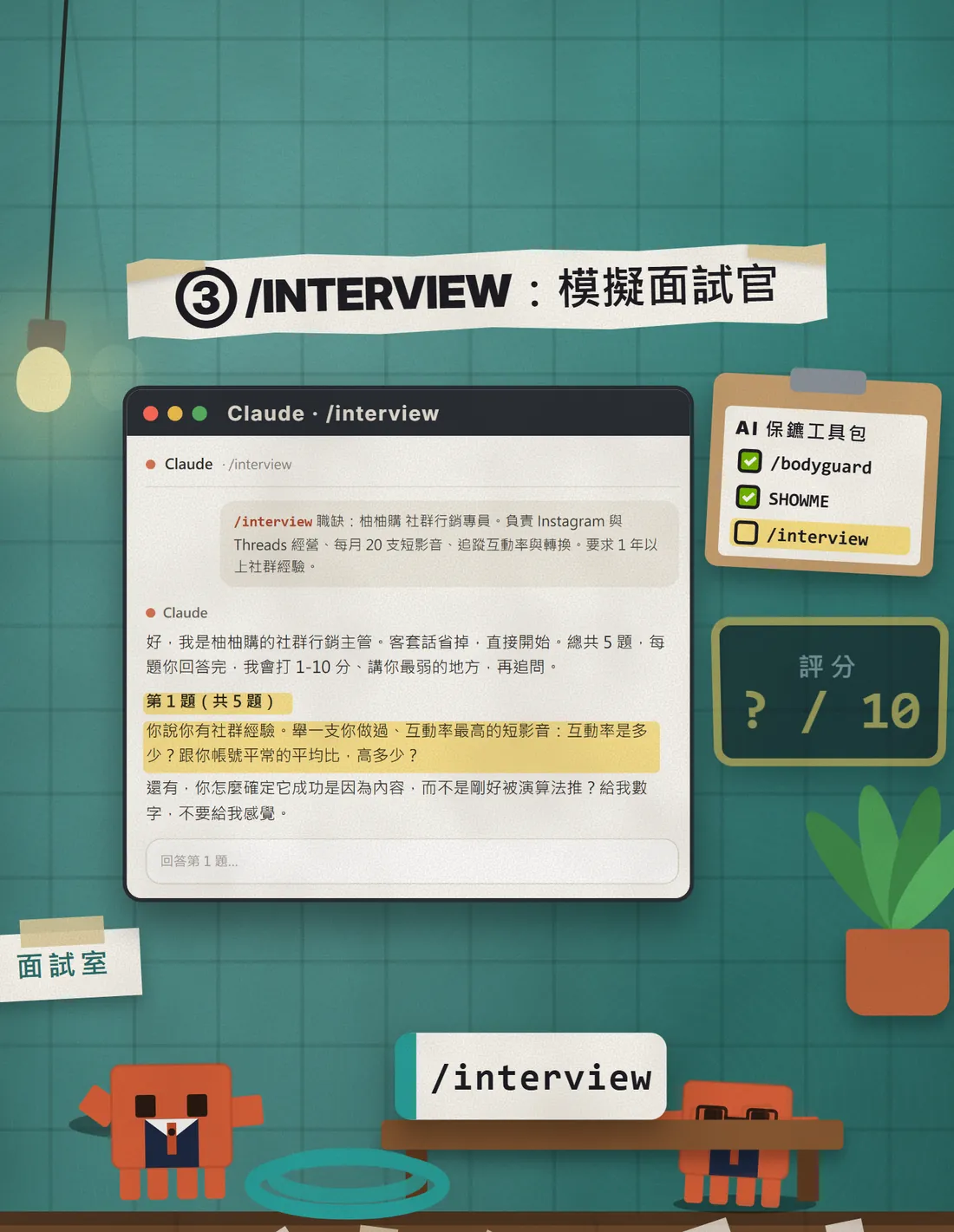
The hardest part of preparing for an interview is having no one to practise with. /interview makes Claude the hiring manager: one question at a time, a 1-10 score after each answer, your weakest spot called out, then a follow-up. 5 questions, then an overall verdict.
Enter interview mode (/interview): you are the hiring manager for this job and you're running a mock interview with me.
Rules: ask me one question at a time. After I answer, give me a score from 1 to 10, point out my weakest spot, then follow up with the next question. 5 questions in total, then an overall verdict. Make the questions sharp and close to a real interview, no pleasantries.
Start with a short opening, then ask question 1.

The job: [company + job title]
Job description: [paste the job ad, e.g. what you'd do, how many years of experience they want]
- Paste the prompt and swap in the job and job description you're really applying for.
- Answer one question at a time, by typing or by voice. Use real examples and numbers where you can.
- When the 5 questions are done, read the overall verdict and redo the lowest-scoring question.
05Even better: save them in settings so every chat has them
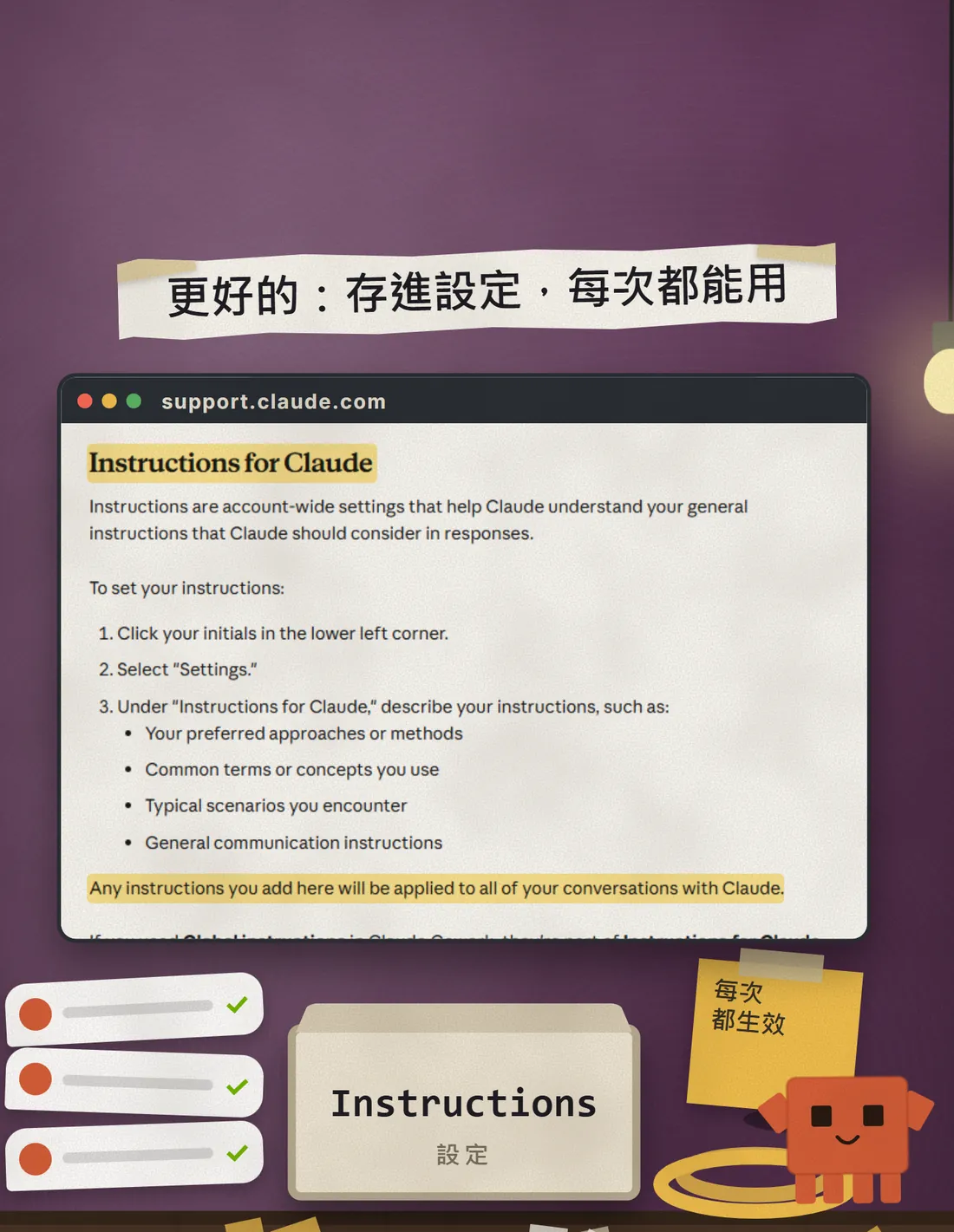
Copying and pasting every time is a hassle. Claude has an "Instructions for Claude" setting, and what you write there applies to all of your conversations with Claude. Save the 3 rules in it and from then on, starting a message with bodyguard, SHOWME or interview tells it how to answer.
- On claude.ai, click your initials in the lower left corner.
- Choose Settings.
- In the "Instructions for Claude" box, paste the text below and save.
When my message starts with bodyguard, SHOWME or interview (with or without a / in front), follow the matching rule below.

bodyguard: I'll paste a suspicious link, text, email or contract. Act as my anti-scam bodyguard: give a verdict on the first line (safe / suspicious / high risk), then list every red flag with a quote from the original, then what to do and what never to do. If you need more information, ask me.

SHOWME: answer with one diagram (a flowchart, comparison table or sketch), with at most three sentences underneath.

interview: you are the hiring manager for this job. Ask one question at a time; after I answer, score me 1-10, point out my weakest spot and follow up. 5 questions in total, then an overall verdict.
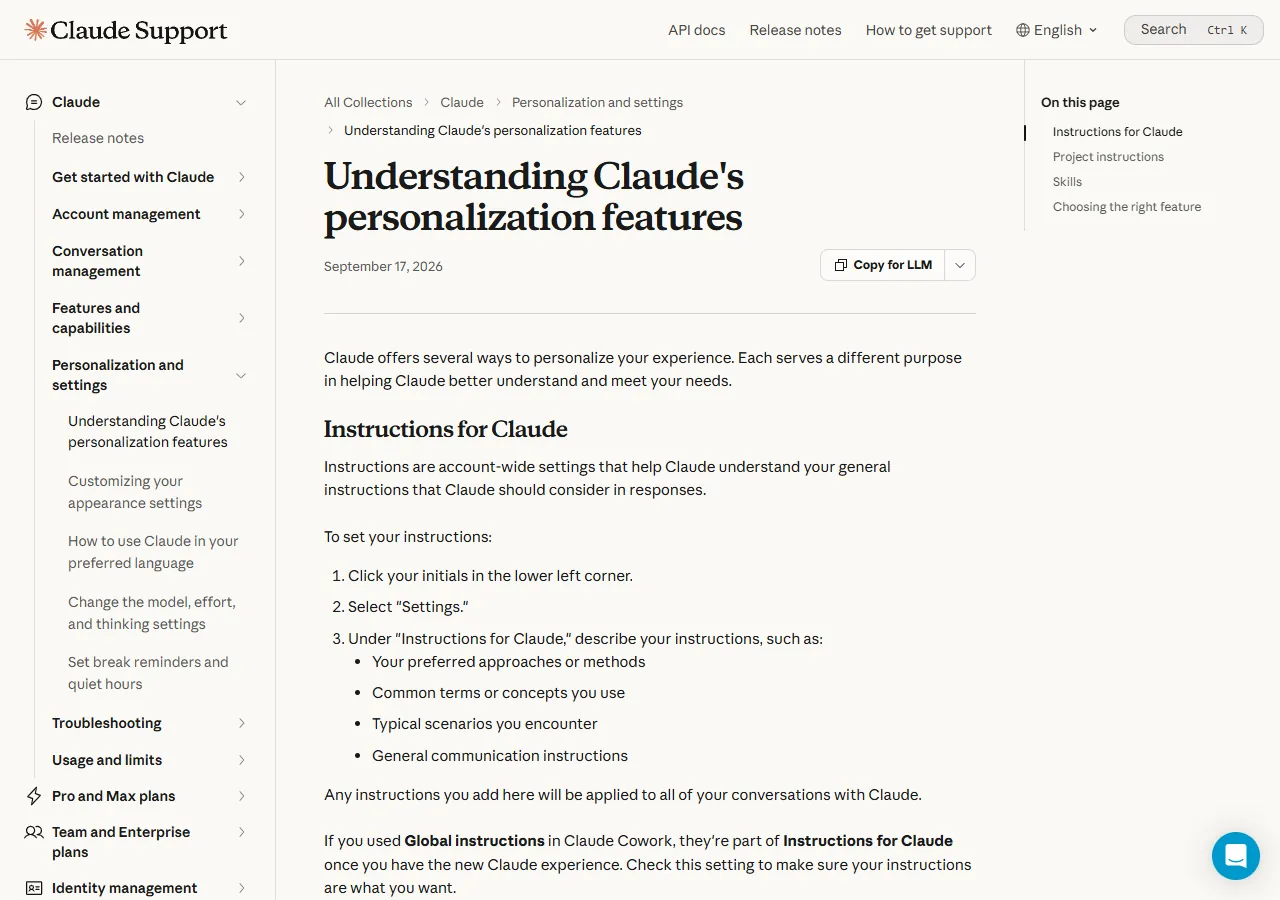
The official help page is clear: whatever you add here applies to all of your conversations with Claude. It doesn't say which plans include the setting, so if you can't find it on your account, use the copy-and-paste versions above.
06Good to know
- These 3 are prompts, not built-in Claude commands or hidden features. They work in Claude and ChatGPT, but each app puts its settings in a different place under a different name.
- An AI's scam verdict is a reference, not a guarantee. A "safe" verdict doesn't mean it really is safe. If you're unsure, call Taiwan's 165 anti-fraud hotline or check the National Police Agency's 165 website.
- Before you paste a suspicious text or contract, cover your ID number, card numbers and passwords and other people's personal details. Never paste a verification code into an AI.
- If you see a suspicious link, don't tap it. Open the official app or site yourself and sign in the way you normally do.
- "YoYoGo", the text message, the web address and the /interview job are all fictional examples and don't refer to any real business.
- The answers, diagram and interview chat in this guide are samples written from the same prompts, not screenshots of one real chat. Your own results will differ, and that's normal.
Sources
What should the next reel cover?
I test Claude and AI tools every day and turn the useful ones into reels. Follow @vivianlin.tech to catch each new guide.