~/guides/RESTORE.md
Restore a damaged old photo with one ChatGPT prompt, then colourise it naturally
Photograph the print flat, paste one restore prompt and ChatGPT repairs cracks and fading; one more line adds natural colour. No /restore code needed.
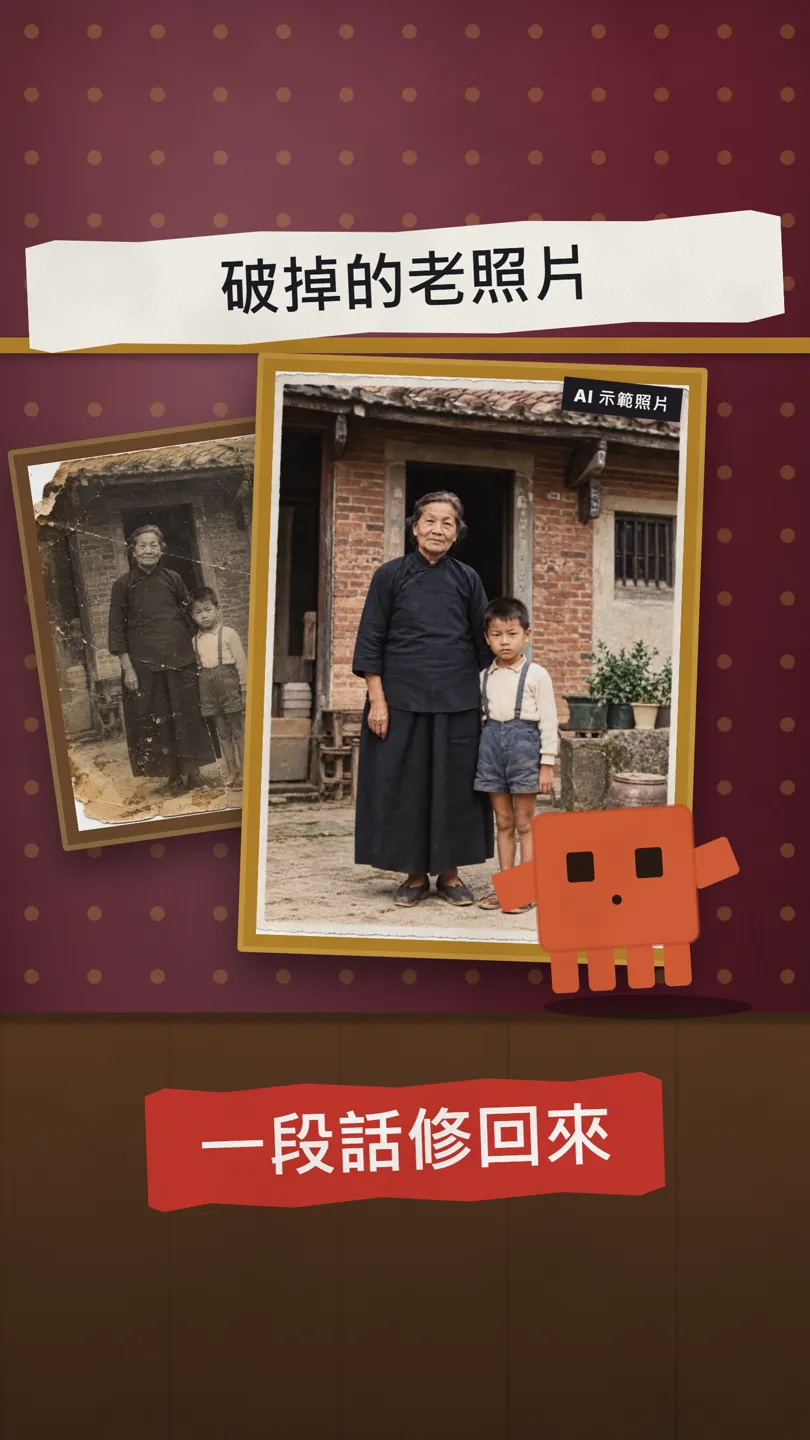
That torn, yellowed old photo in a drawer can be restored with ChatGPT, and colourised naturally too. You don't need a /restore command: a short paragraph is enough, and it works on the free plan. This is the full version of the RESTORE tip from the reel: how to photograph the print, the restore prompt, the colour prompt, and the one thing you must know: AI redraws, it doesn't patch. The demo photo and people in this guide are AI-generated, not real.
01What you get: a damaged old photo → restored → in colour
On the left, a black-and-white photo with cracks, a torn corner and water stains. Paste one prompt and ChatGPT repairs the cracks and fading; one more line in the same chat turns it into a natural colour photo.
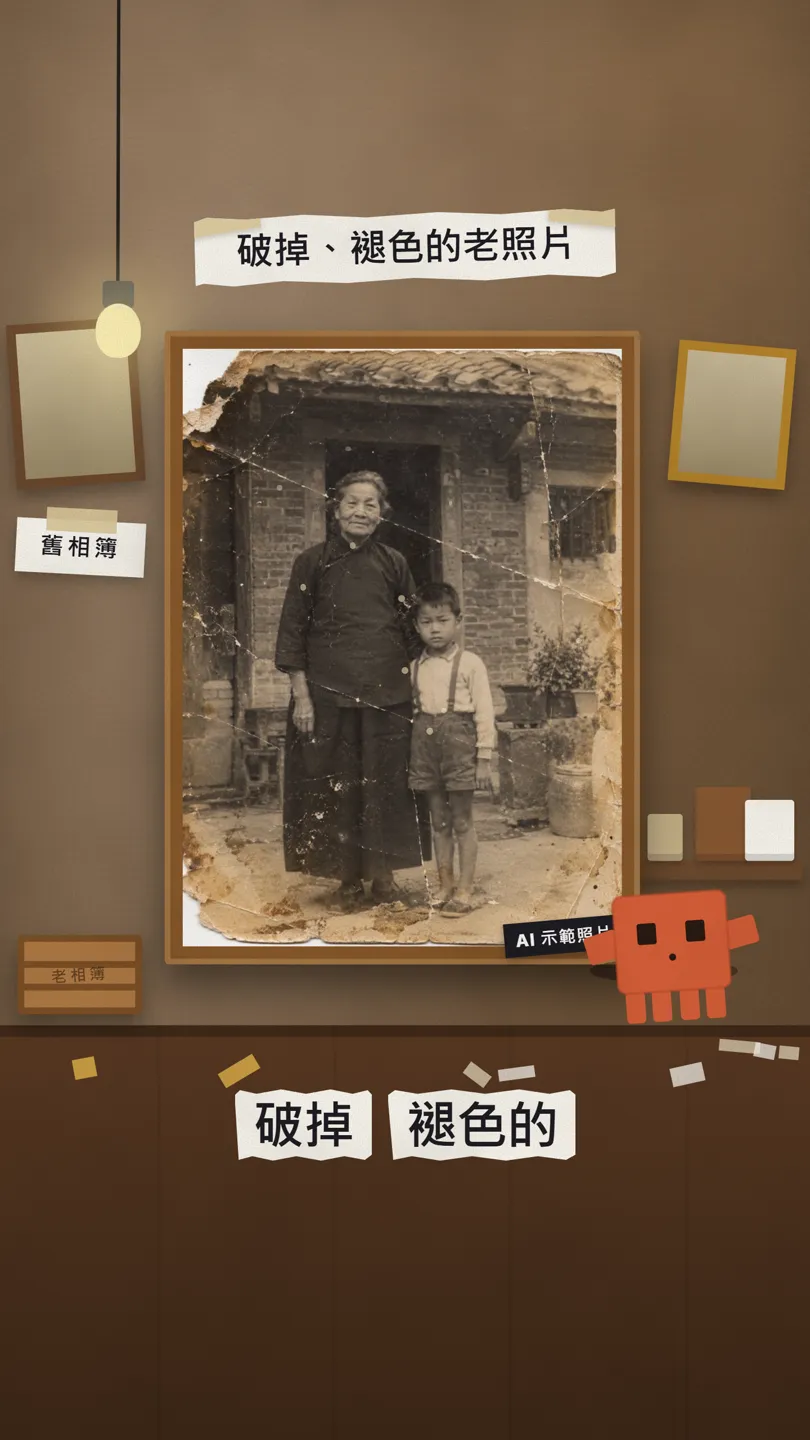
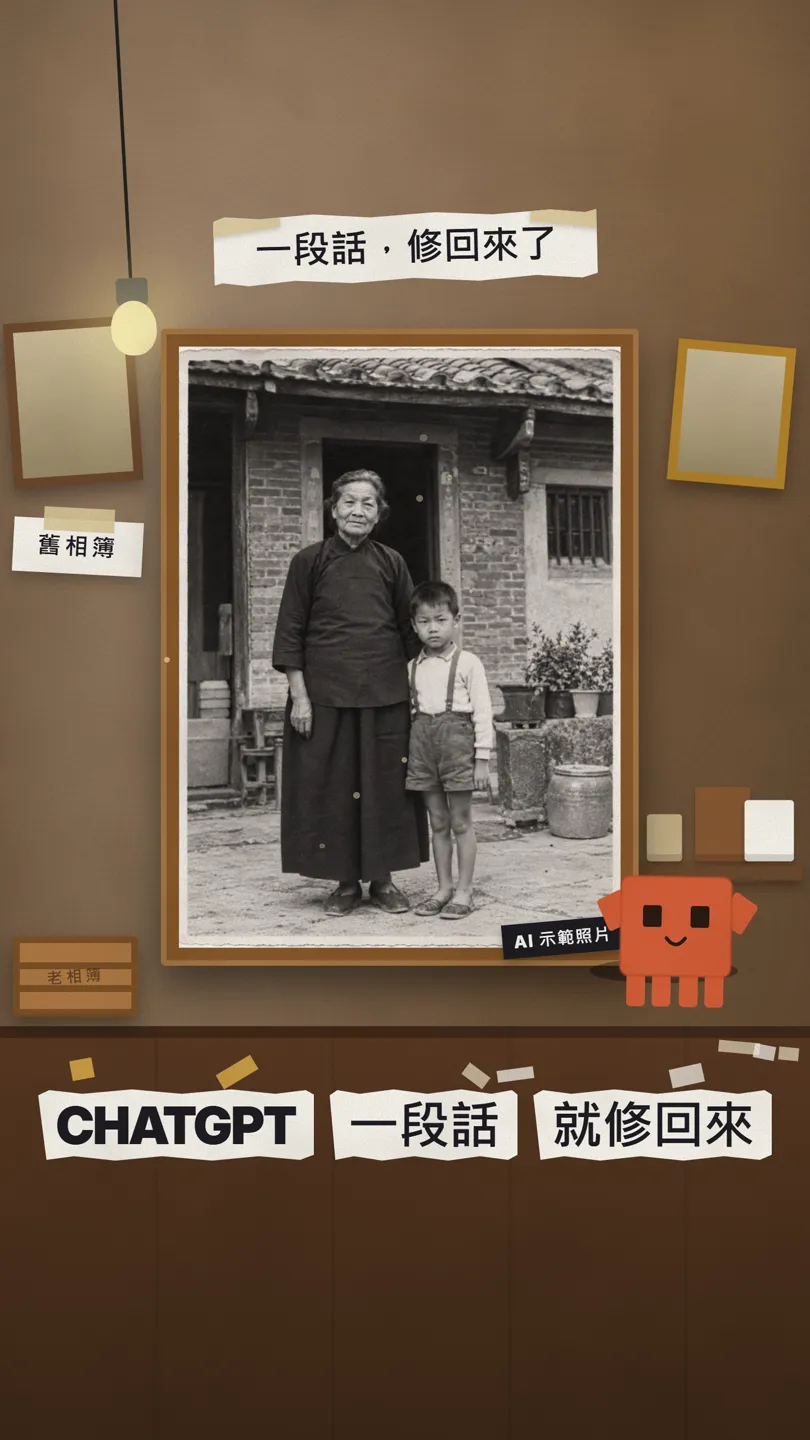
This is a ChatGPT feature: OpenAI's help page says ChatGPT Images is available on all tiers, and that you can upload an existing image and describe the changes you want. The "/restore" you see online isn't a command; it's just a normal description.
02Step 1: photograph the old print properly
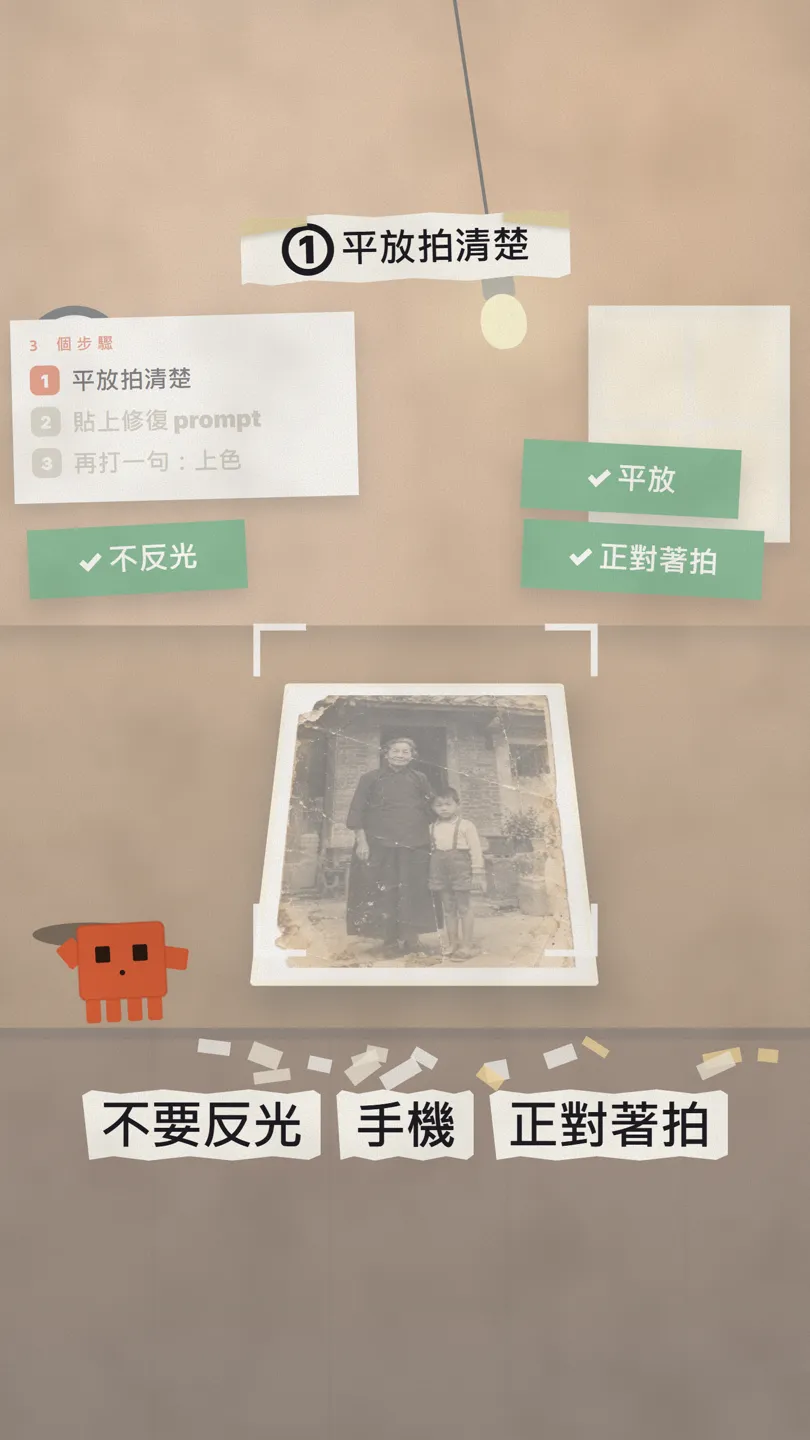
- Lay the photo flat on a table; don't hold it in your hand.
- Avoid glare: switch off the light right above it, or move to soft window light, so there are no bright reflections on the print.
- Hold your phone straight above the photo with all four corners in frame, not at an angle. A scanner is even better.
03Step 2: the restore prompt (copy it)
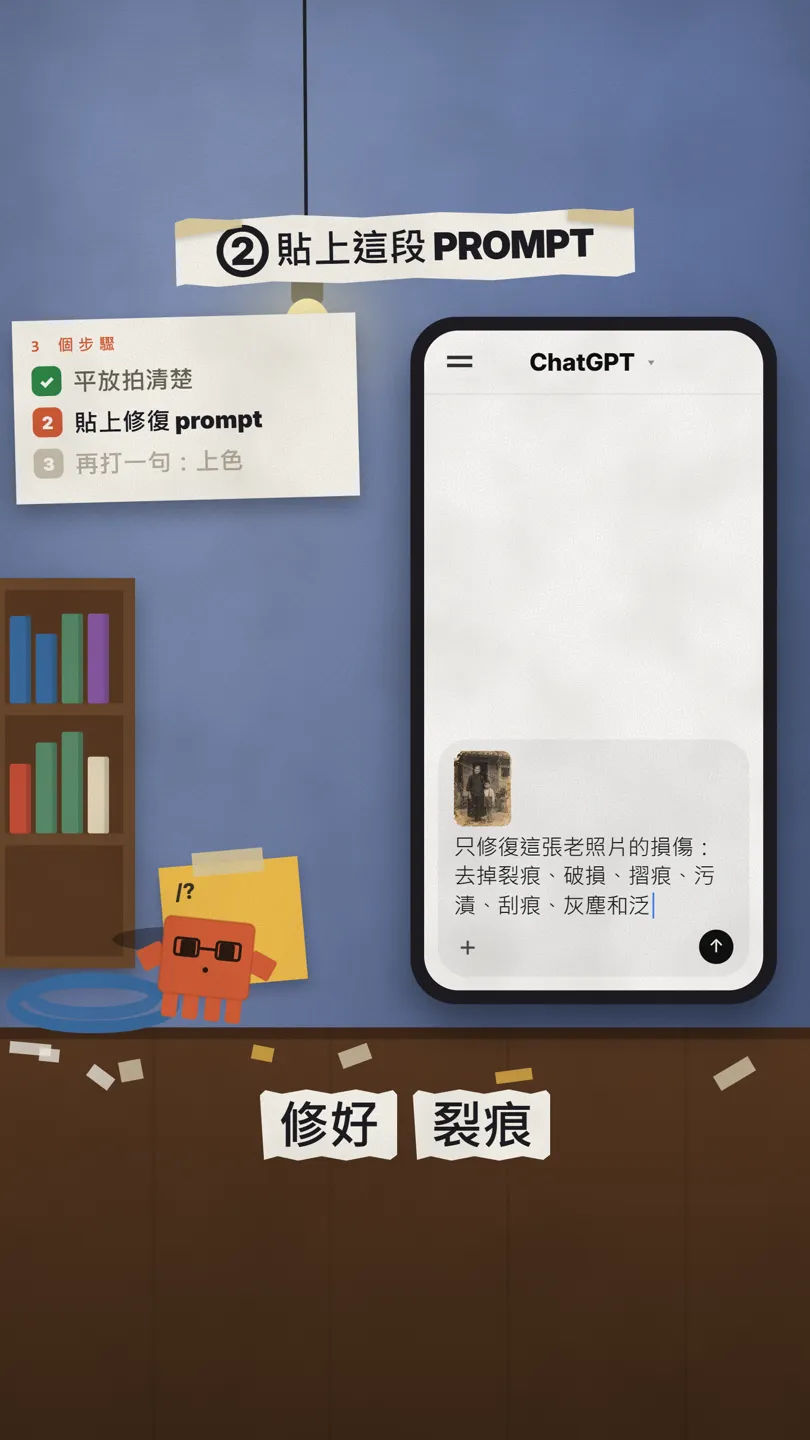
Upload the photo and paste this. The point is to LIST everything that must not change: the people, faces, ages, hair, clothes, pose, framing and background. Replace the [ ] with what is in your photo; if it was in colour, ask it to keep the original colours instead of black and white.
只修復這張老照片的物理損傷:去掉裂痕、破損、摺痕、污漬、刮痕、灰塵和泛黃,補好缺角。其他全部保持原樣:同樣的[兩個人]、同樣的臉、同樣的年紀([她是年長的奶奶])、同樣的髮型、同樣的衣服([他的短褲和吊帶、她的深色長上衣和裙子])、同樣的[赤腳]、同樣的姿勢和手的位置、同樣的構圖,[房子、門、窗、盆栽]都在同樣的位置。不要現代化、美化或重畫任何東西。維持黑白和自然的底片顆粒,比例不變。
Repair the physical damage in this old photo ONLY. Remove the cracks, tears, creases, stains, scratches, dust spots and the yellowing, and fill in the torn corner. Everything else must stay exactly as it is: the same [two people] with the same faces, the same ages ([she is an elderly grandmother]), the same hair, the same clothes ([his shorts and suspenders, her long dark top and skirt]), the same [bare feet], the same pose and hand positions, the same framing, and the same [house, door, window, plants and pots] in the same places. Do not modernize, beautify or redraw anything. Keep it black and white with natural film grain, same aspect ratio.
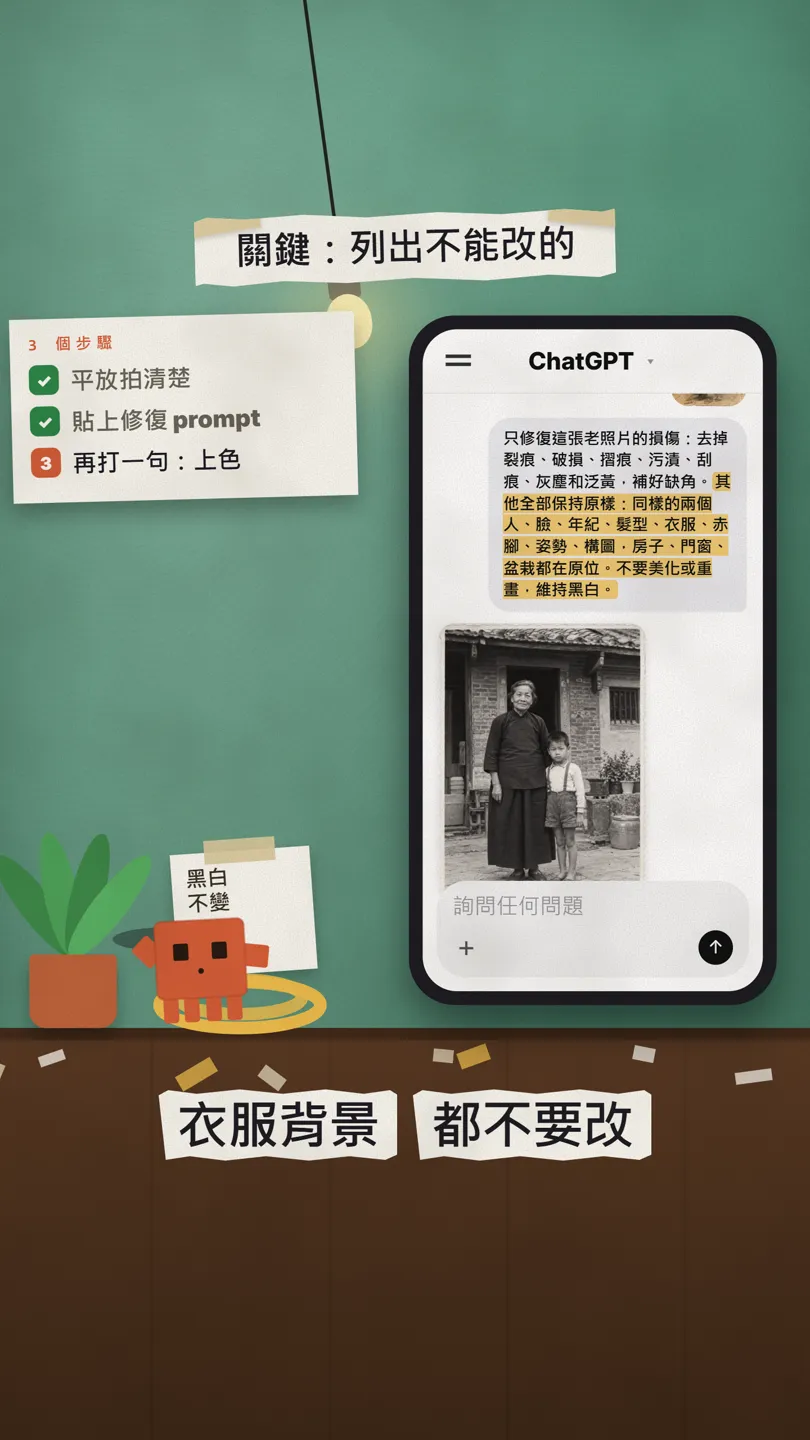
04Step 3: same chat, natural colour
Restore first, colour second: one change at a time gives steadier results. Keep going in the same chat:
再用自然、真實的顏色幫這張修好的照片上色。其他都不要改:臉、年紀、髮型、衣服、姿勢、構圖和背景,都跟黑白版一模一樣。
Now colorize this restored photo with natural, realistic colors. Change nothing else: same faces, ages, hair, clothes, pose, framing and background, exactly as in the black-and-white version.
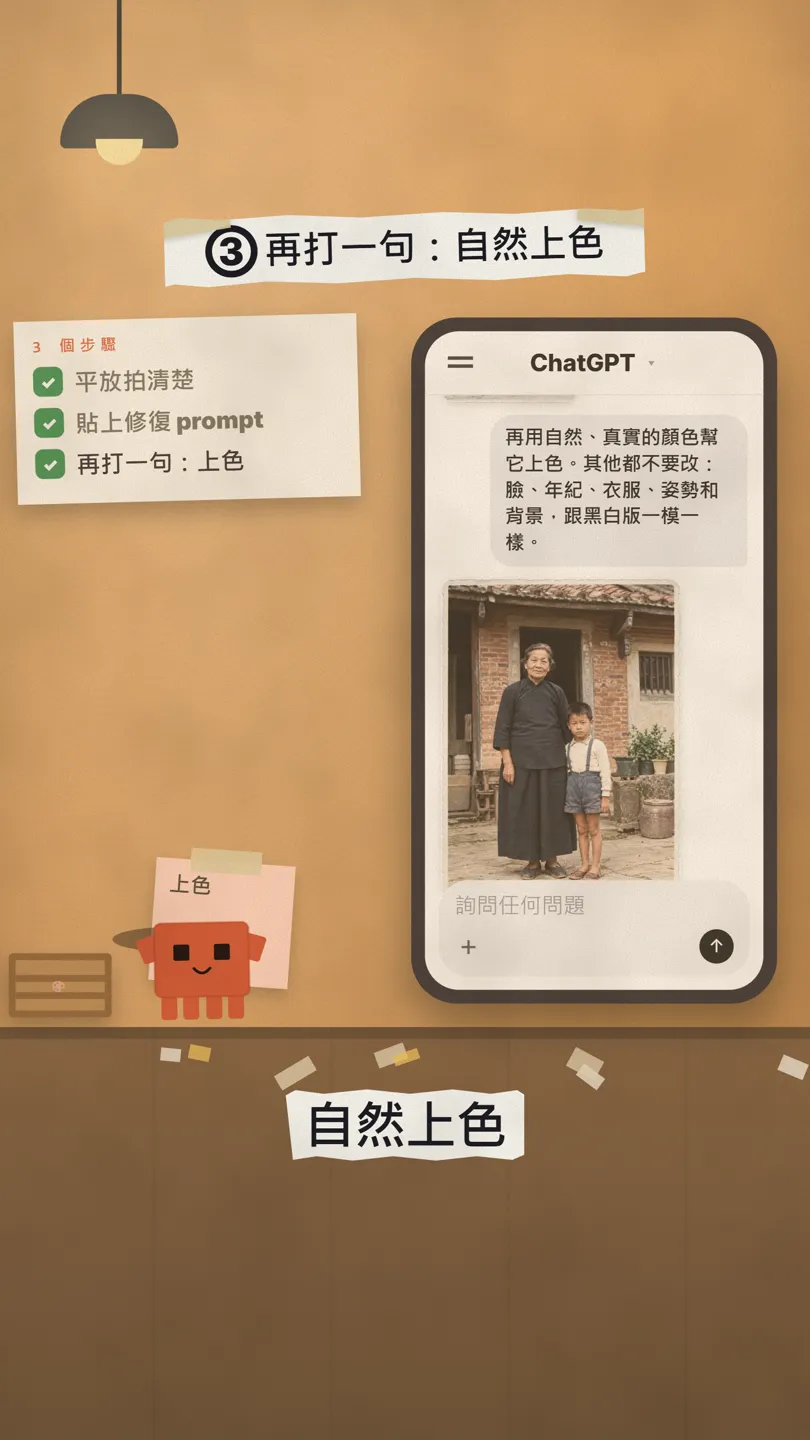
05Must know: AI redraws, so compare point by point and keep the original
AI doesn't fill holes in your photo; it looks at it and paints a new one. So once it's done, put it next to the original and check point by point: did the age, clothes, pose or background change? Ours matched on every point, so we used it.
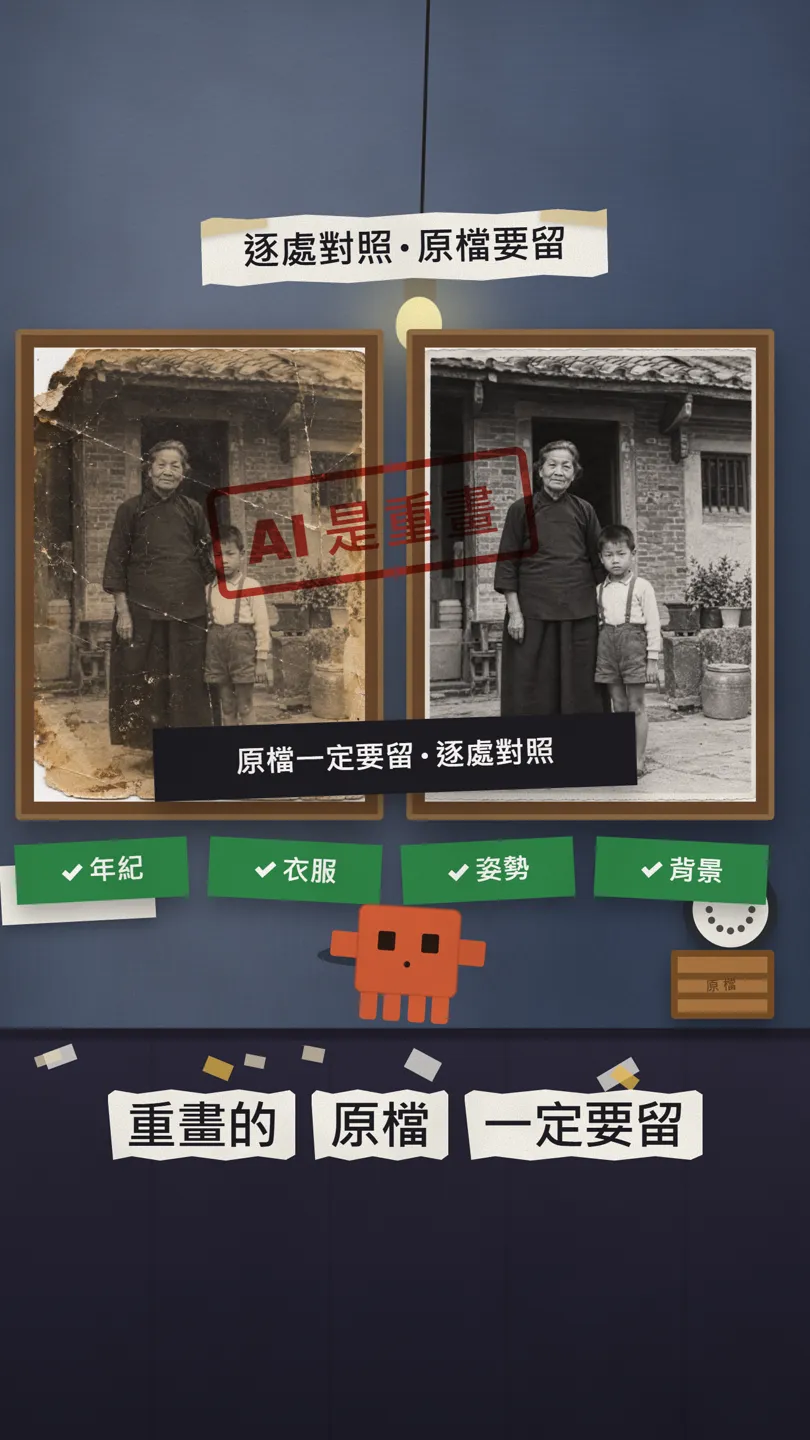
When you spot something wrong, point at it and ask it to change only that:
Compared with the original photo, [the boy's trousers] changed: they were [shorts with suspenders]. Don't change anything else, only put that back the way it is in the original.
06Good to know
- Always keep the original photo and the original scan; the AI version is a new picture.
- Treat the restored photo as a keepsake, not as a historical record or evidence: some details may be invented by the AI.
- If other family members are in the photo, ask them before you share or upload it.
- Results change every run. If you don't like one, run it again, or use the fix prompt to change just one thing.
- The demo photo and the people in the reel and in this guide are AI-generated, not real.
Sources
What should the next reel cover?
I test Claude and AI tools every day and turn the useful ones into reels. Follow @vivianlin.tech to catch each new guide.