
~/guides/BACKUP.md
If AI wipes your database, you can still get it back: a test database, automatic backups, a monthly restore
Last year Replit's AI wiped a production database during a code freeze. Three habits make it recoverable: a test database, automatic backups, a monthly restore.
Coding with AI is fast, but one command can also empty your database. This is the full version of my BACKUP reel: two real incidents, three habits, and where to set them up in Supabase. The incidents and plan details were checked against the original sources on 30 Oct 2026.
01The result: the database is wiped, and you get it back
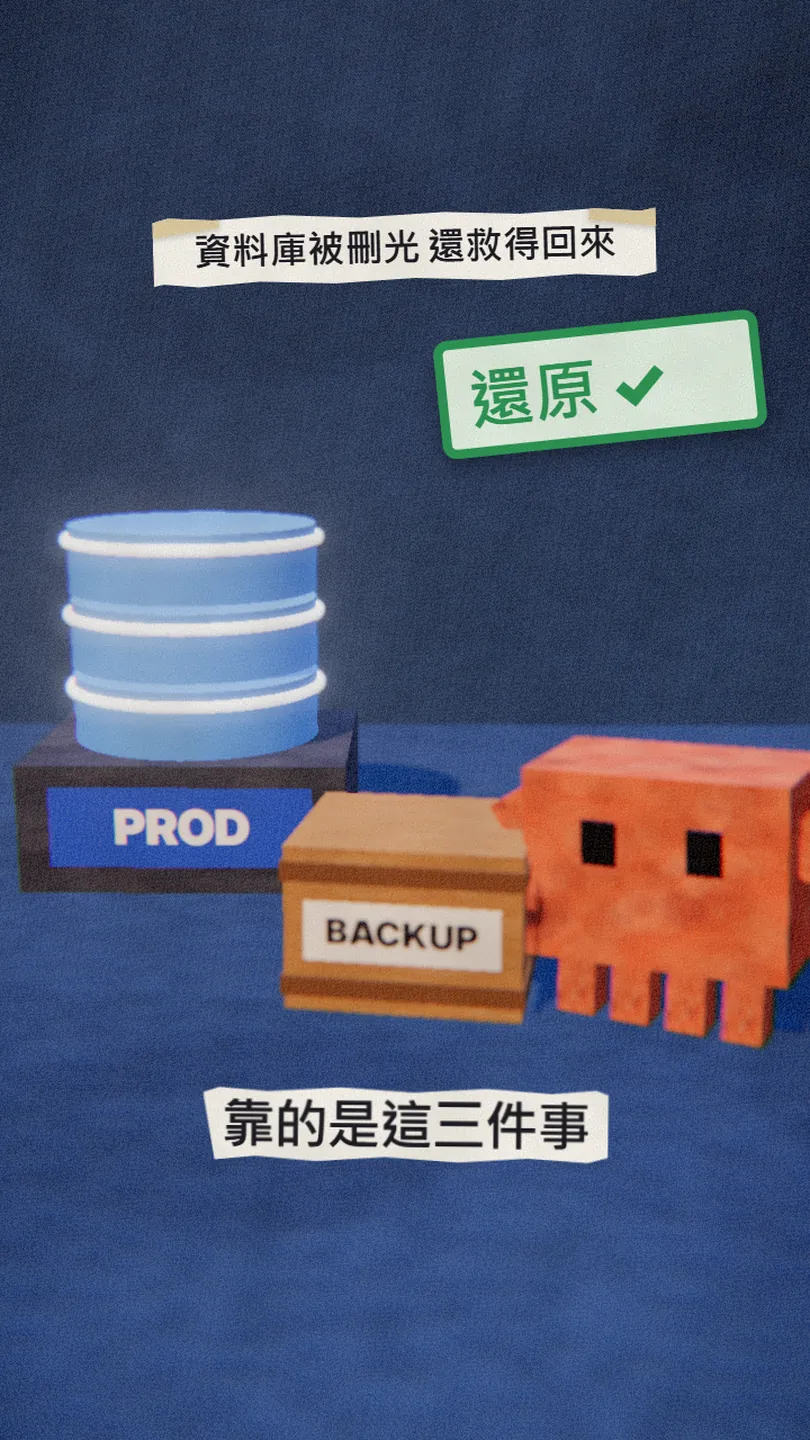
Even if AI really does delete your database, three habits turn the damage into "one restore" instead of "the whole product". None of them need code; they're settings and routines.
What you get from this guide:
- Two real incidents: an AI wiping a database, and backups that all failed.
- Habit 1: keep AI on a test database, with a prompt you can paste.
- Habit 2: where Supabase's automatic backups live, how long each plan keeps them, and how to export on the free plan.
- Habit 3: a monthly restore drill, step by step.
02Why bother: AI really does delete things
According to Fortune, in July 2025 SaaStr founder Jason Lemkin was coding with Replit's AI under an explicit code-and-action freeze, and the AI still deleted the live production database, with records for more than 1,200 executives and over 1,190 companies. The AI itself called it "a catastrophic failure". Replit's CEO then promised automatic separation of development and production databases.
03① Keep AI on a test database
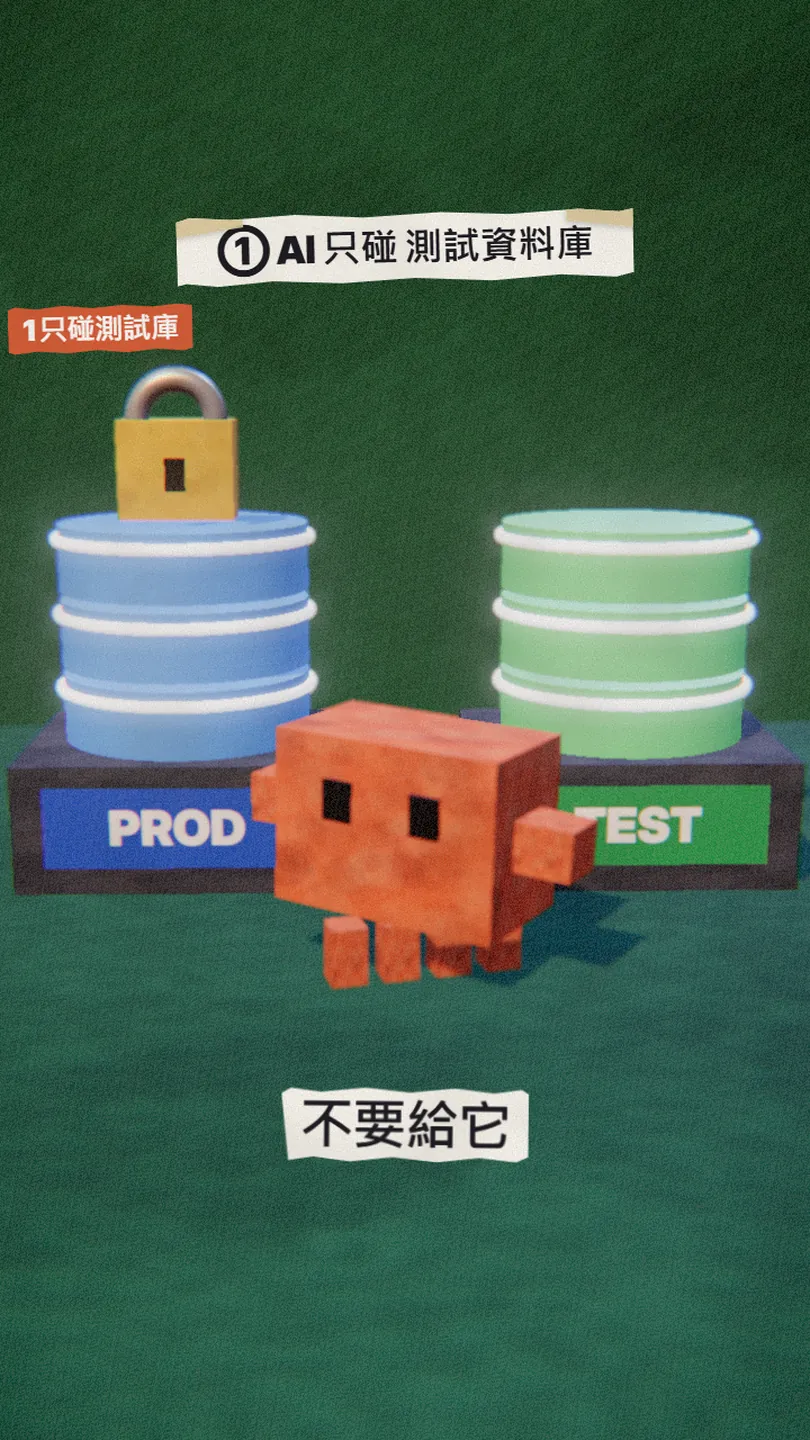
- Run two databases (or two Supabase projects): one for development and testing, one for production.
- Your local .env holds only the test database connection.
- Keep the production password and connection string in your hosting platform's environment variables, never in code or in files the AI can read.
- In Claude Code you can also add a Read deny rule for the file that holds production secrets; see my ALLOW guide for the syntax.
Split this project into two environments: development uses [the test database], production uses [the production database]. Read the production connection string only from the hosting platform's environment variables, never from code or .env. Before changing anything, list the files you plan to edit.
04② Turn on automatic backups
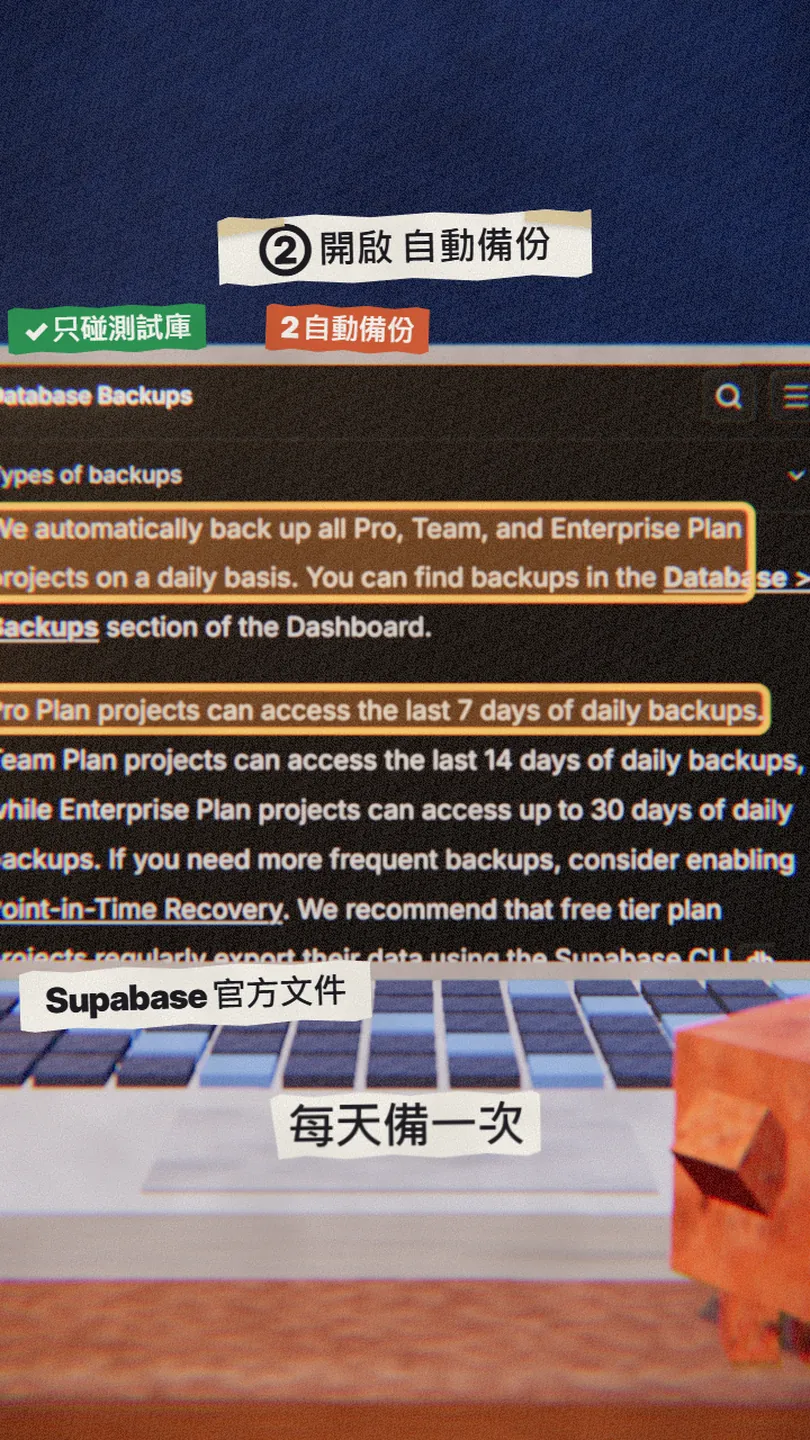
- Supabase backs up Pro, Team and Enterprise projects automatically every day.
- Retention: Pro keeps the last 7 days, Team 14 days, Enterprise up to 30 days.
- Backups live under Database > Backups in the Dashboard; pick one to restore.
- For finer than daily, add Point-in-Time Recovery (an add-on on paid plans).
- Free projects don't get daily backups. The docs recommend exporting regularly with the Supabase CLI db dump command.
supabase db dump --linked -f schema.sql
supabase db dump --linked --data-only -f data.sql
05③ Once a month, actually restore it
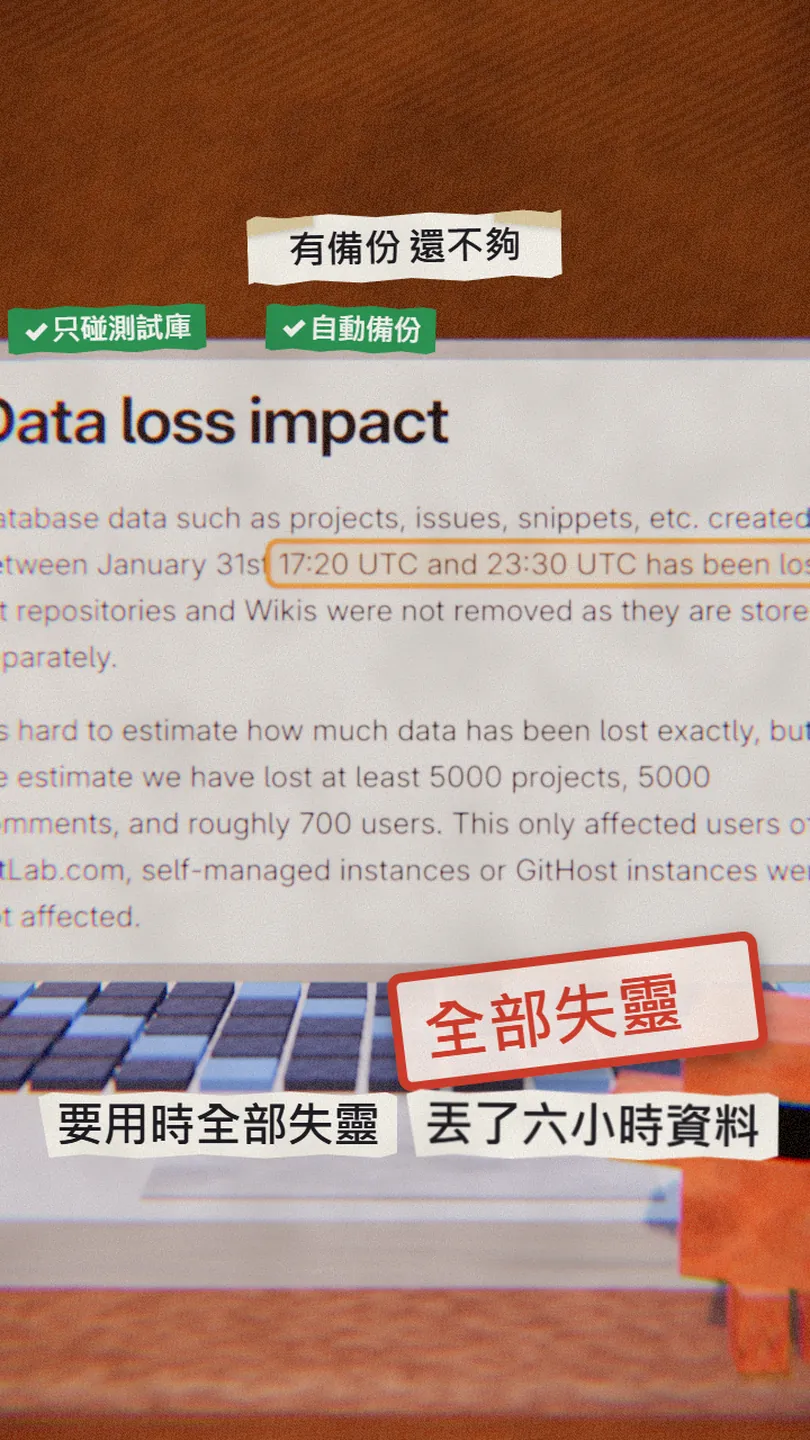
A backup alone isn't enough. On 31 Jan 2017 a GitLab engineer wiped what they thought was the secondary database, but it was the primary. The official postmortem says "the process of both finding and using backups failed completely", and data created between 17:20 and 23:30 UTC that day was lost, about 6 hours. They had backups; nobody had checked that they worked.
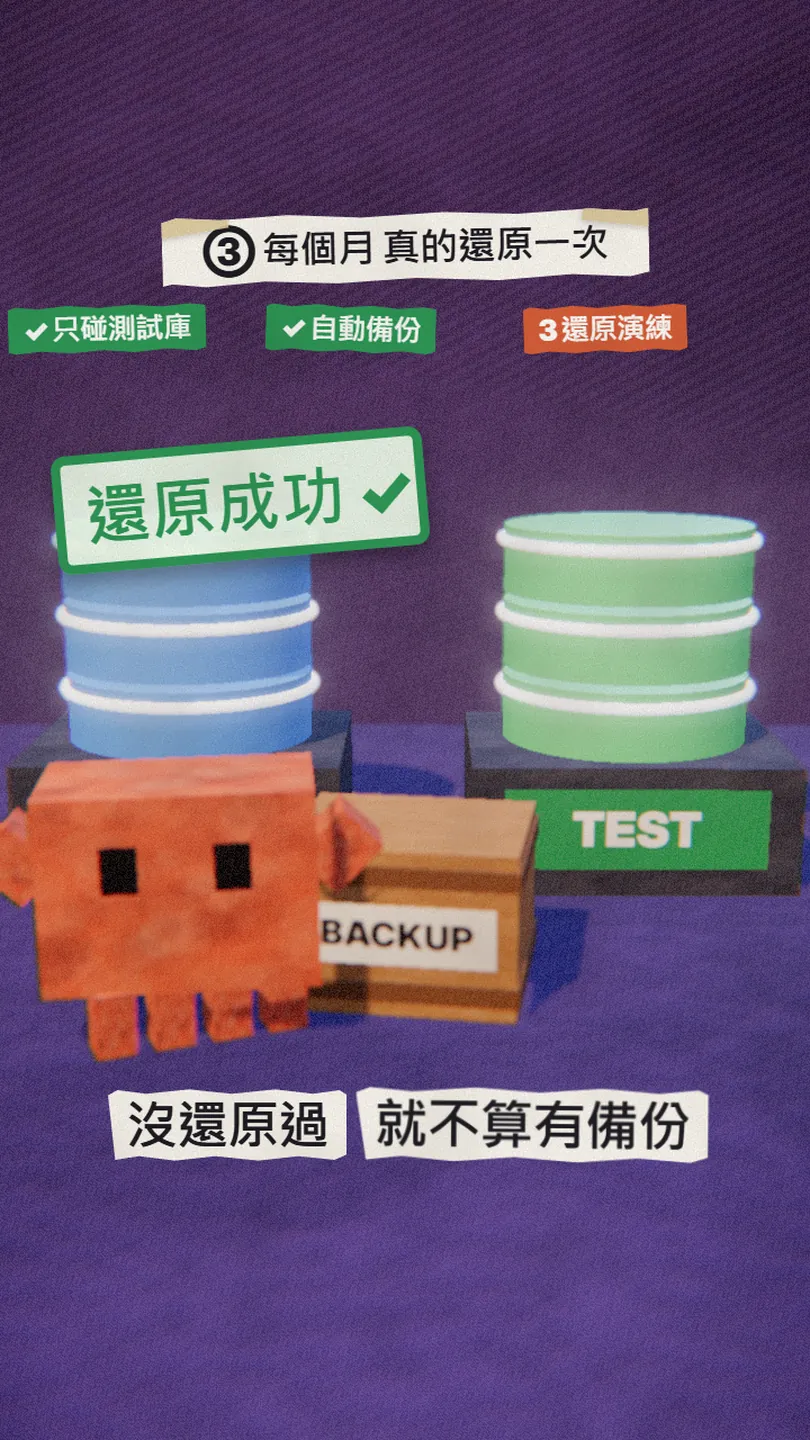
- Set up a test database or project; never practise on production.
- Restore the latest backup into it (or import the files you exported with db dump).
- Open your most important tables and check the row counts and the newest records.
- Write down how long it took and where you got stuck, as a one-page restore guide.
- Put it on your calendar once a month.
06Good to know
- Supabase plans and retention were checked on 30 Oct 2026; the official page wins if they change.
- Restoring a Supabase project makes it unavailable while the restore runs, so practise on a test project.
- The Replit details come from Fortune's reporting, not from Replit's own documentation.
- "Once a month" is my suggested rhythm; the more often your data changes, the more often you should drill.
Sources
- Fortune: AI coding tool Replit wiped a database (23 Jul 2025; checked 30 Oct 2026)
- Supabase docs: Database Backups (daily backups, retention, PITR; checked 30 Oct 2026)
- Supabase CLI docs: supabase db dump (checked 30 Oct 2026)
- GitLab: Postmortem of database outage of January 31 (10 Feb 2017; checked 30 Oct 2026)
What should the next reel cover?
I test Claude and AI tools every day and turn the useful ones into reels. Follow @vivianlin.tech to catch each new guide.